Module 2: Data processing
Module contents:
BASIC | 6 MIN
After watching this video, you will be able to create a workflow to process events, explain the use of workflows in Moogsoft, and set up an event workflow to normalize event data.
Documentation on this topic is available.
Use case walkthrough: Event data normalization ►
This video steps through a use case for setting up custom event processing and normalizing events in APEX AIOps Incident Management.
*Please note Moogsoft is now part of Dell's IT Operations solution called APEX AIOps, and changed its name to APEX AIOps Incident Management. The UI may differ slightly but the content covered is still relevant.
After watching this video, you will be able to create a workflow to process events. Specifically, you can explain the use of workflows in Incident Management and set up an event workflow to normalize event data.
Workflow Engine lets you create and add additional processing to your Incident Management workflow.
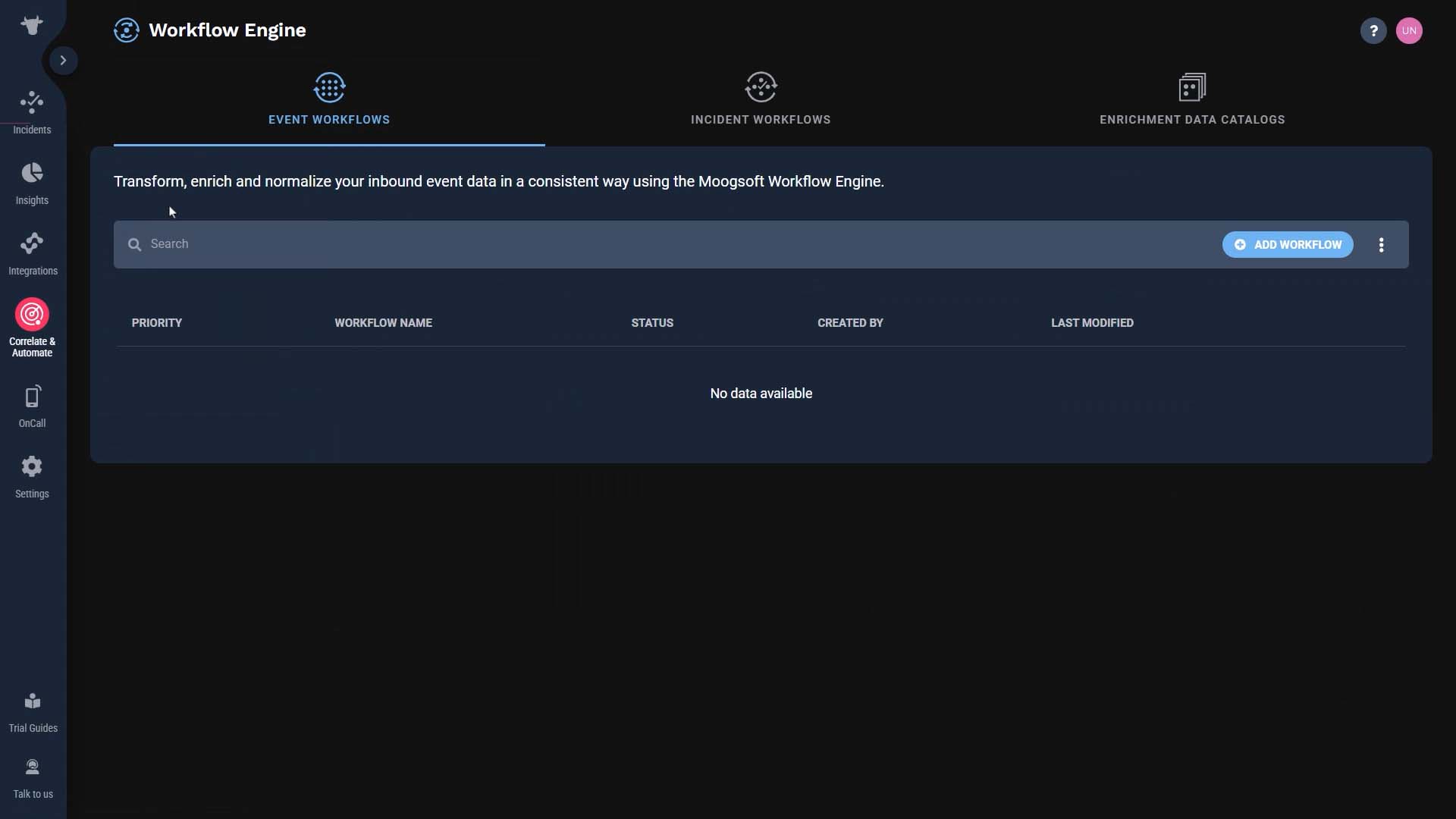
Let’s use an example and actually build a workflow.
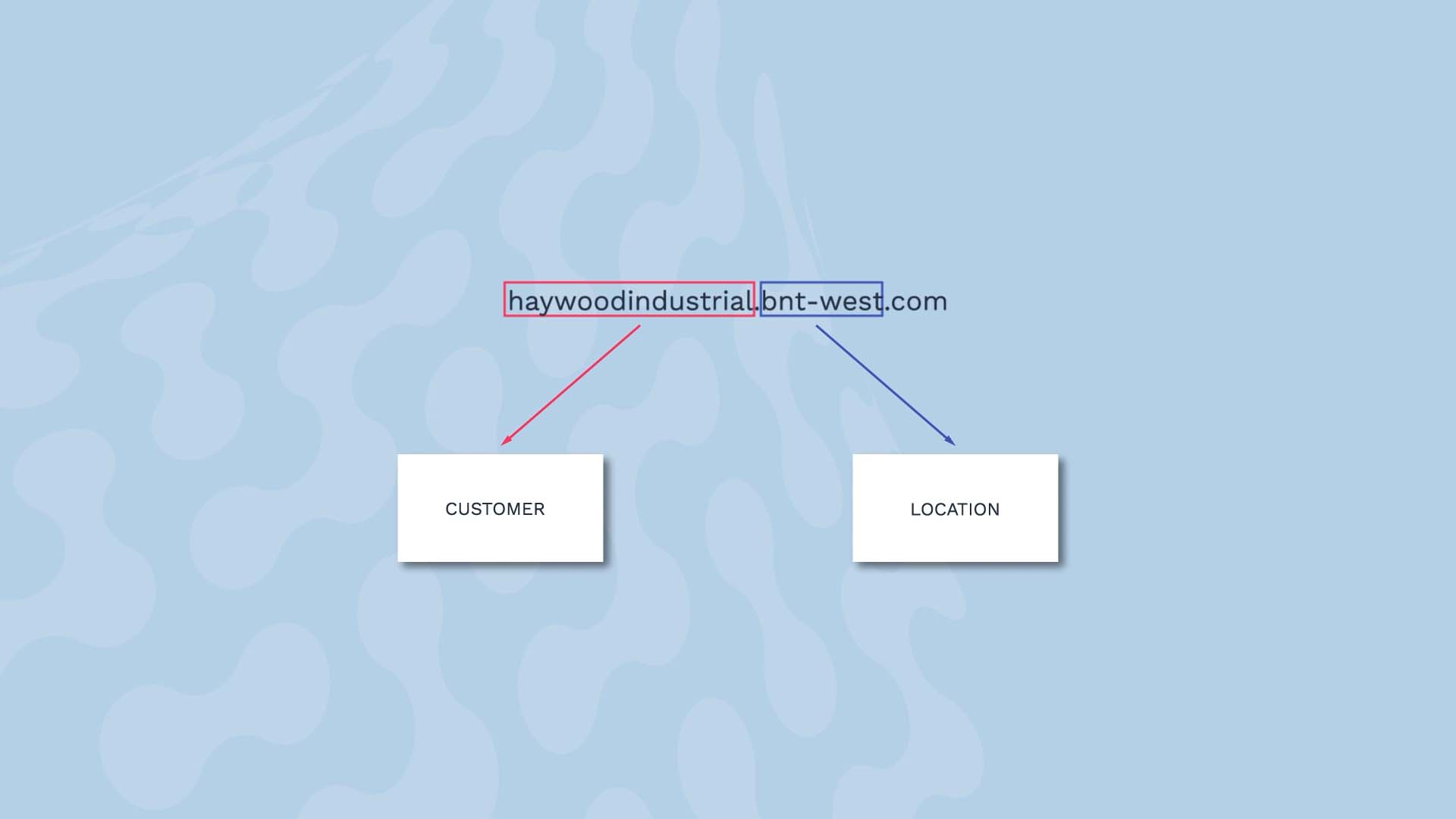
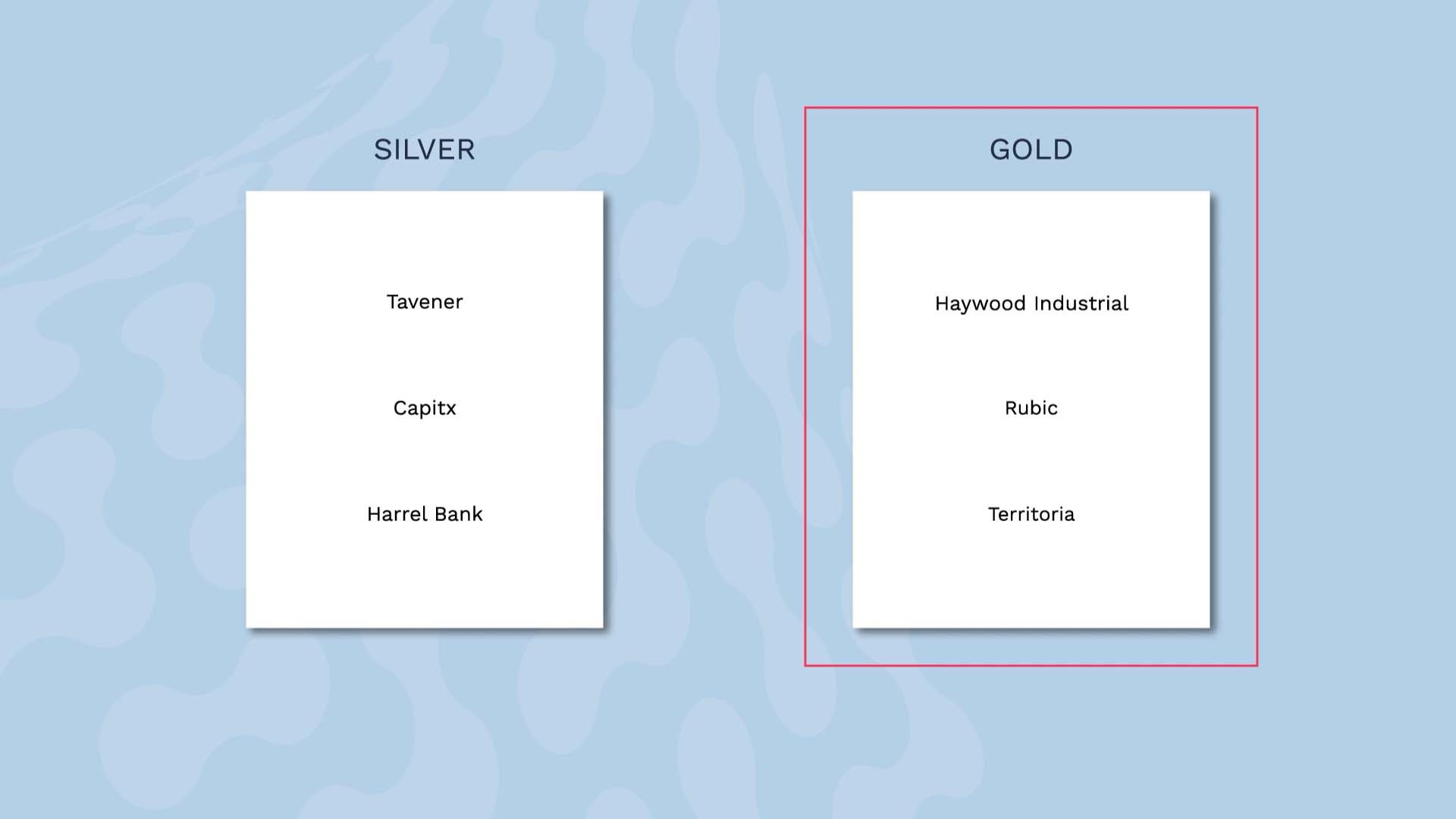
Suppose you are a SAAS company and you are planning to cluster alerts by location and customer. However, your source event data looks like this. The host part of the FQDN has your customer names, and the domain is the location.
So, with the first action in this workflow, we will split the source field value and map it to the customer and location fields.
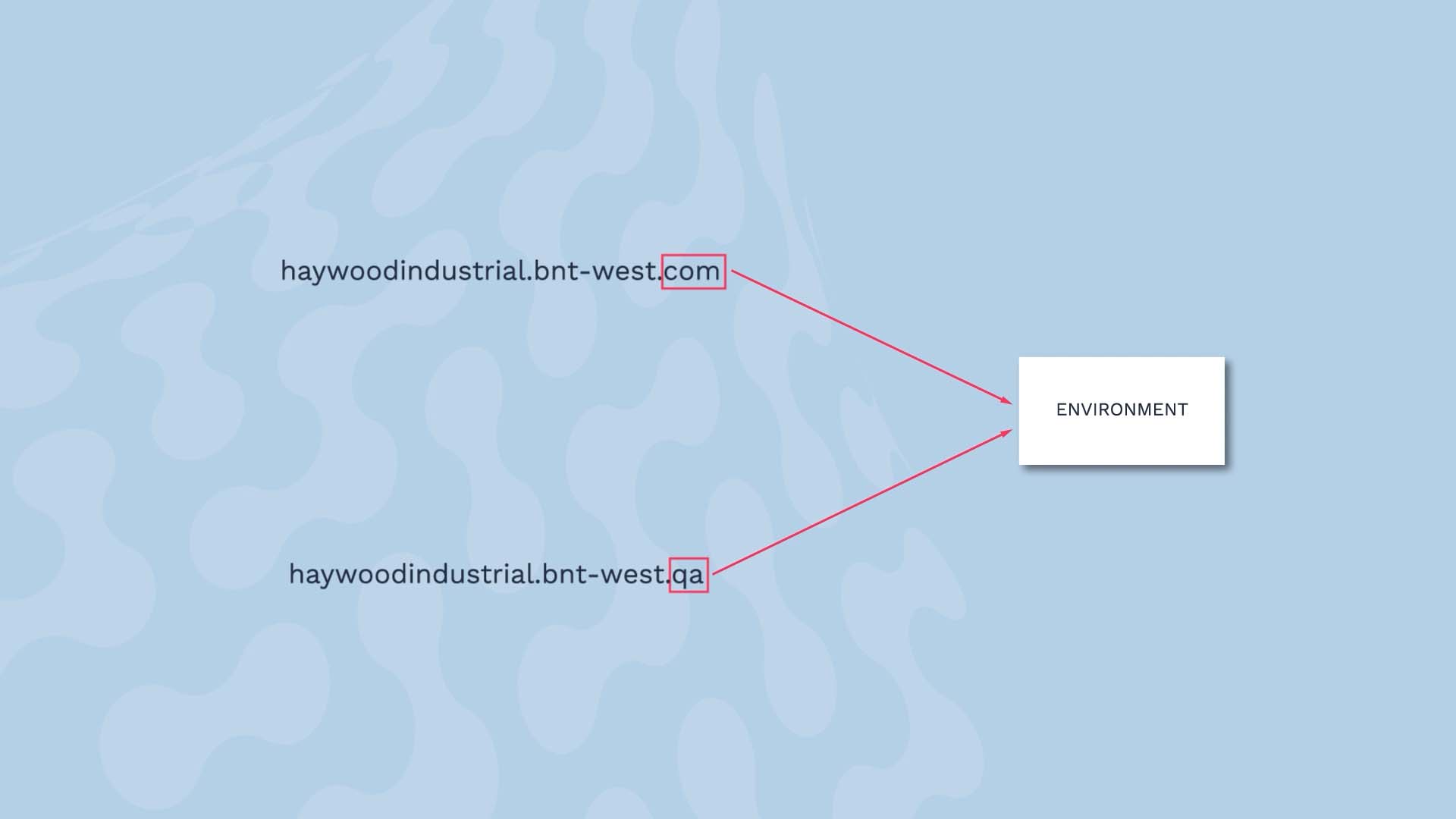
Also, some of your events are from QA servers, and we don’t want our users to pay attention to them. So as the second action in this workflow, we are going to add an environment label so we can exclude those events from the clustering process.
Finally, We have two support levels - silver and gold. In order to prioritize the gold level support customers, we want to tag the events from them as such.
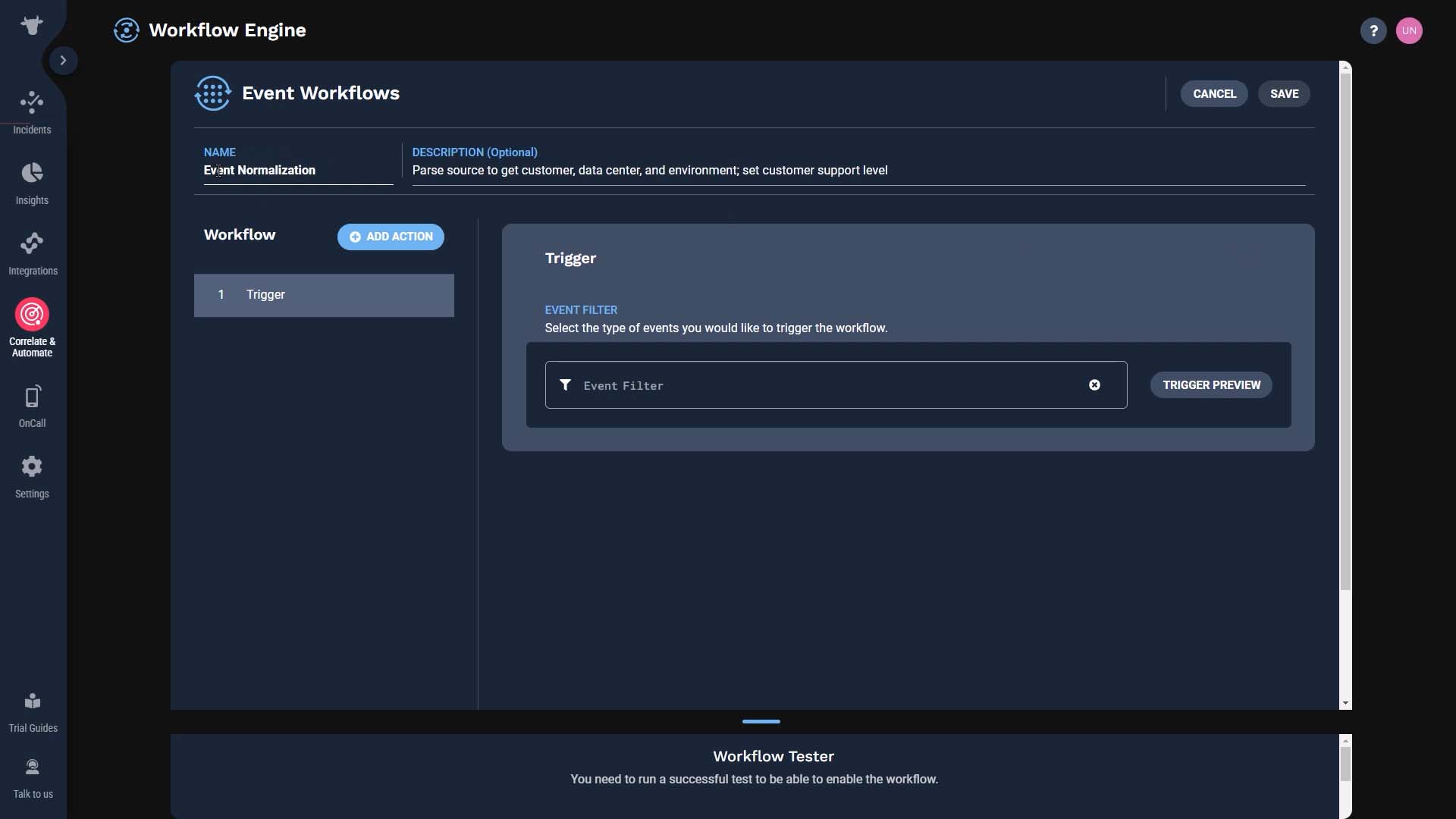
Let’s build a workflow to take care of all three tasks. Let’s make sure everyone knows what this workflow is about…
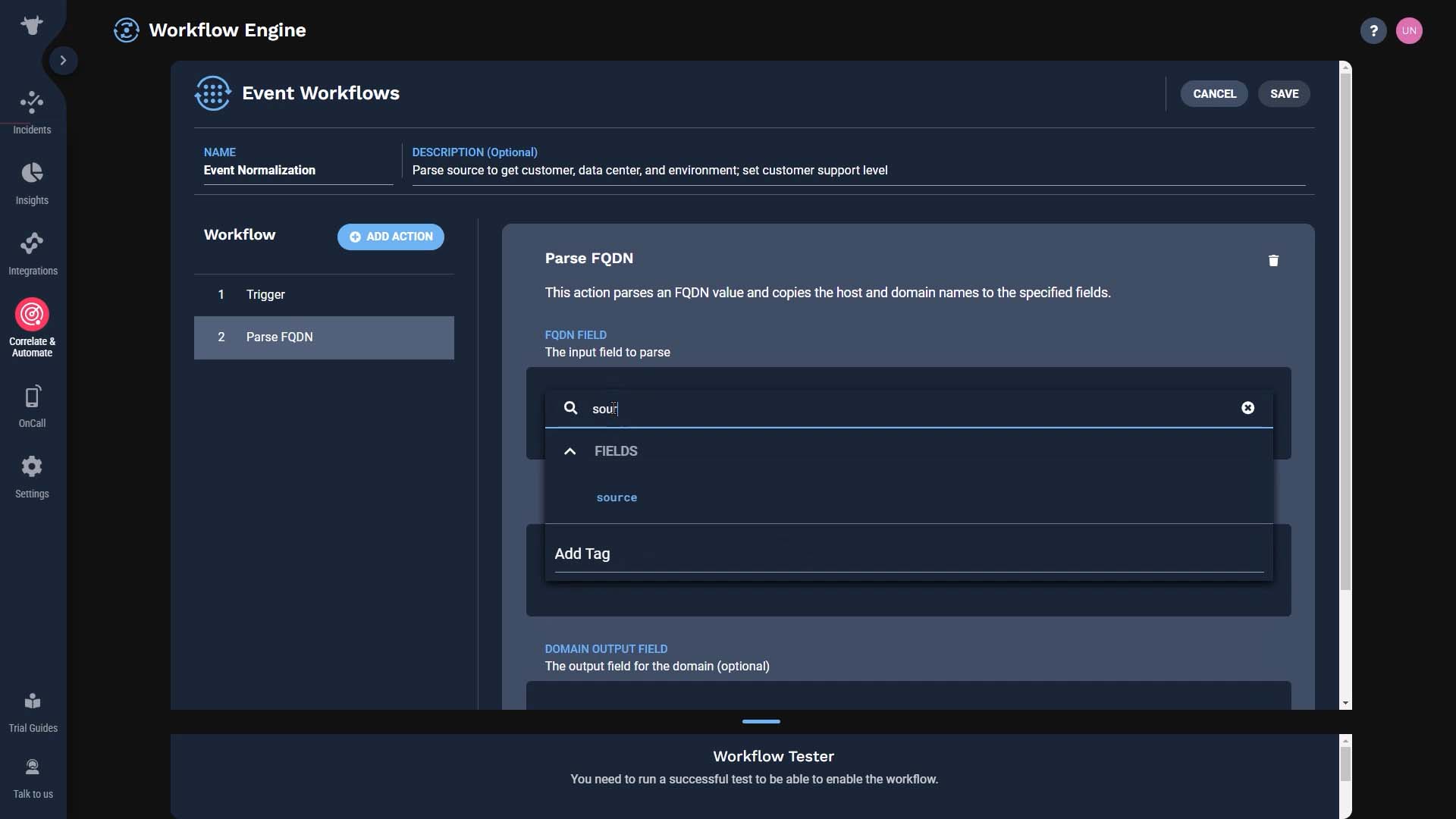
The field we want to examine is the Source field.
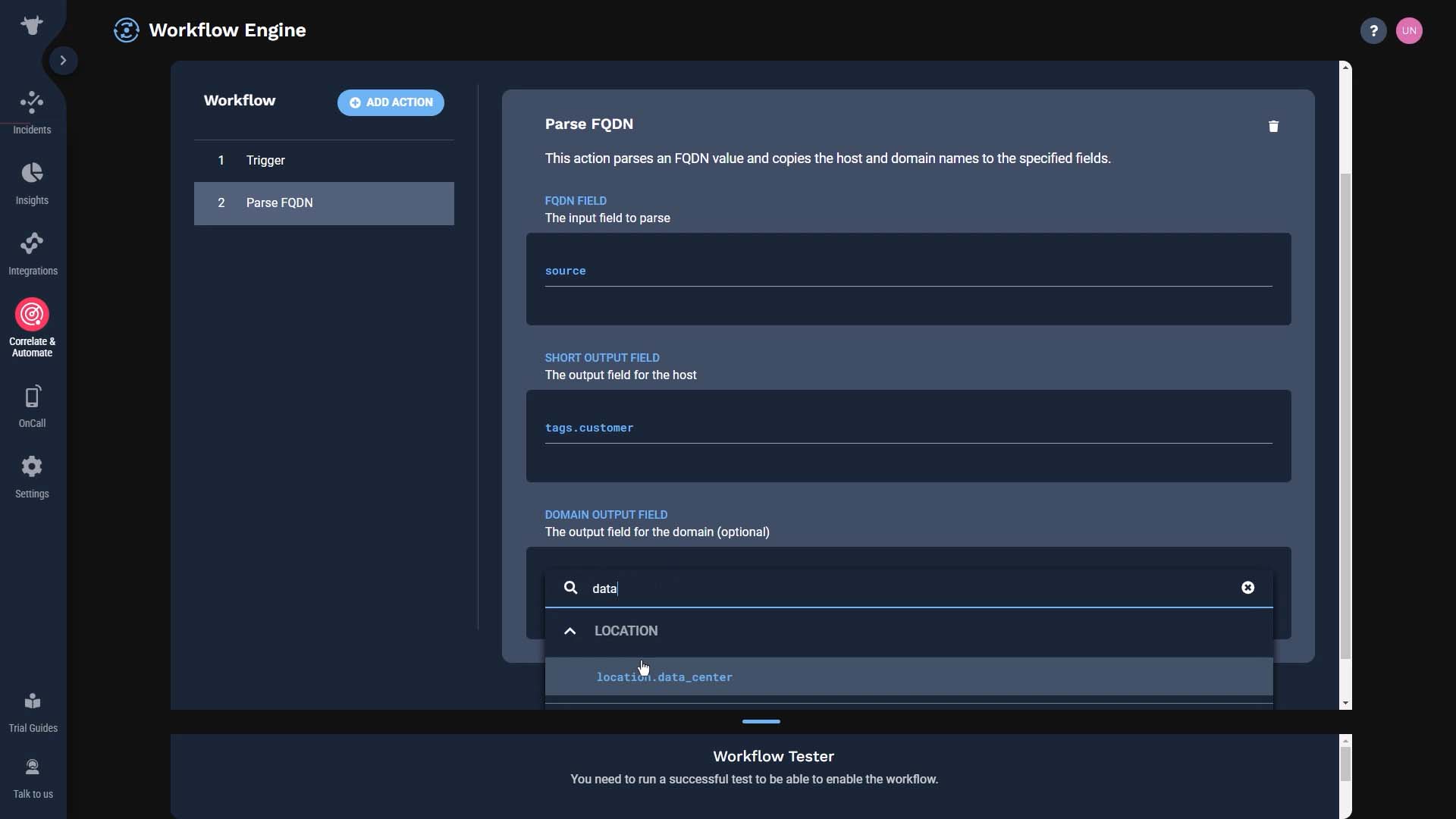
And the host information needs to go into a customer tag. The domain information needs to go into location. We’ll put it in the data center location field. We are all set with task number 1.
Next, we’ll extract the suffix from the source name to label the test and production environments.
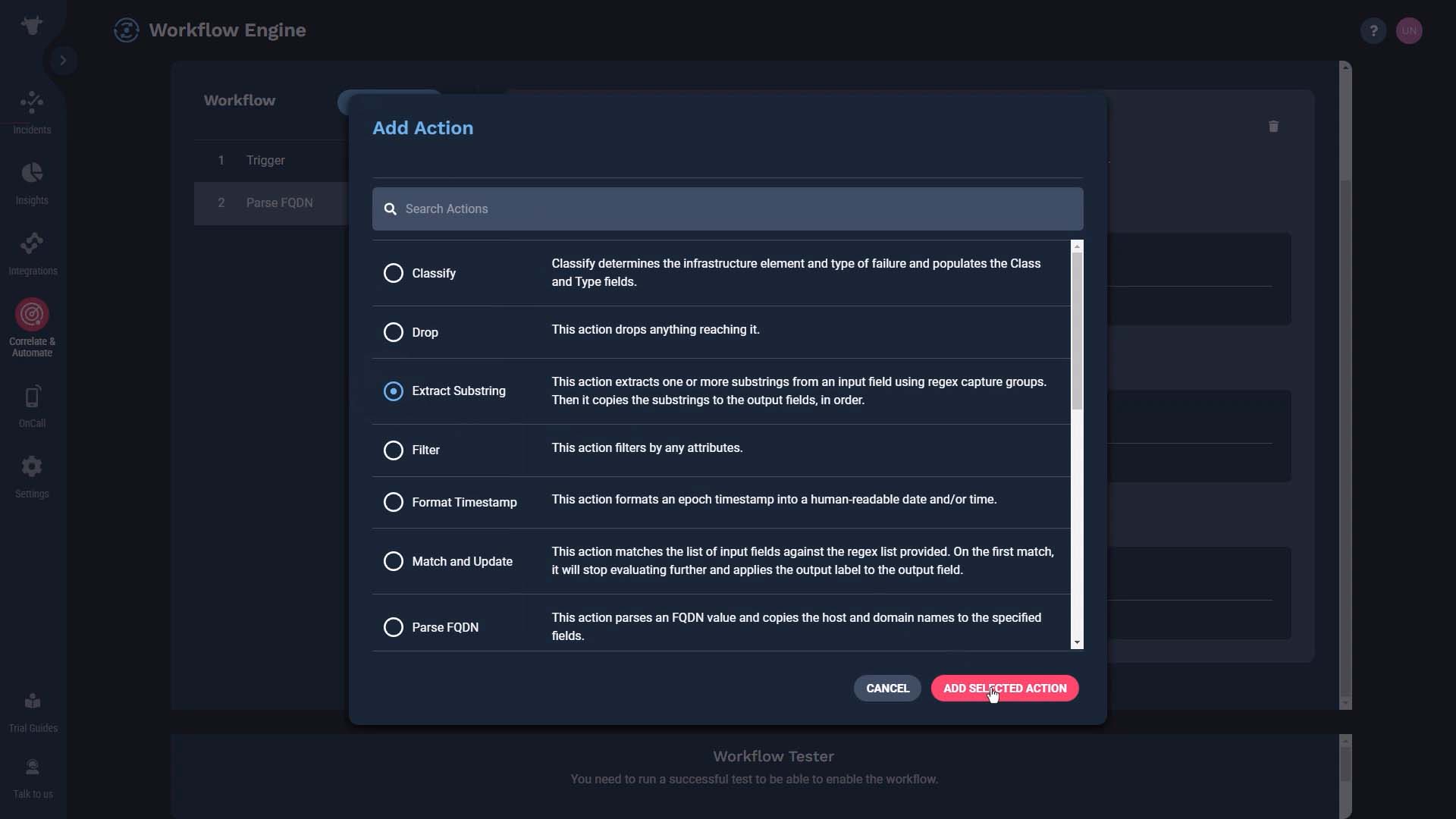
Here is a regular expression to capture the suffix of the source name.
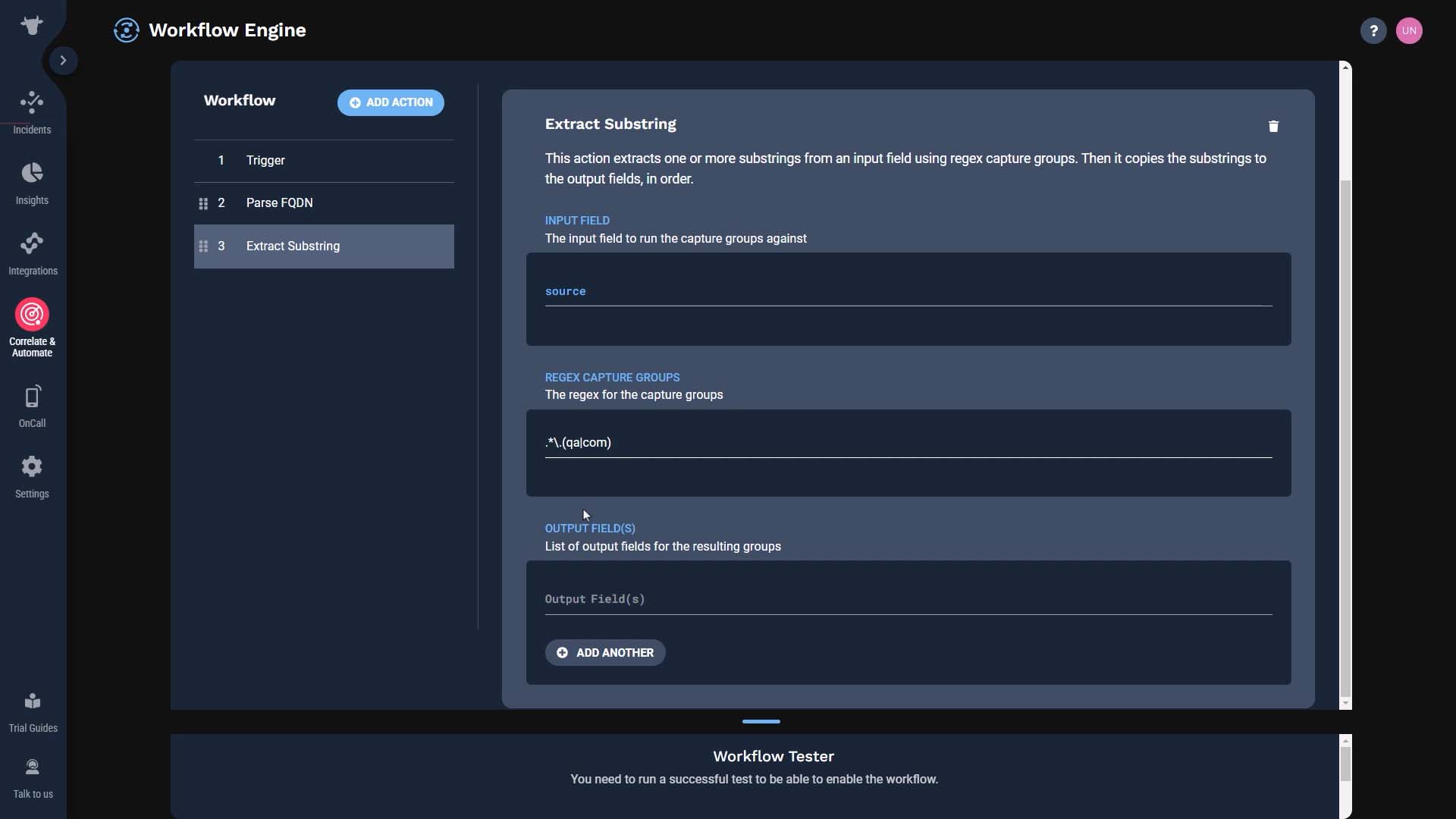
We’ll store it in an Environment tag. That task is done.
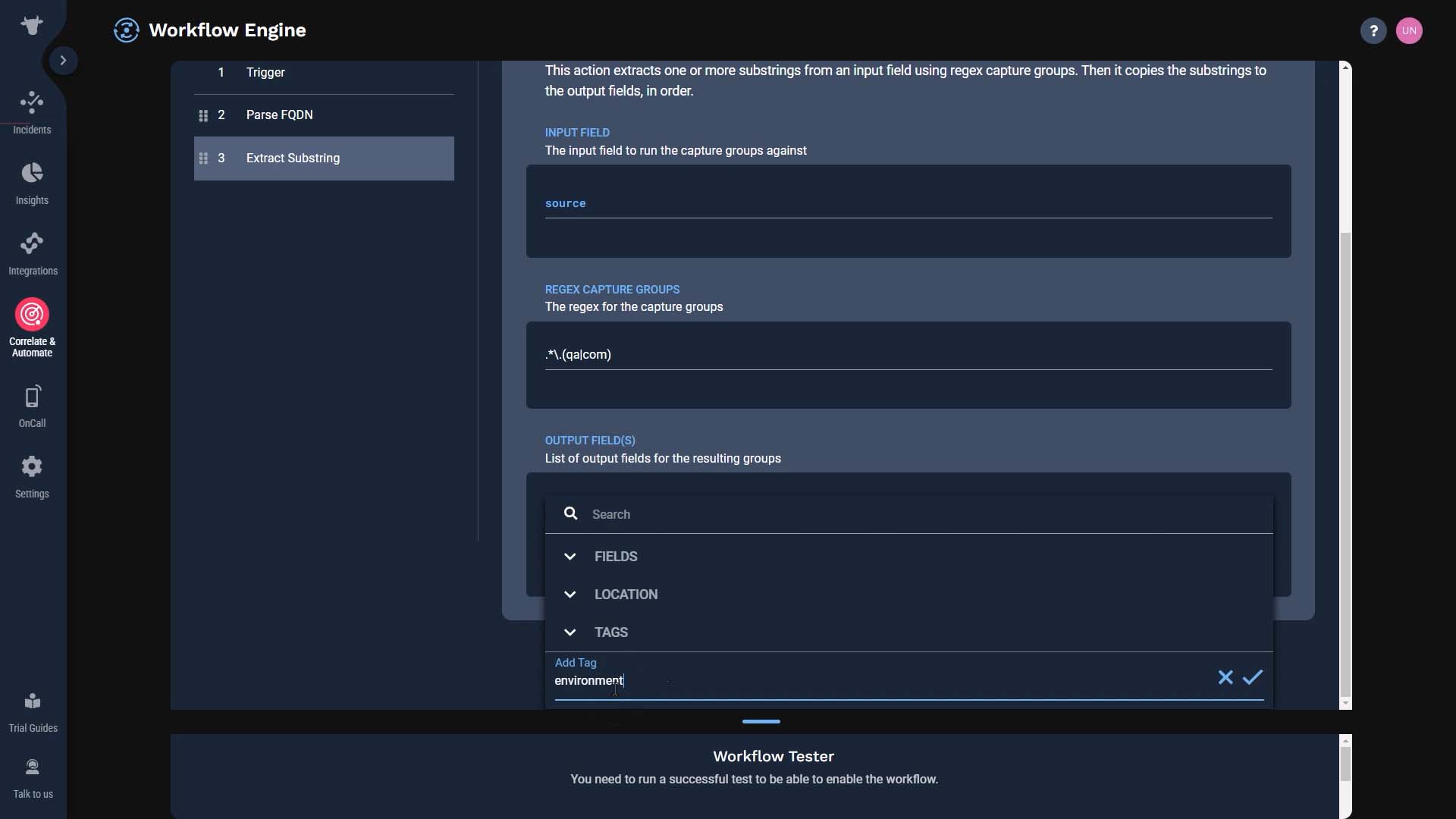
Finally, we need to label the support level so users can quickly identify which alerts are impacting your gold level customers.
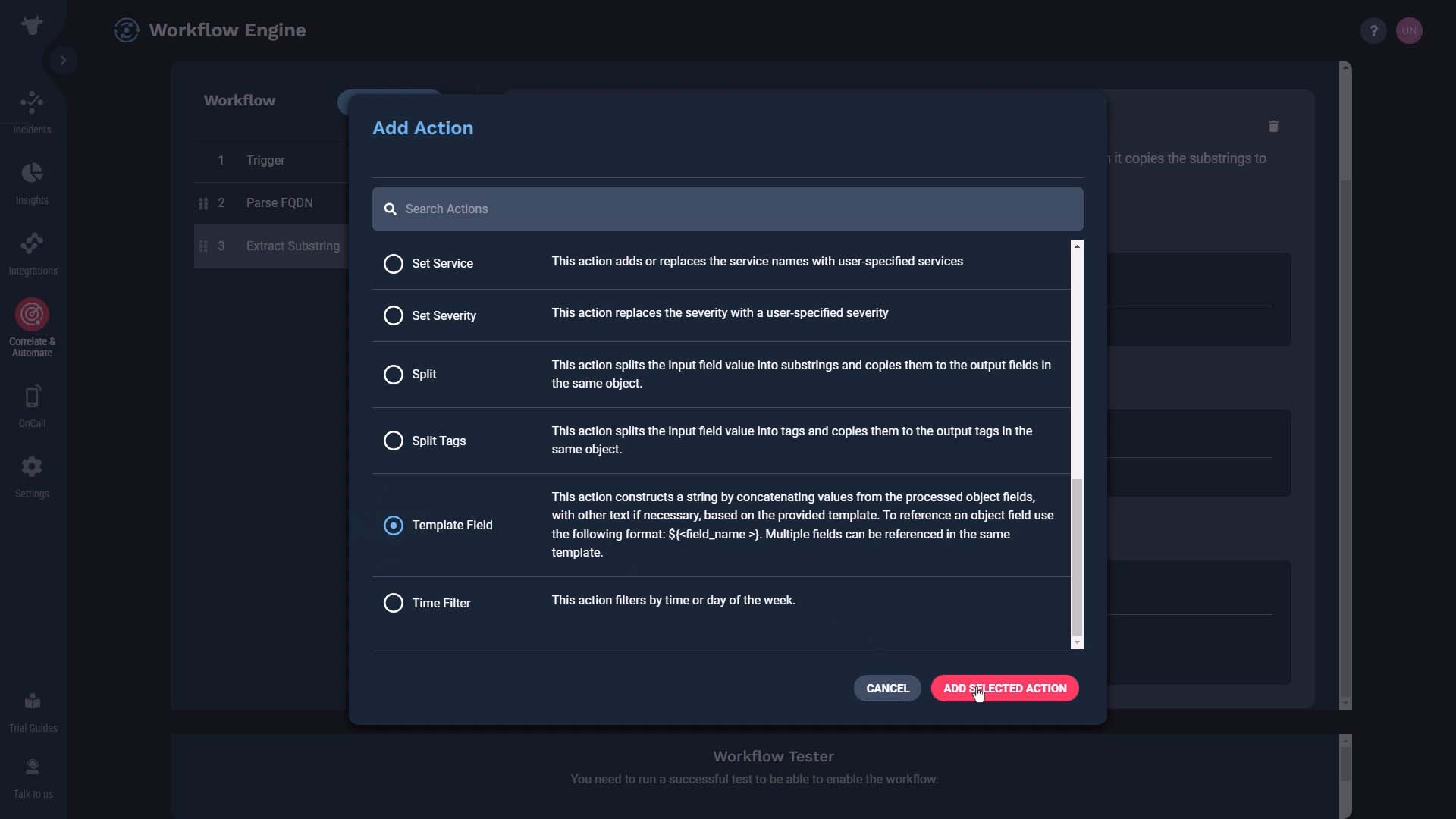
We’ll add a Support tag and set the default support level to silver.
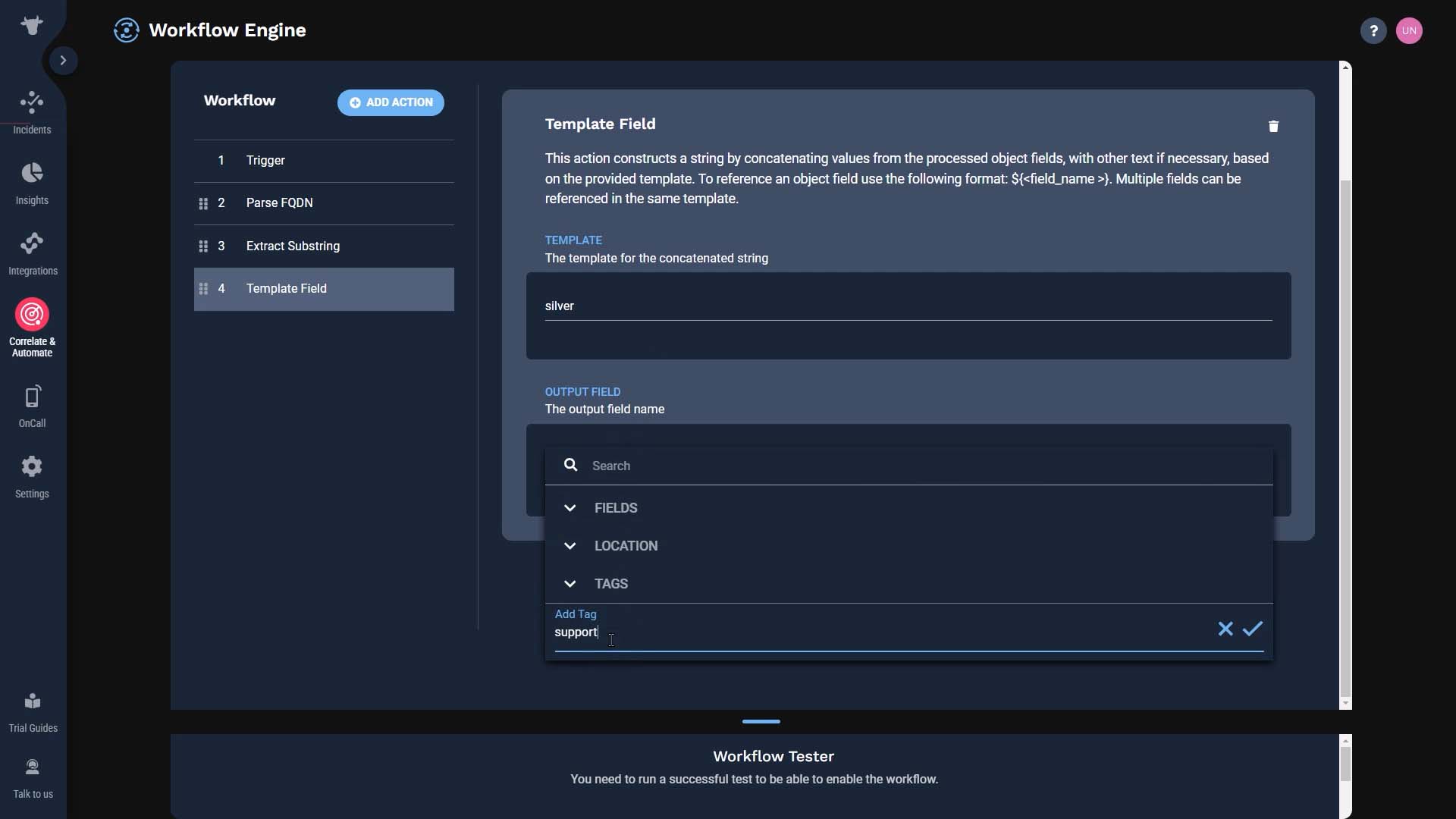
We’ll match these customer names. Then, we’ll update their support level to gold.
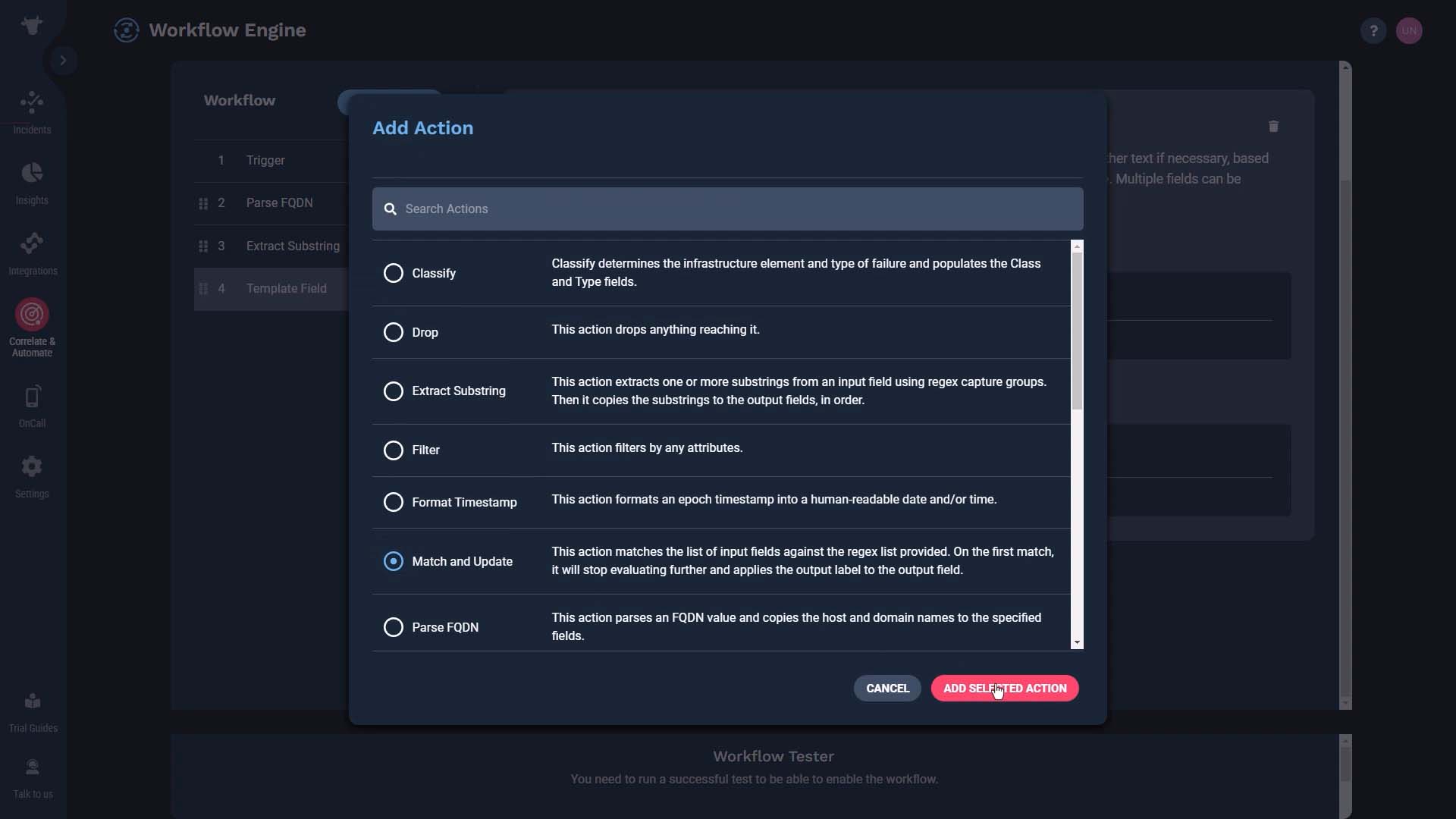
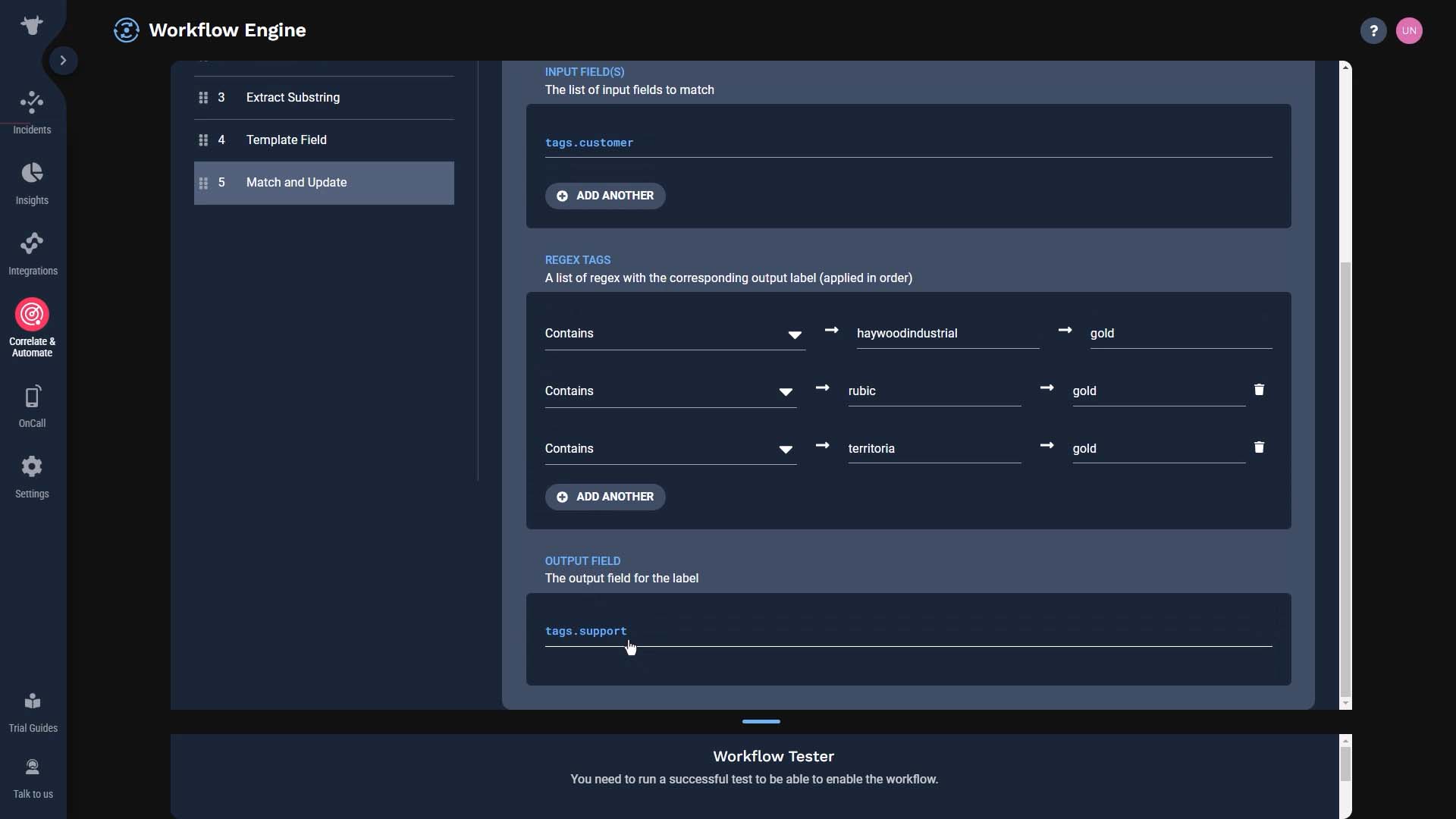
Now we use the support level information down the stream. We can add the support level to the incident description, or send the gold support cases to the premium support team. We are done setting up all three actions.
Now let’s test this.
We can test the workflow right from this UI. We’ll simulate the input here. Let’s say the source fields says this. If our workflow is set up correctly, this input should be parsed and mapped to three different fields for us - customer, location, and environment.
Here are the test results. Looks like the source value got properly parsed and mapped to the customer and the location fields.
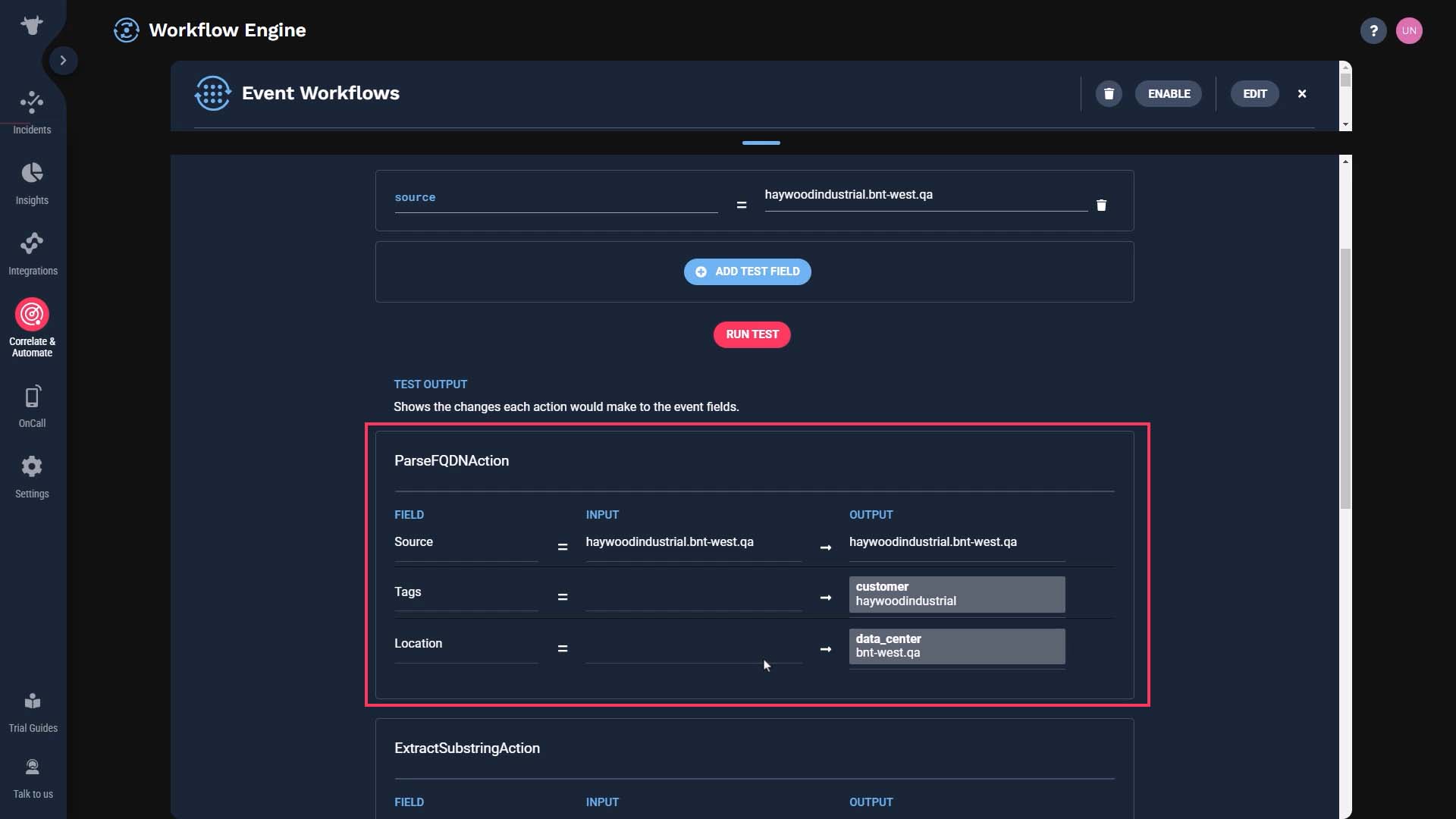
We’ve also extracted the environment substring.
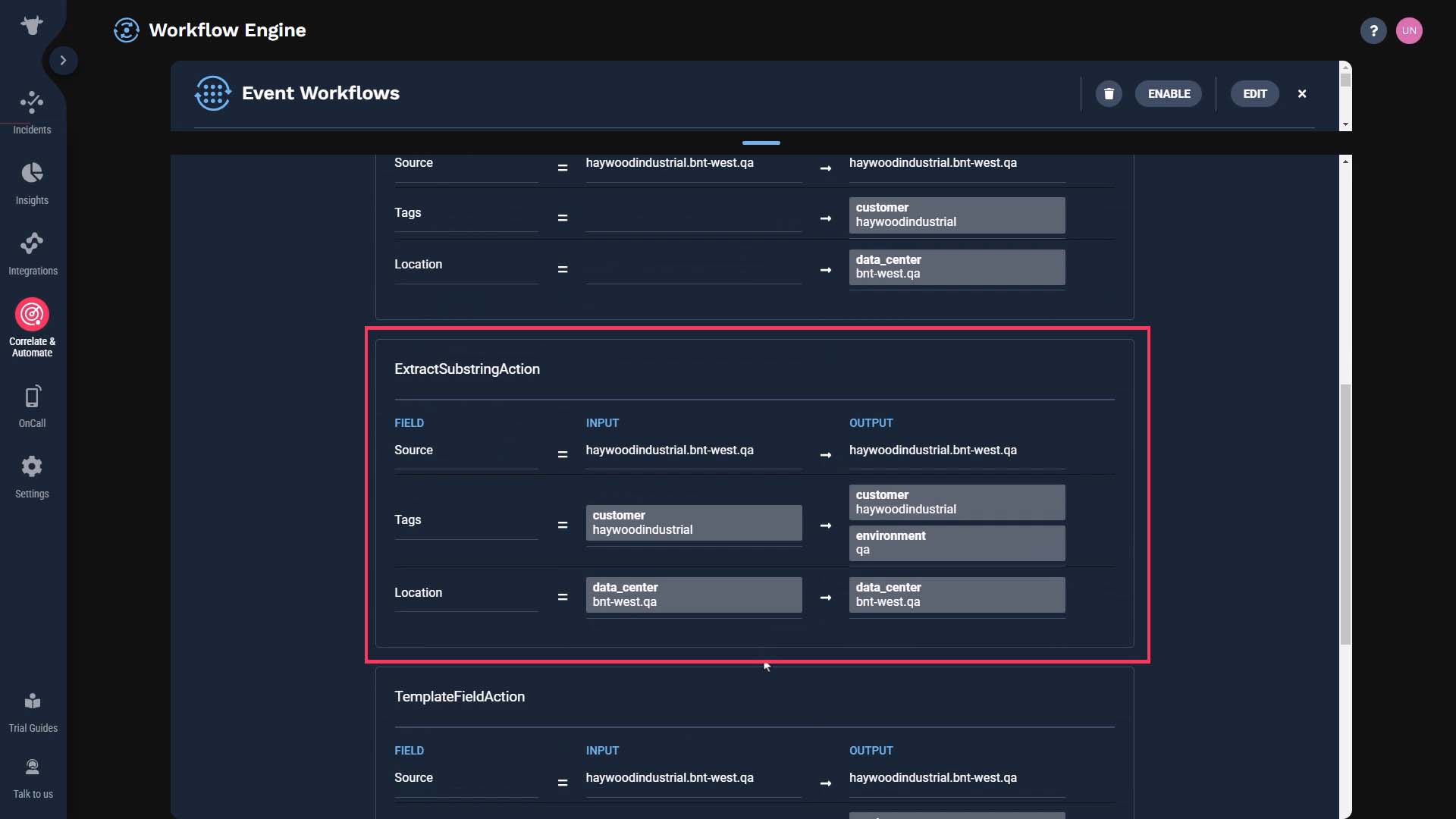
Here’s the support level label.
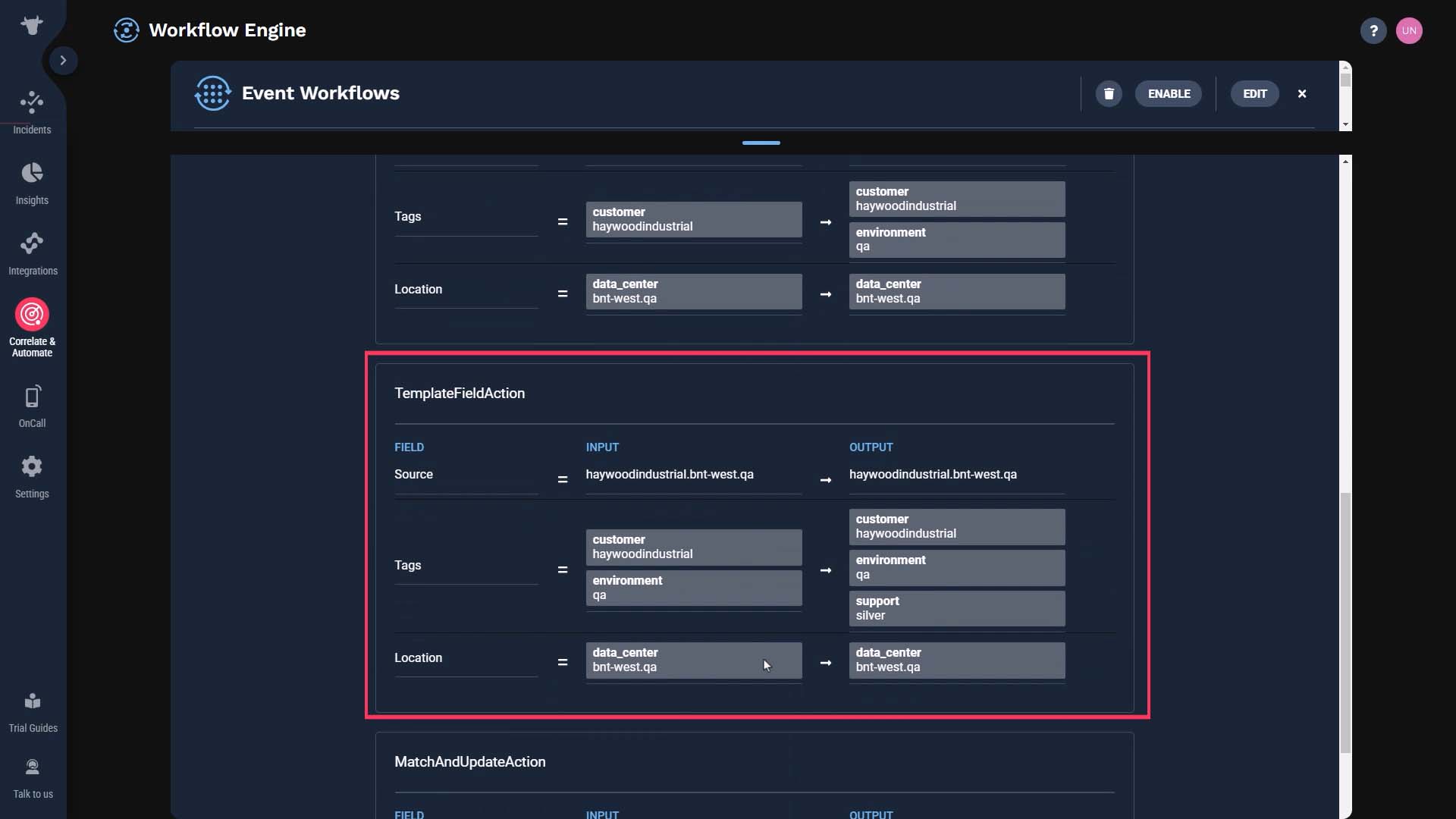
And we’ve updated the support level for gold customers.
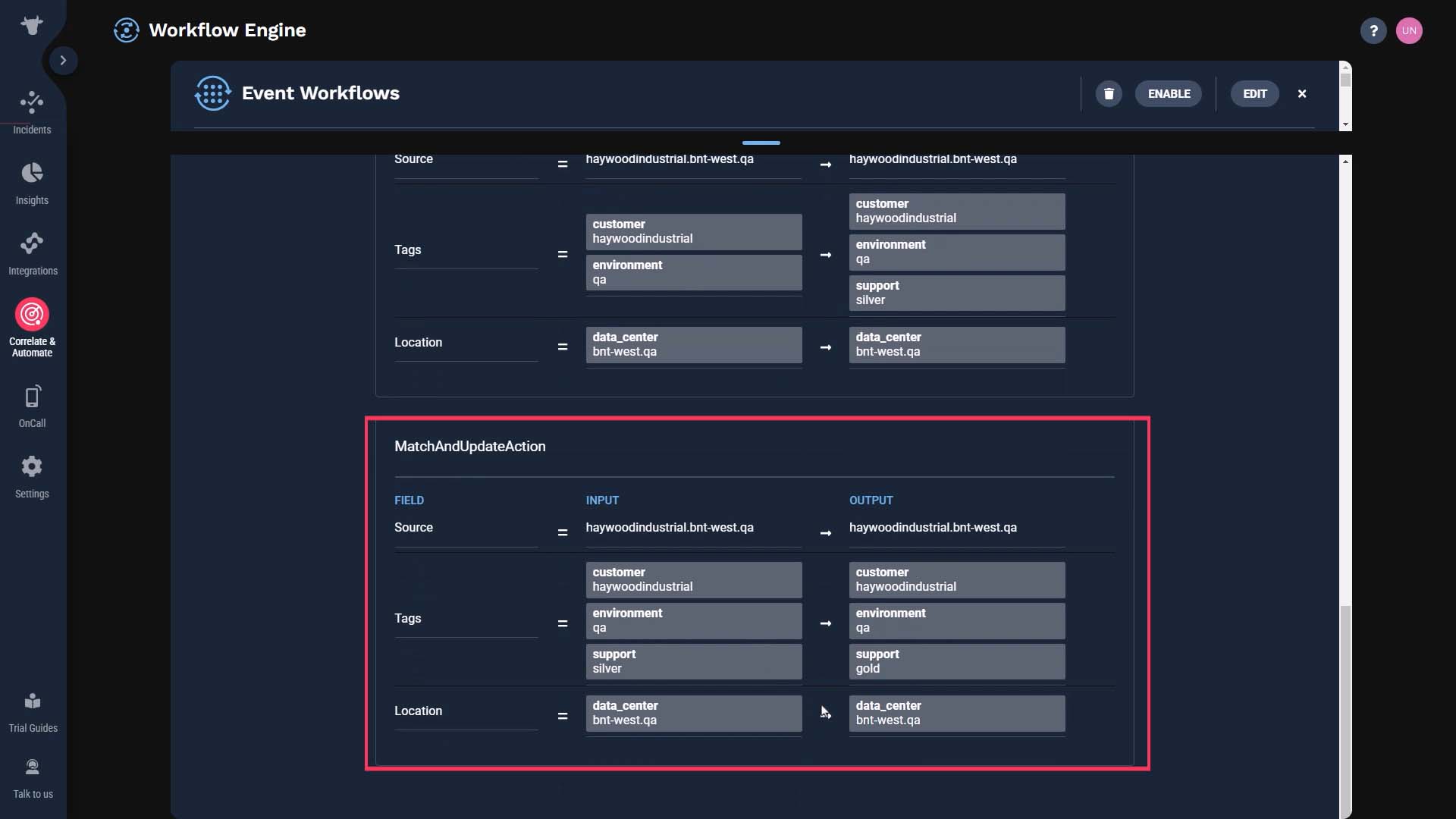
Everything looks good, so let’s activate it.
Here are the alerts from our monitoring source. The incoming data is customized the way we want it, and its ready for produce meaningful incidents.
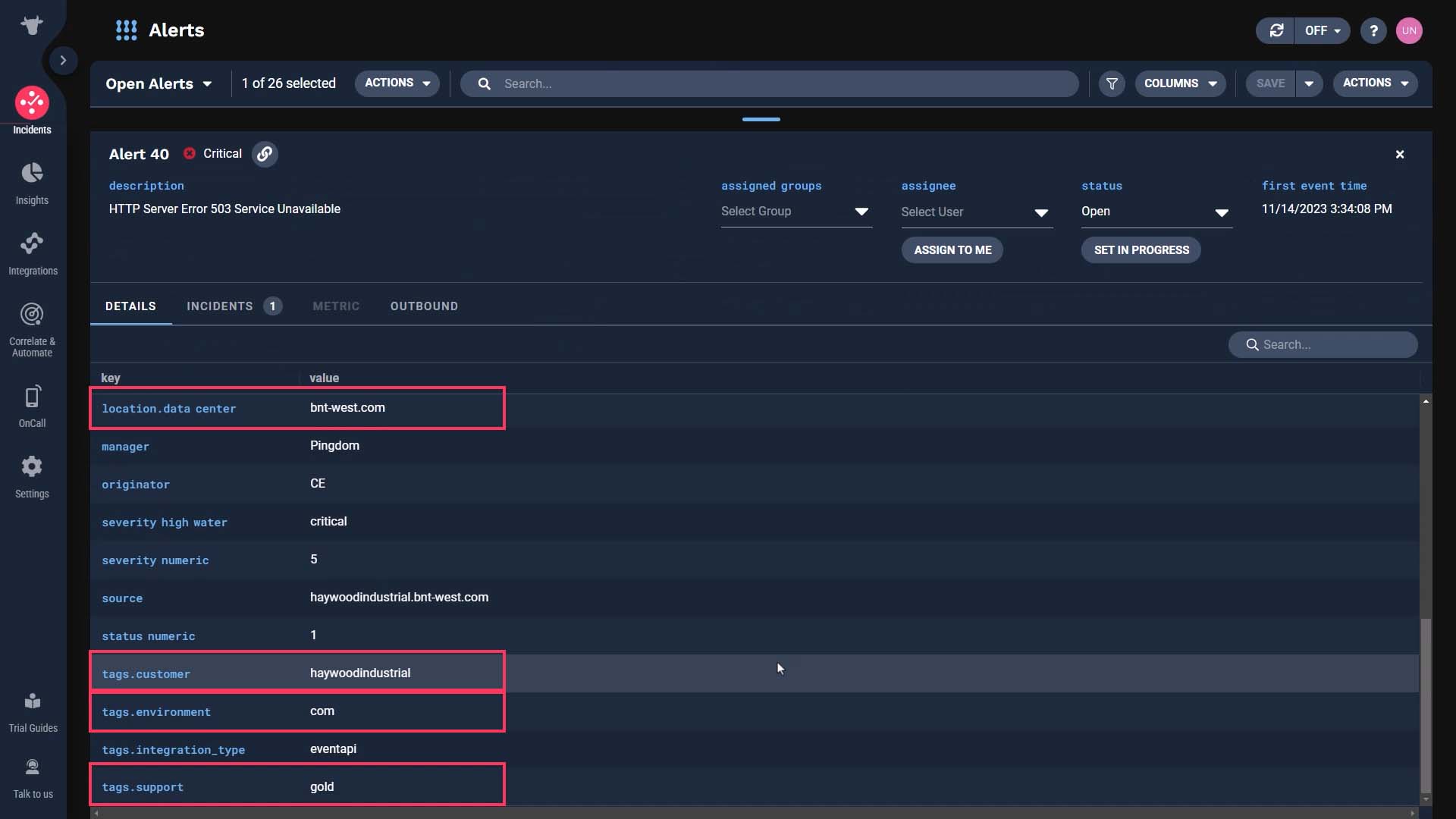
Now you know how to use event workflows in Incident Management to normalize event data. Thanks for watching!
BASIC | 6 MIN
In this video, learn how to add external data to events in Moogsoft using the Workflow Engine, Data Catalog, and the Correlation Engine.
Documentation on this topic is available.
Use case walkthrough: Add external data to events ►
This video explains how to Add External Data to Events in APEX AIOps Incident Management by using a data catalog to facilitate enrichment.
*Please note Moogsoft is now part of Dell's IT Operations solution called APEX AIOps, and changed its name to APEX AIOps Incident Management. The UI in this video may differ slightly but the content covered is still relevant.
In this quick video, we’ll go over how to configure enrichment in APEX AIOps Incident Management.
Here’s our scenario. We want to cluster our alerts by the service impacted,
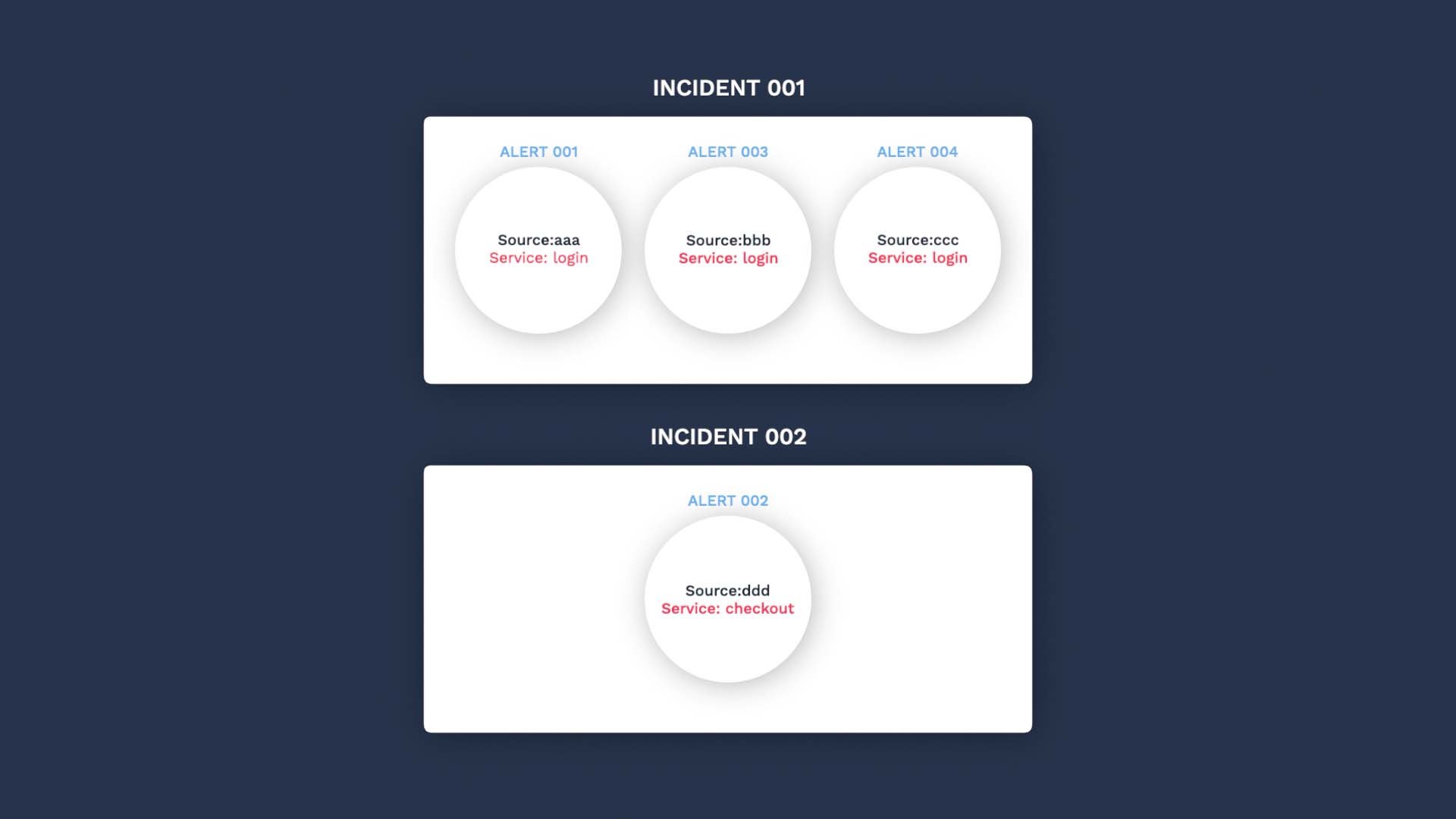
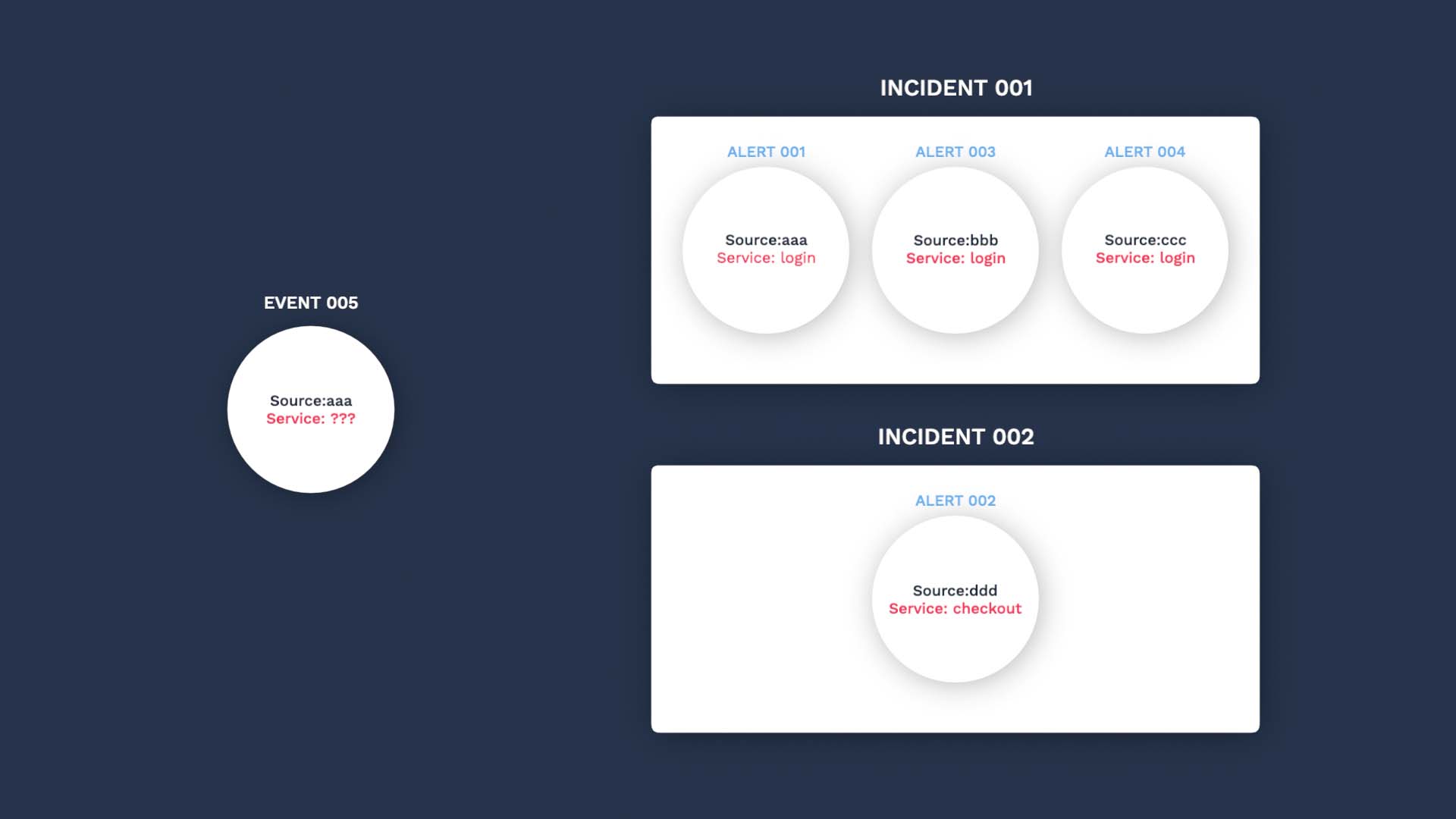
But the incoming events do not always have the service information.
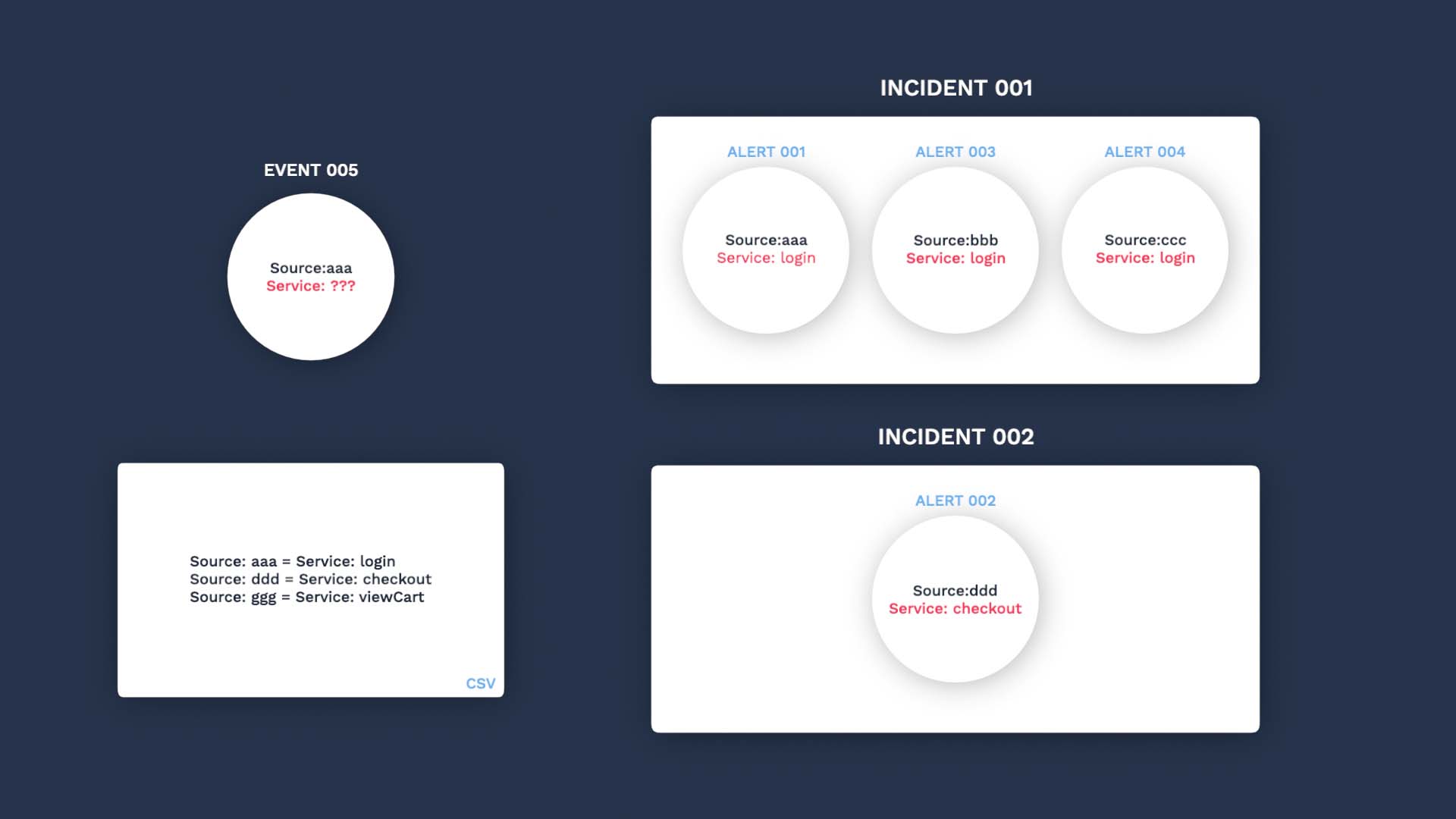
We do have a spreadsheet that stores the source to service connections,
So we want to query by the source in the data catalog, retrieve the service information, and add it to the events.
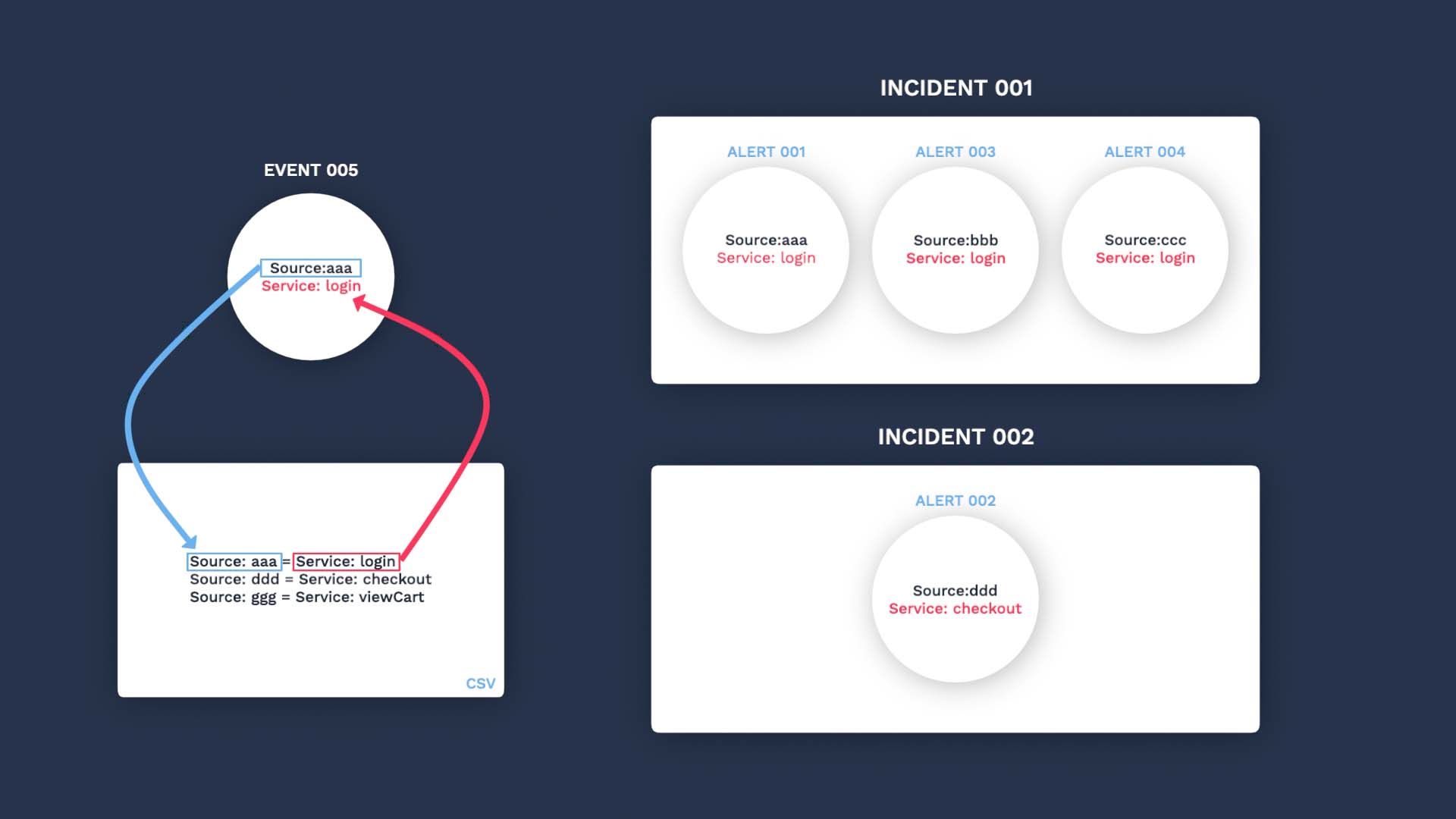
It takes 3 steps to make this happen.
First we need to upload the service data to APEX AIOps Incident Management.
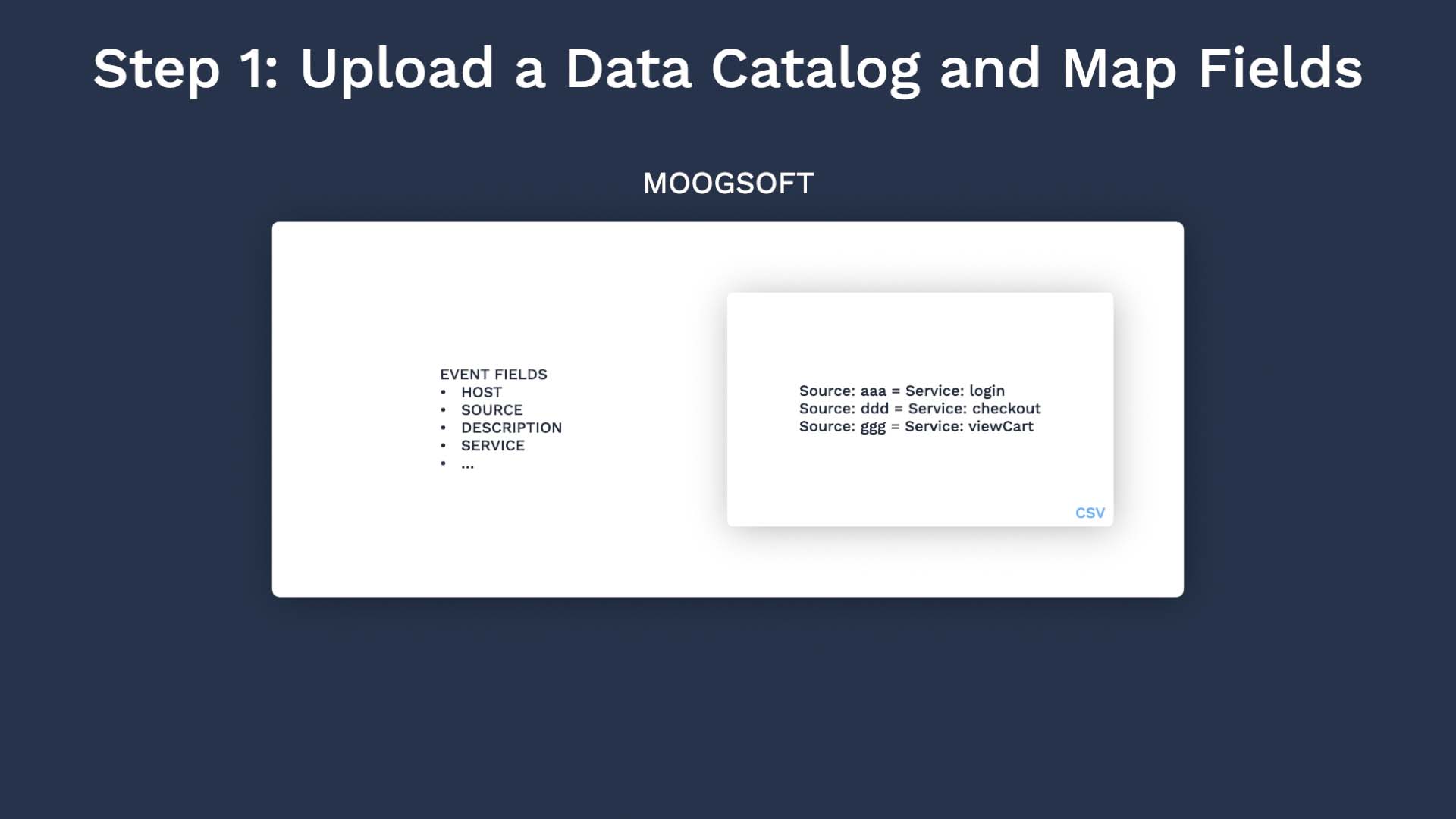
Next set up a process to look up the catalog for the matching source information, to grab the service.
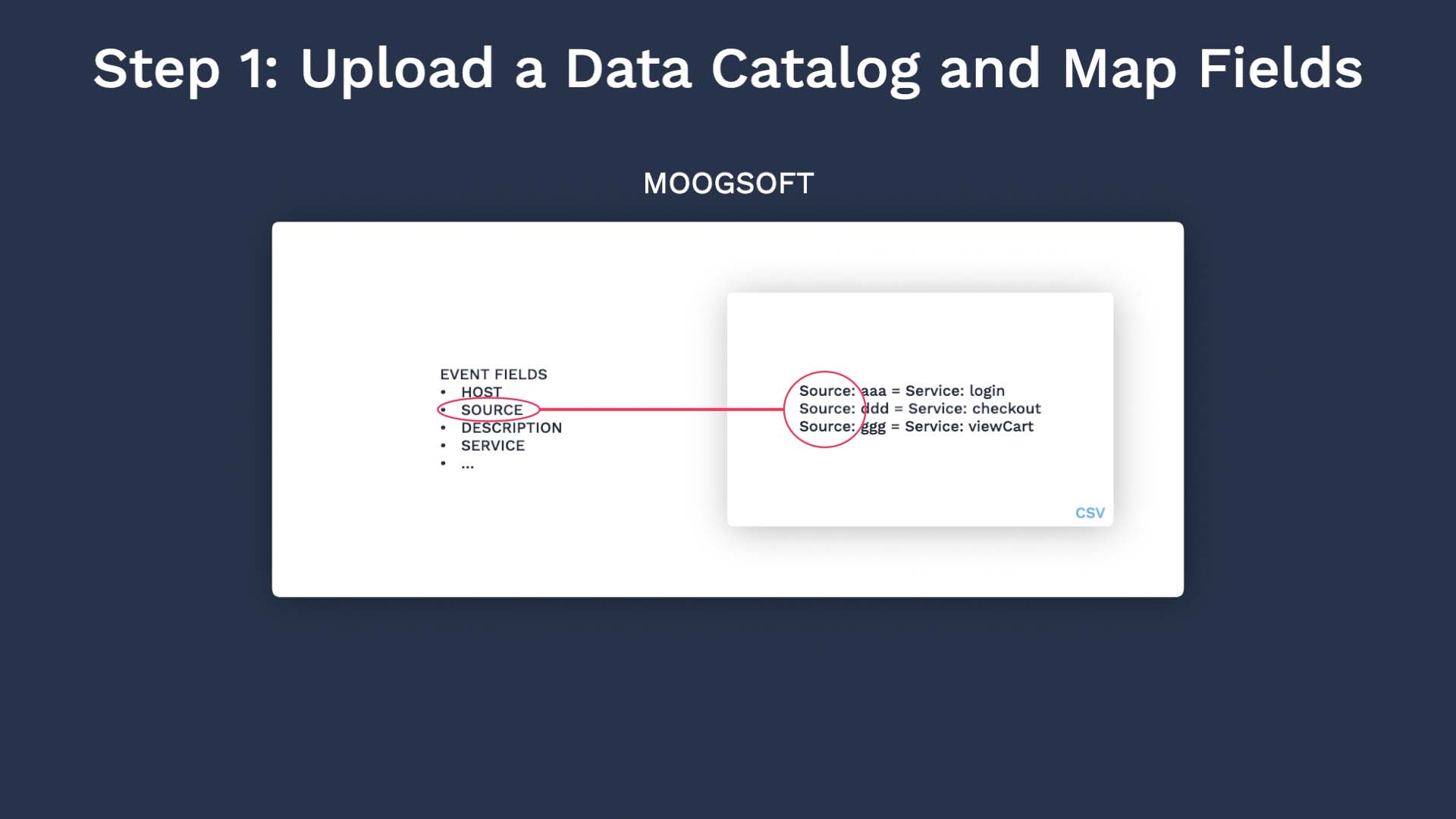
Next set up a process to look up the catalog for the matching source information, and add to events.
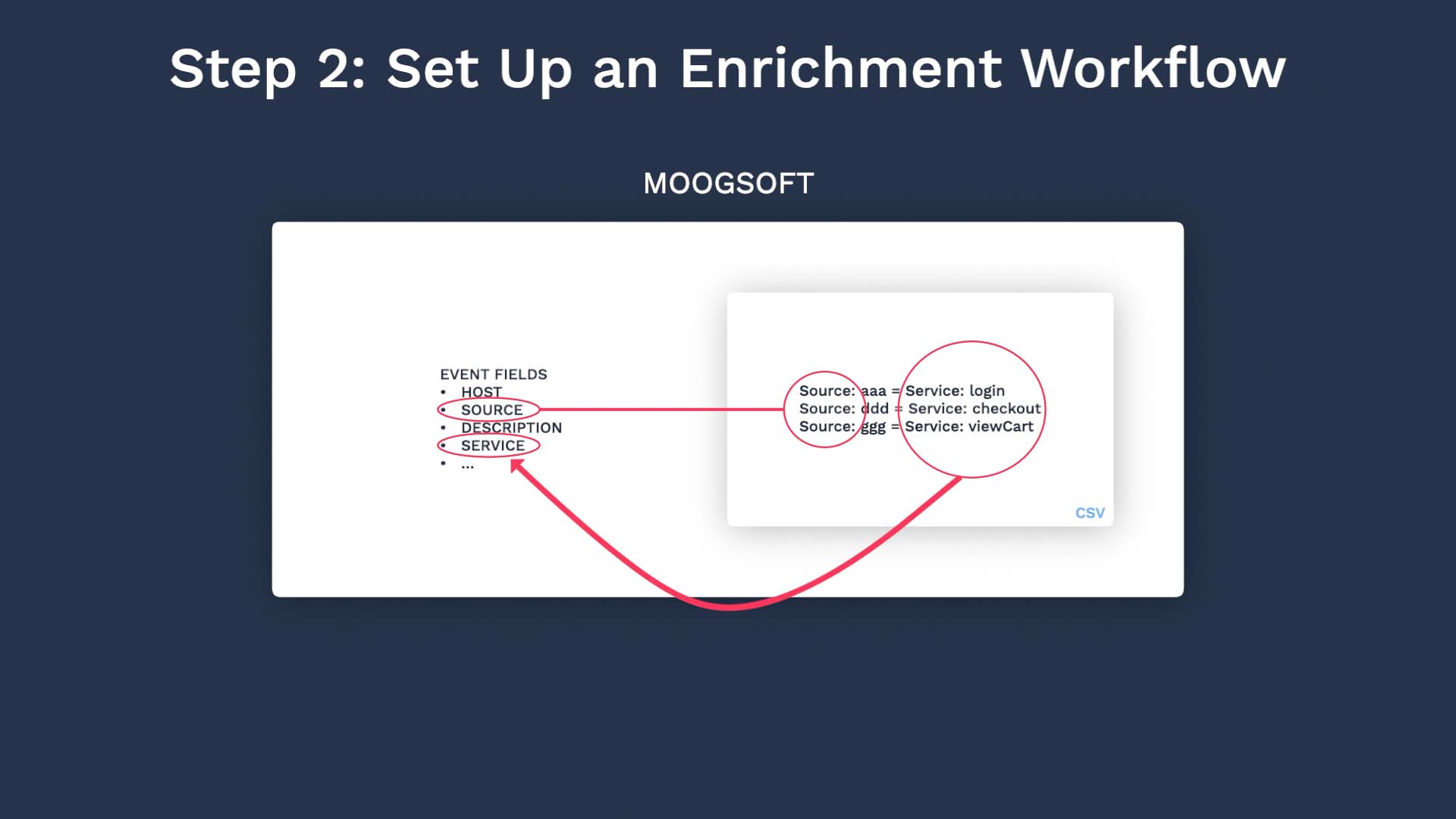
Lastly, cluster alerts by the service field value using the correlation engine.
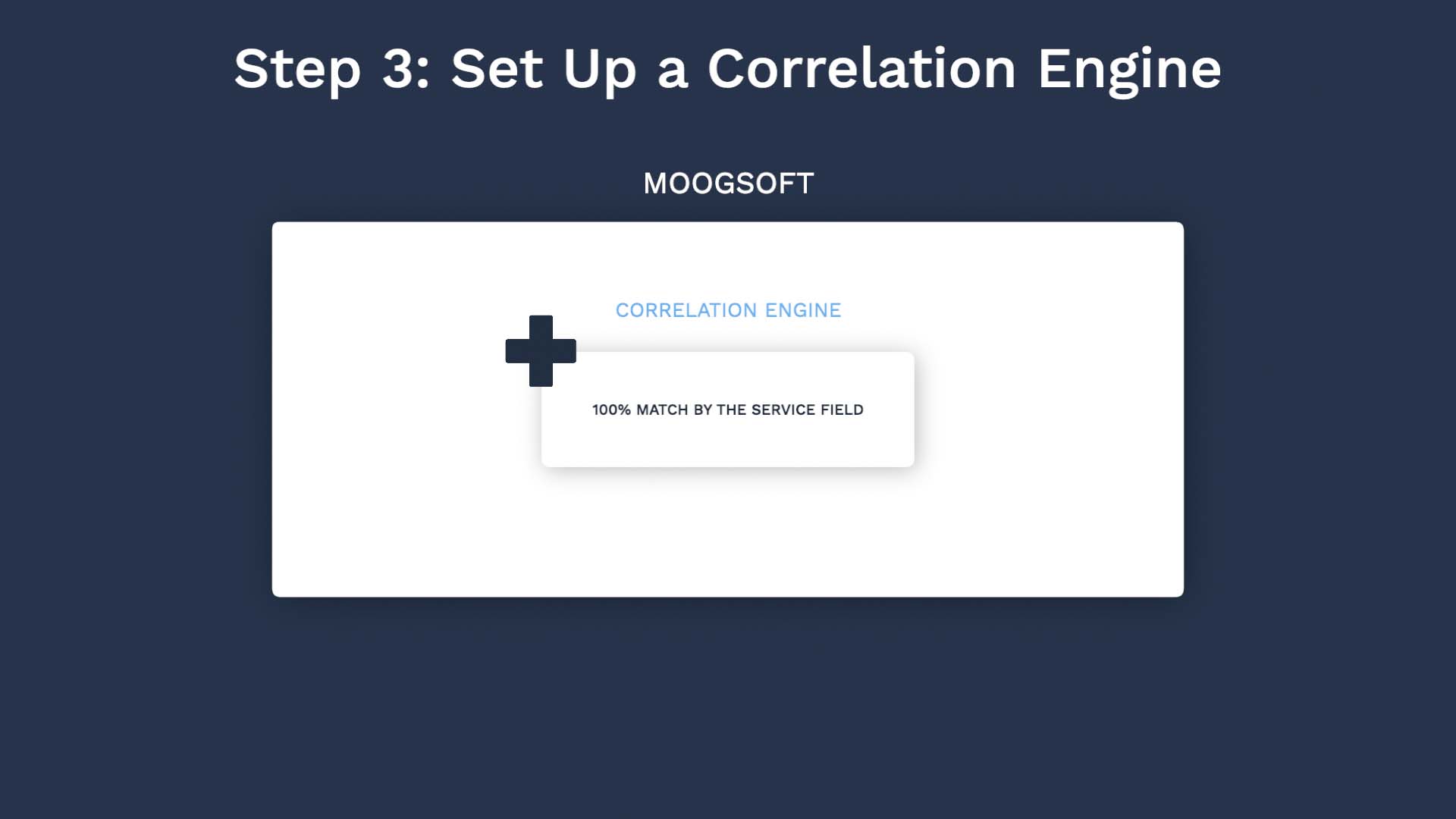
Let’s step through the process from beginning to end.
Here’s our data catalog. It’s a csv file that has the Source and Service information.
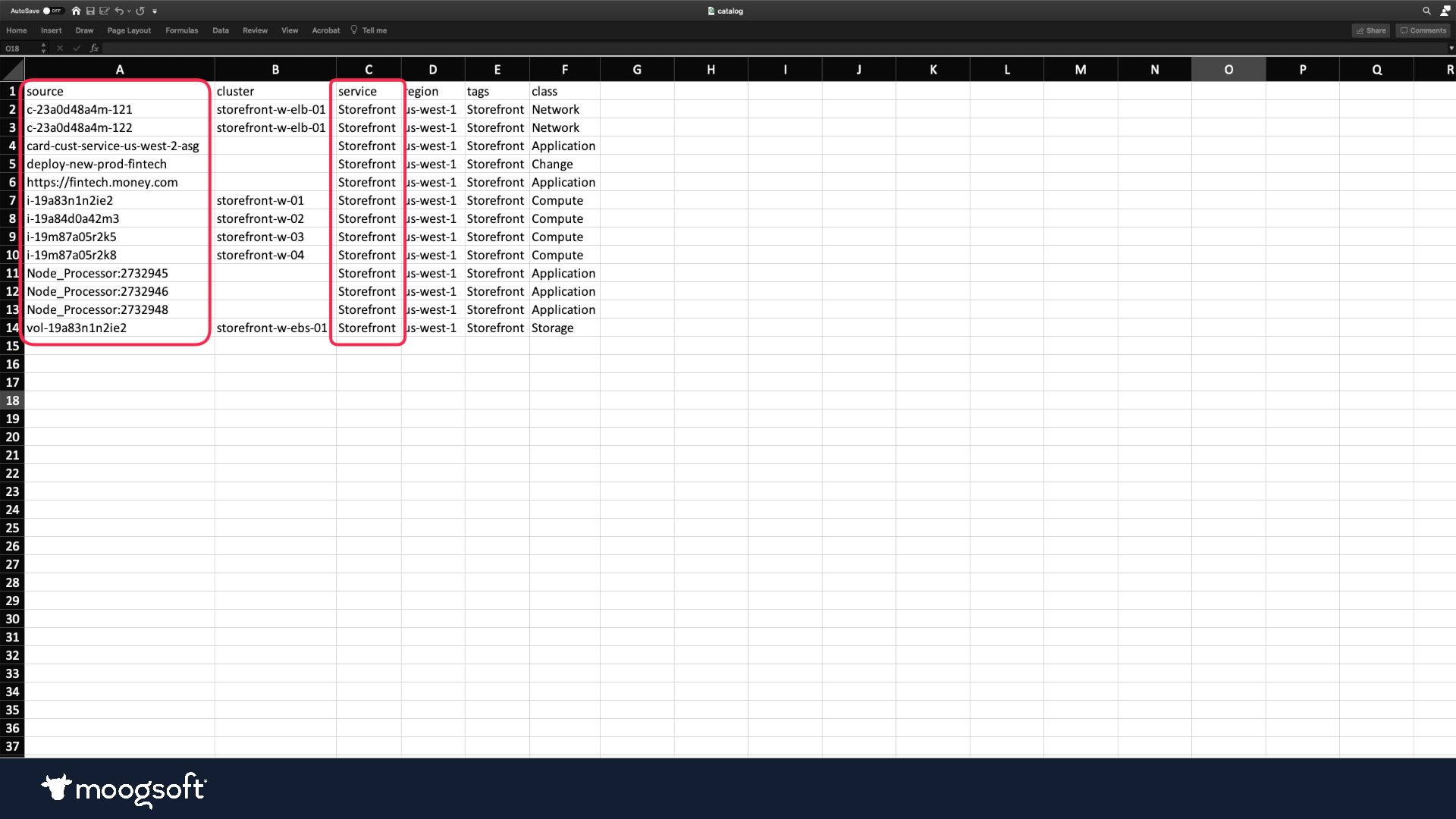
Let’s go to data catalog, and upload this.
Give a name and description other administrators would recognize.
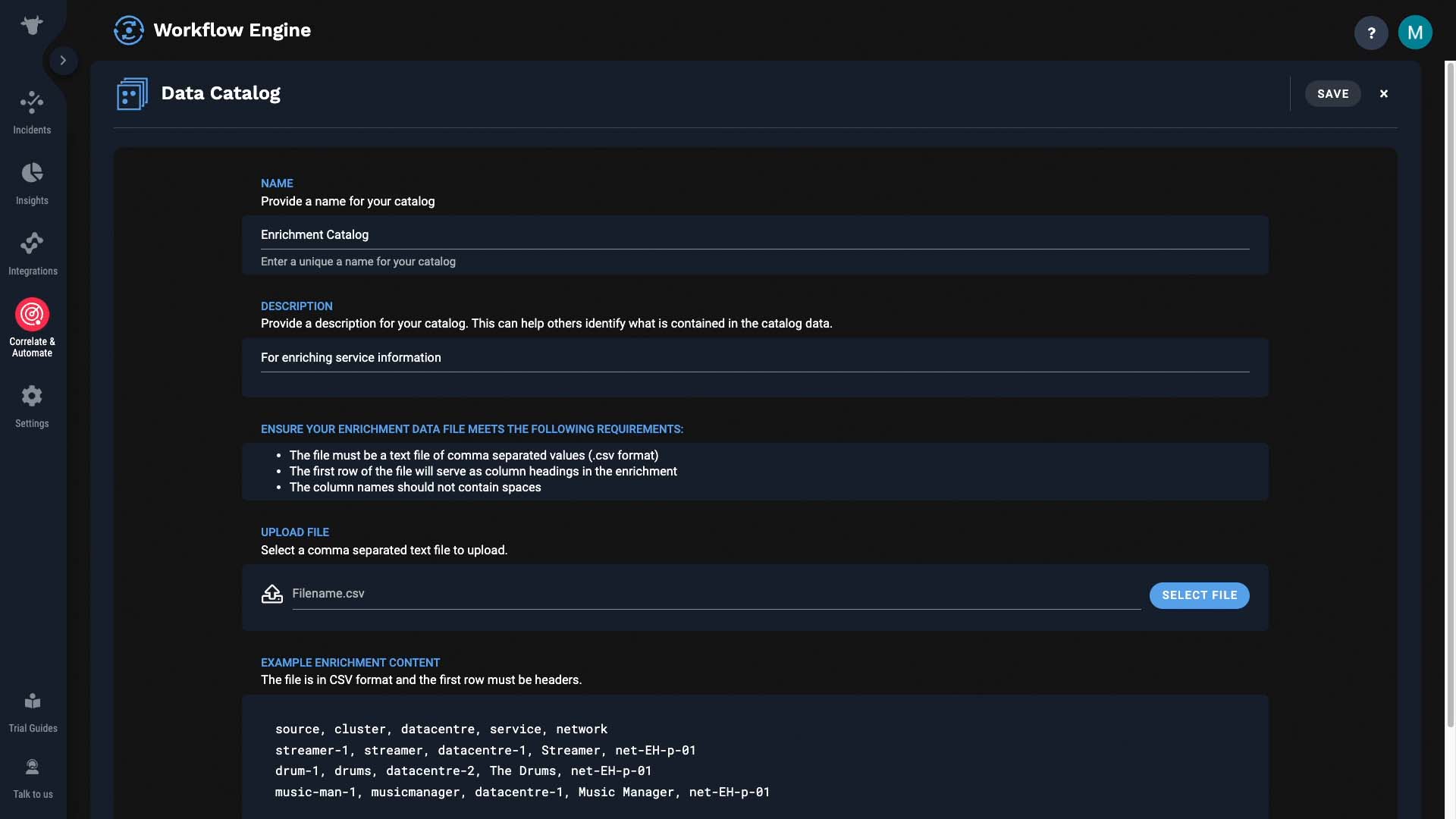
Here’s the file we just looked at.
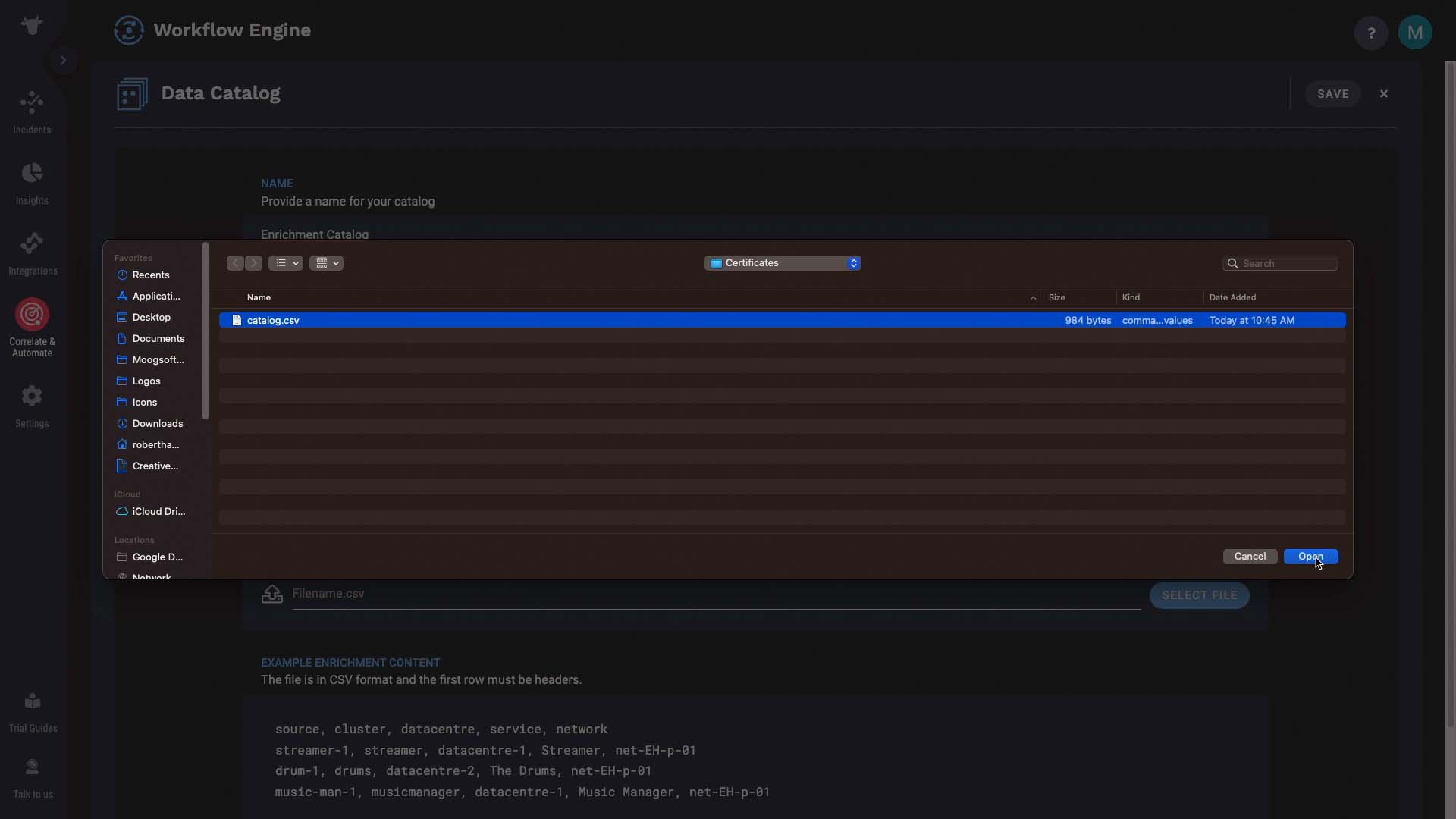
Good. Looks like our data made it in.
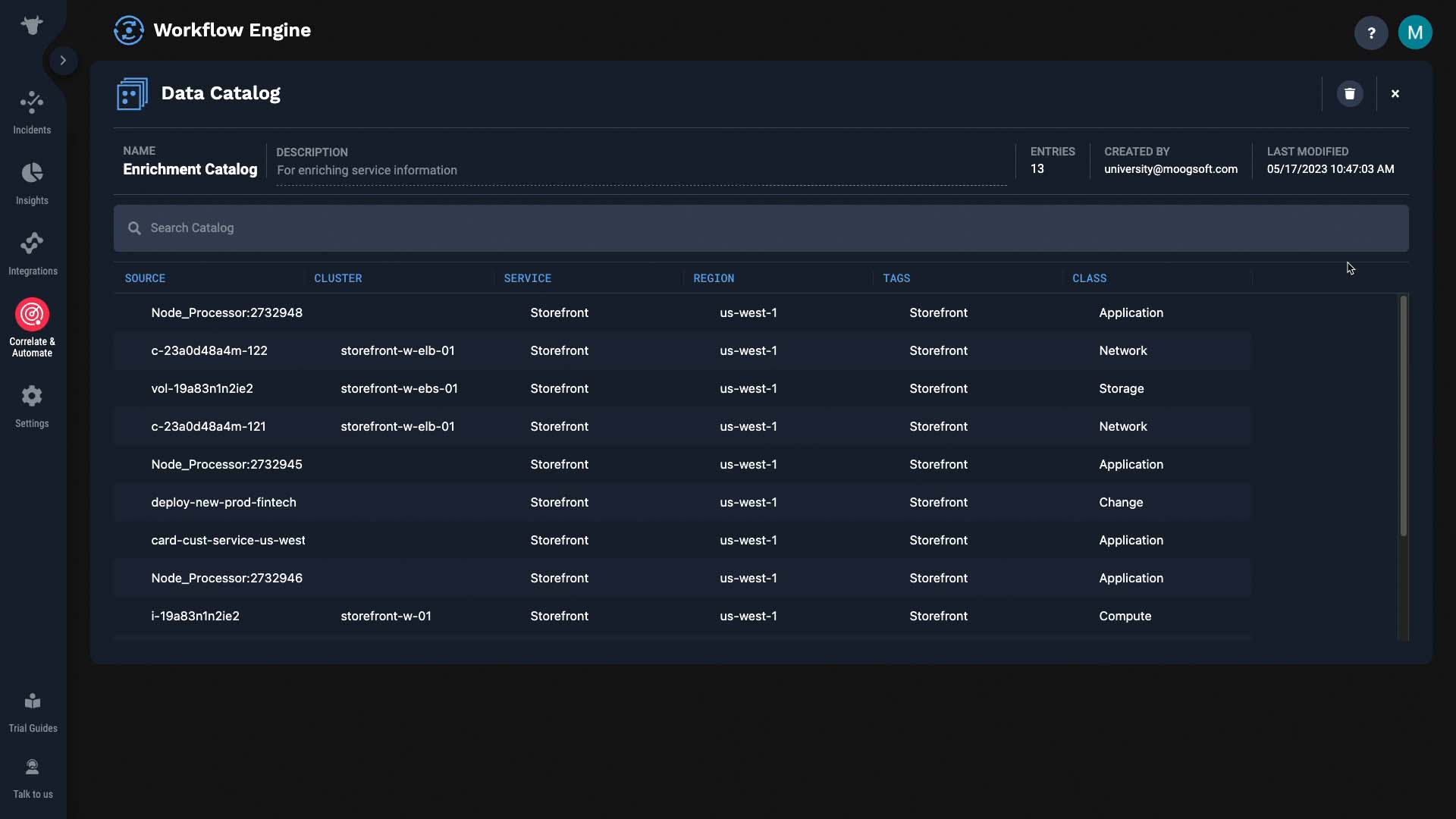
Now we need to tell APEX AIOps Incident Management which field to query by.
For that, we need to setup a workflow.
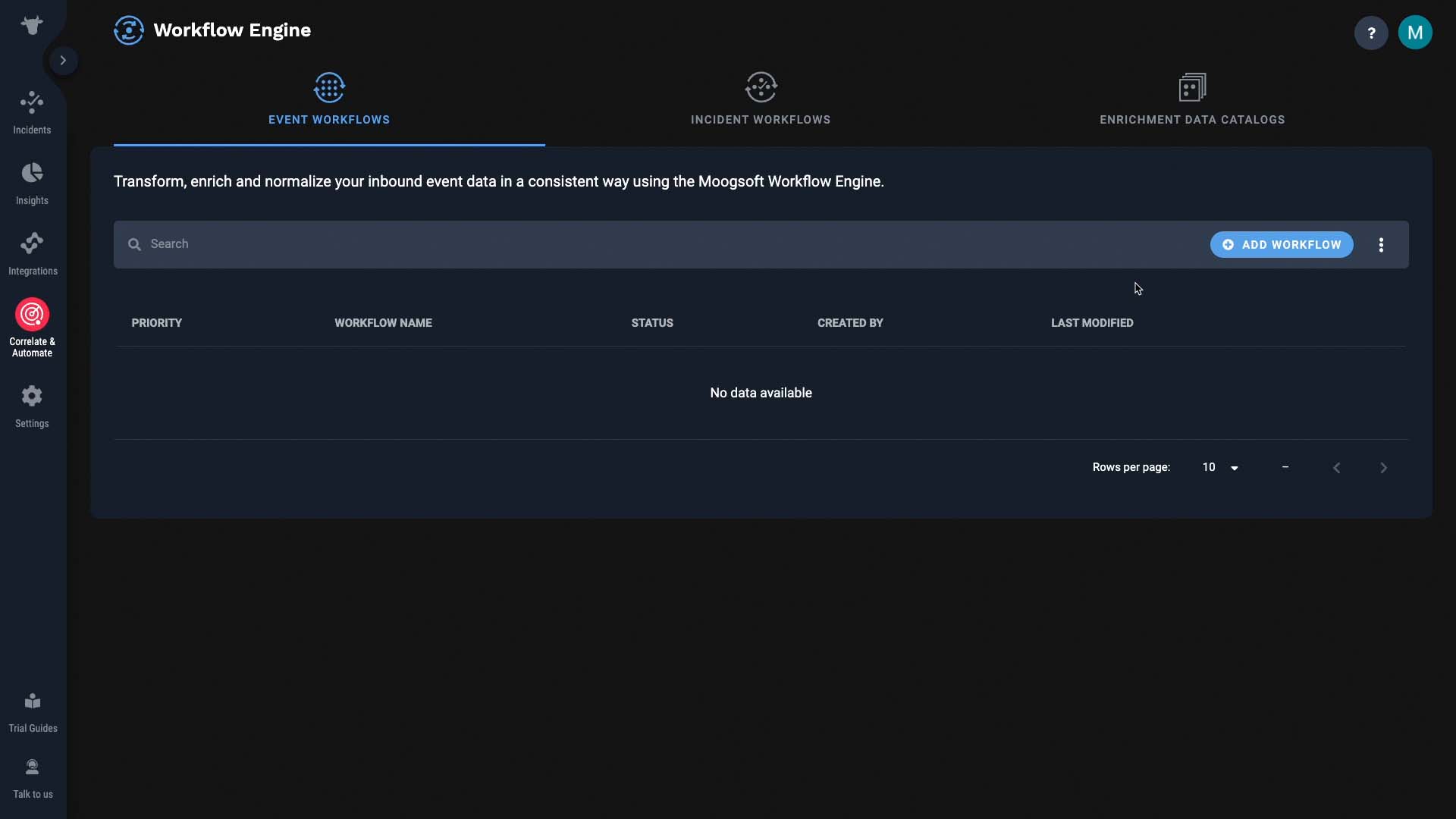
This workflow is for events.
We’ll process all incoming events, so we don’t need to set up a trigger.
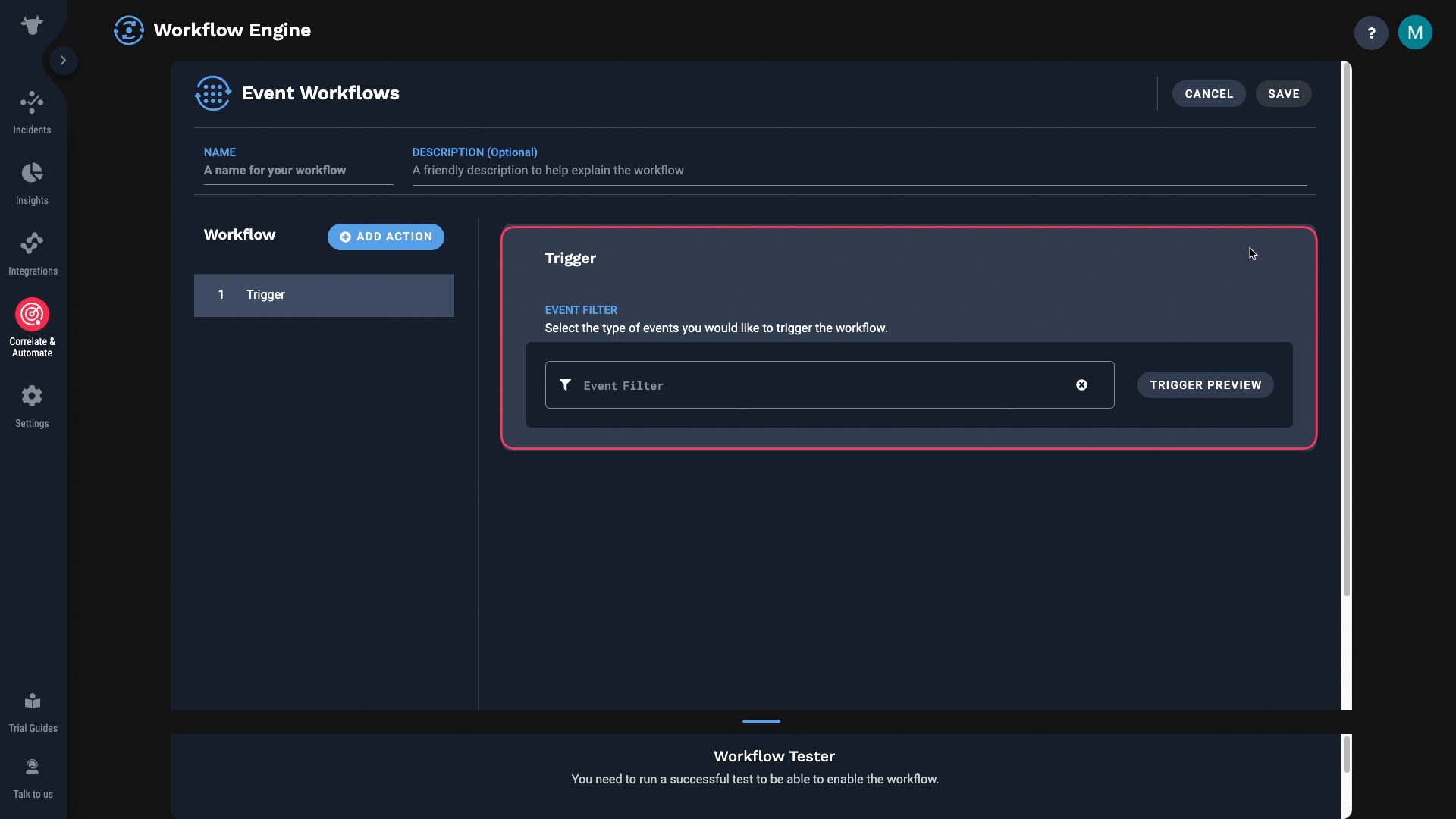
But let’s say you know only the events from a certain data source are missing the service information, then you can set up a trigger so only the applicable events will trigger this workflow. Once an event enters this workflow, we want to query a catalog.
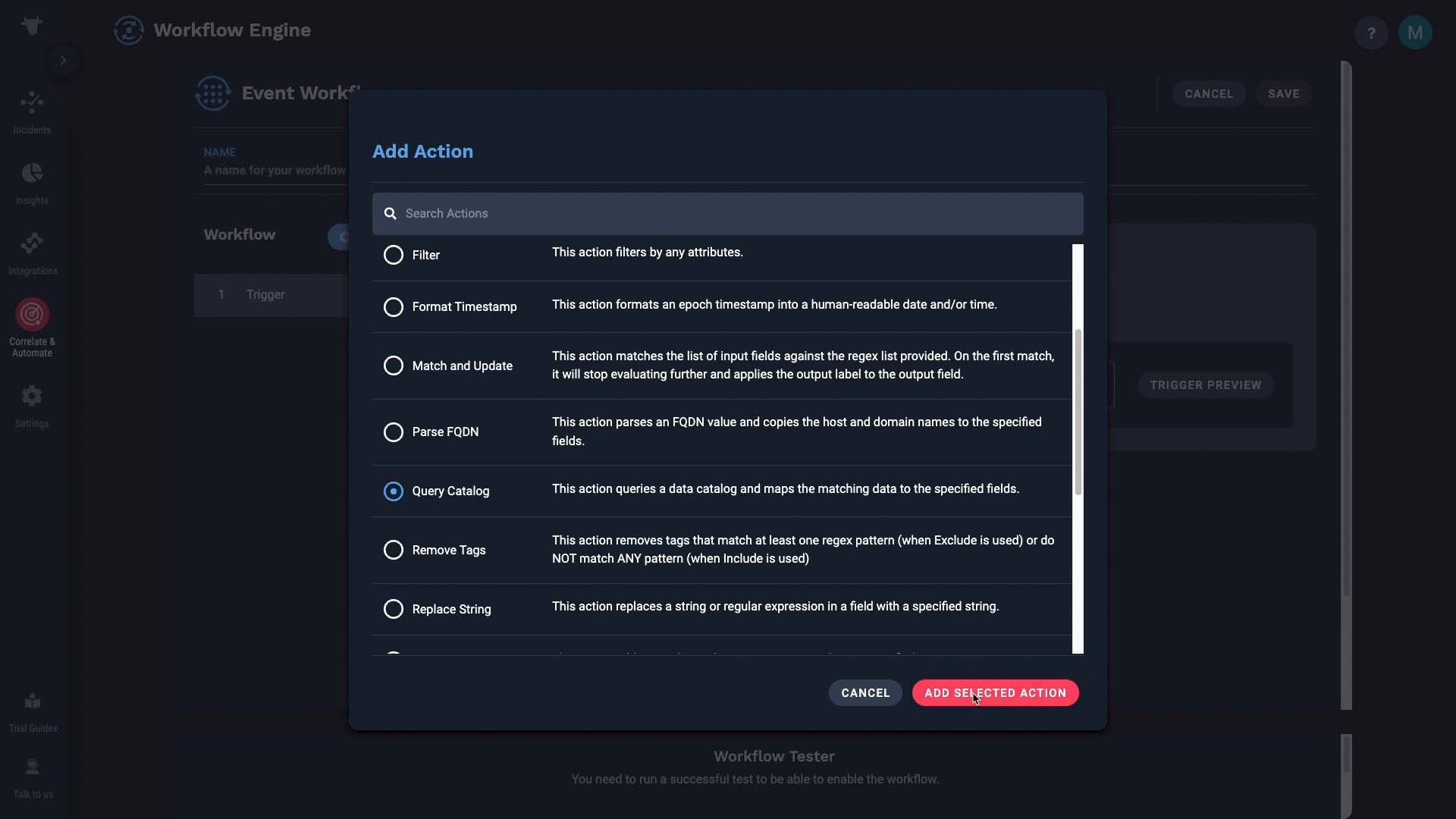
Pick the catalog you want to reference.. here’s the csv we just uploaded. (select from the catalog name dropdown)Now we are going to map the fields.
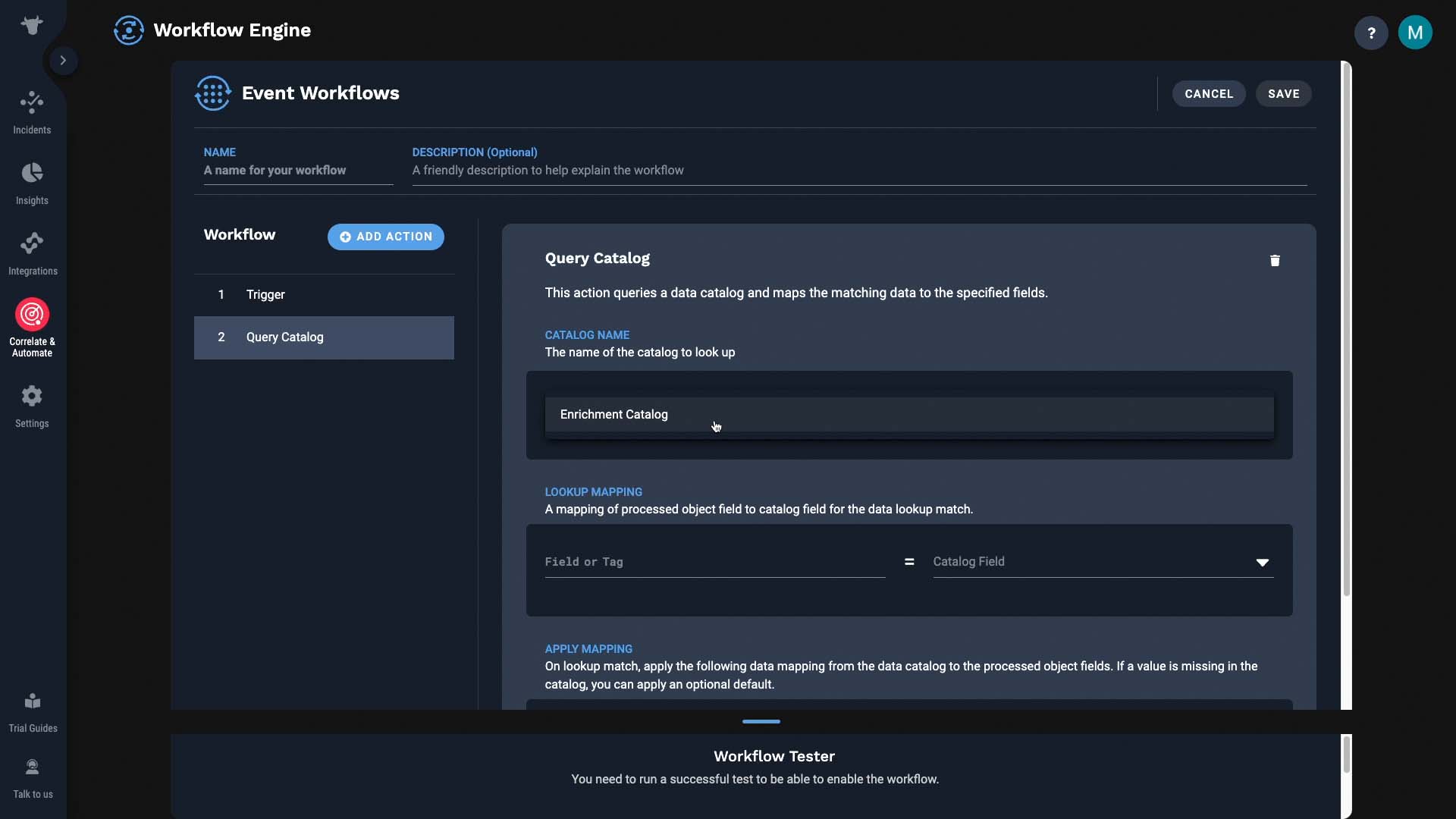
First, we need to tell Incident Management to query by the source value. All default fields in Incident Management are available under the base field category, and the source field is one of them. And, source information is also stored in the data catalog, under the source field.
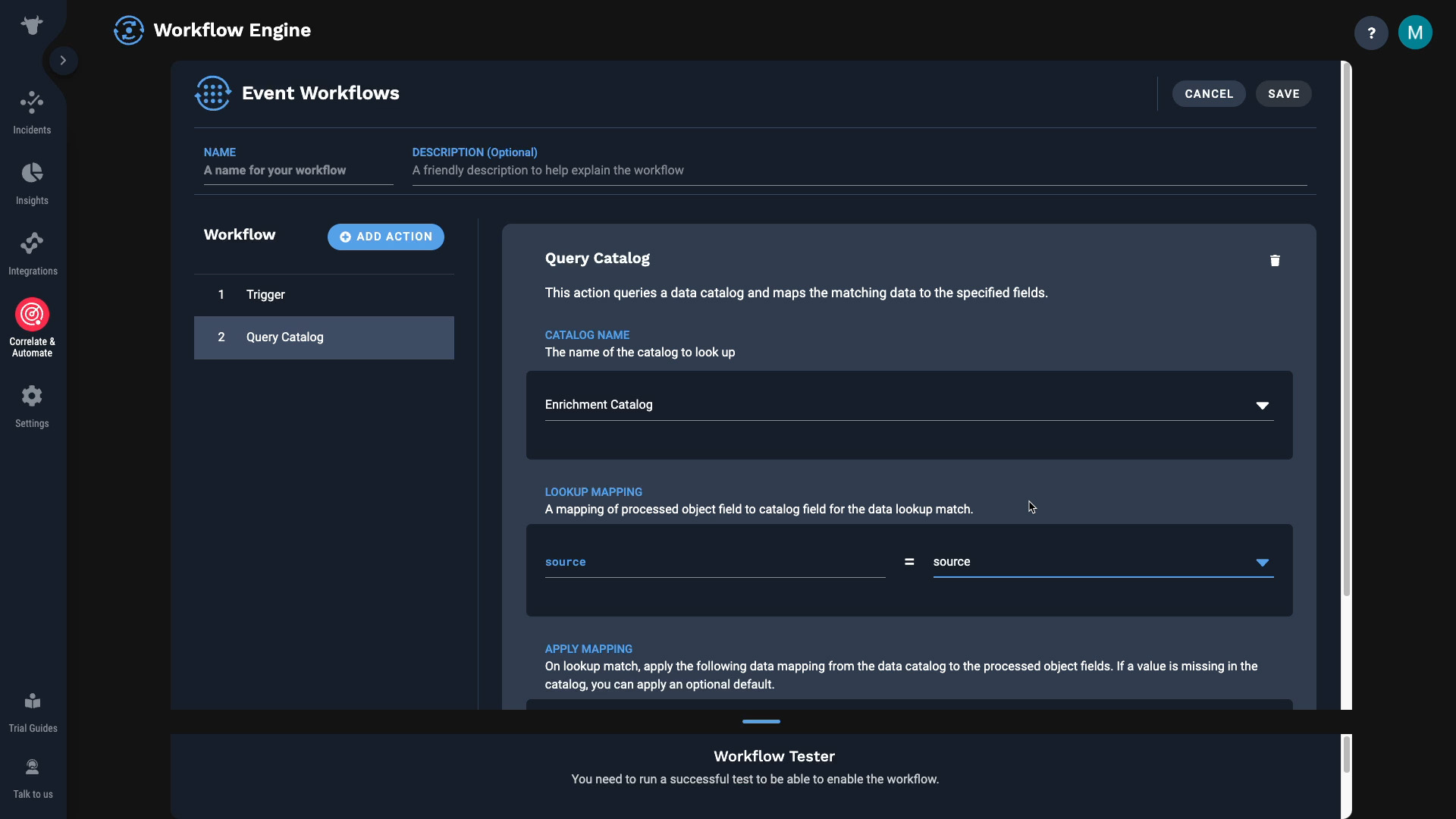
Next, specify what field value needs to go where. So in our case, we want to retrieve the service information from the data catalog, and feed that value into the Service field which is one of the base fields in Incident Management. Also, IF the data catalog has no value for the particular source, we’ll fill in “unknown."
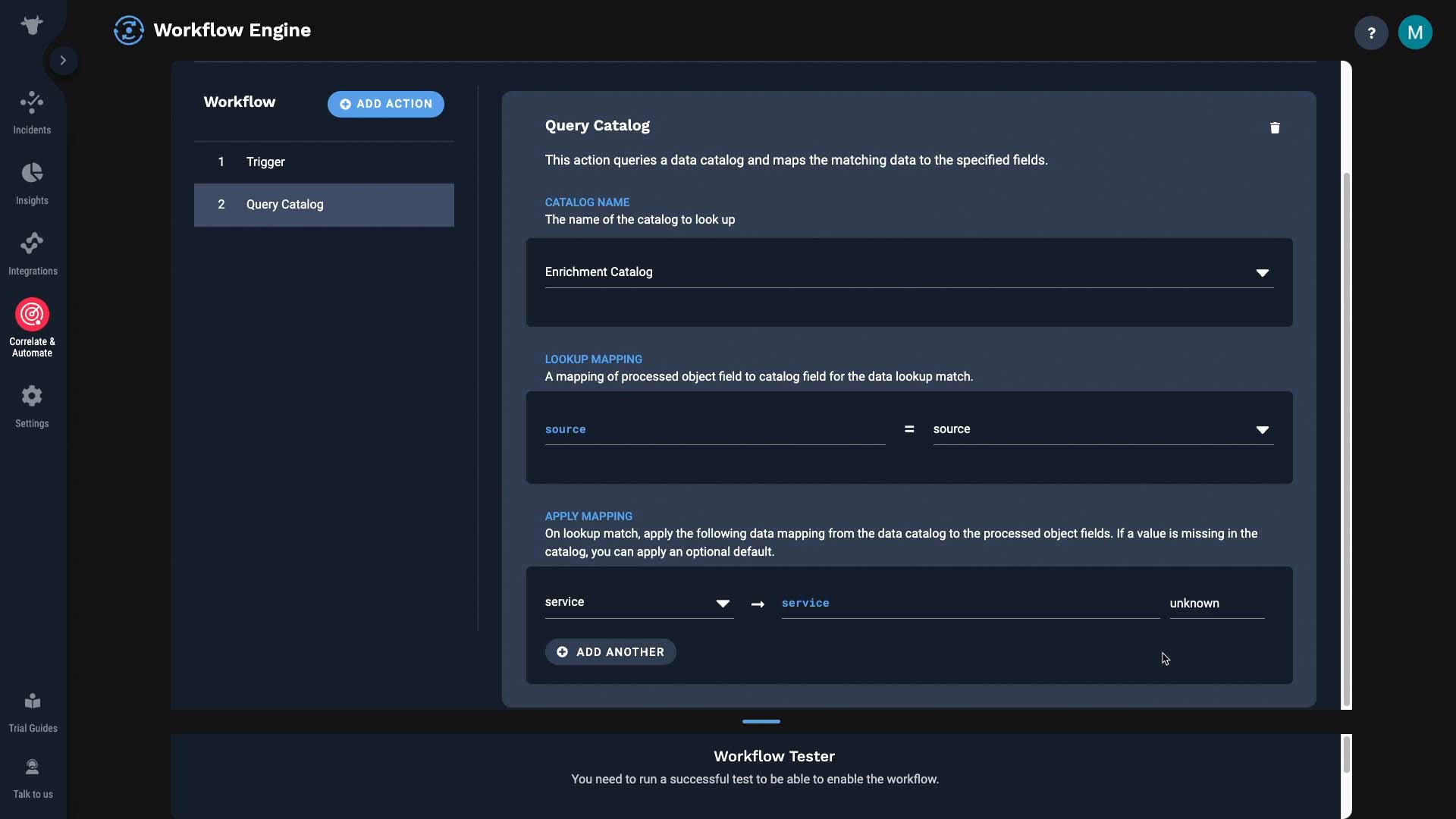
Once you name the workflow, you can test it. Testing a workflow is easy. Just pull this up and simulate an input here.
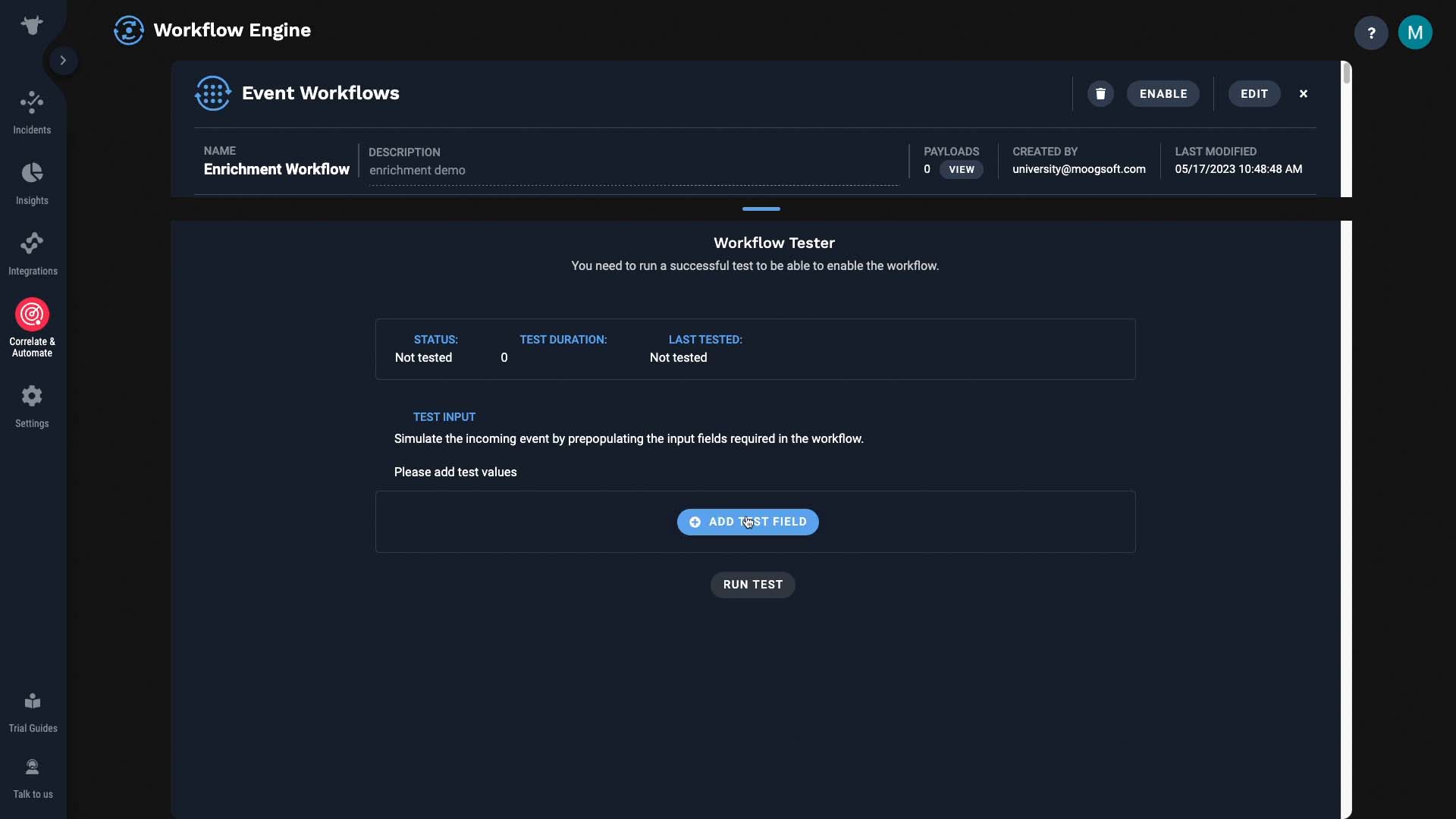
So let’s send in an event with one of the existing sources in the data catalog.
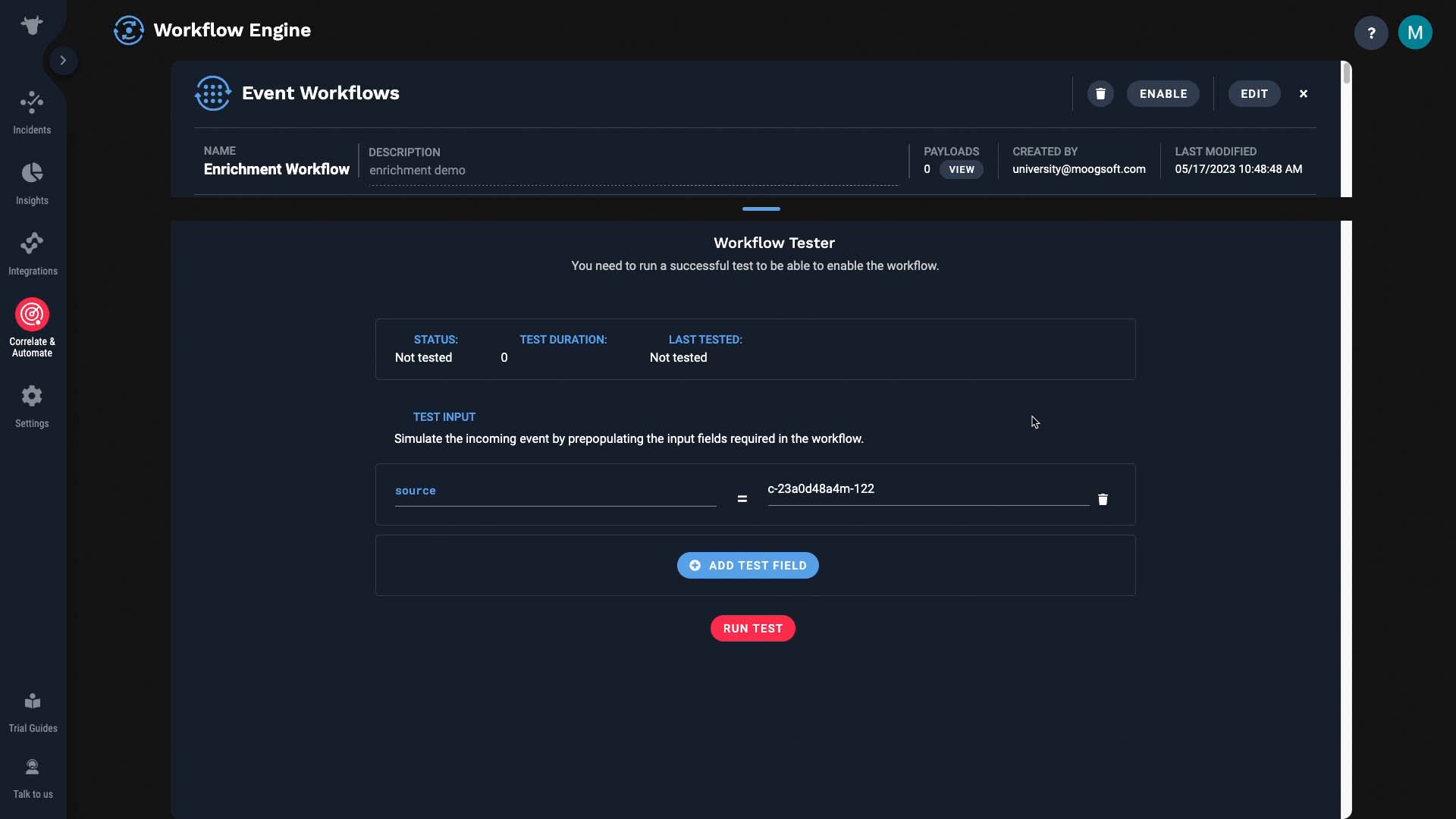
OK, it didn’t error out.
And now, although the event we sent in only had a source info, now it has the service information.
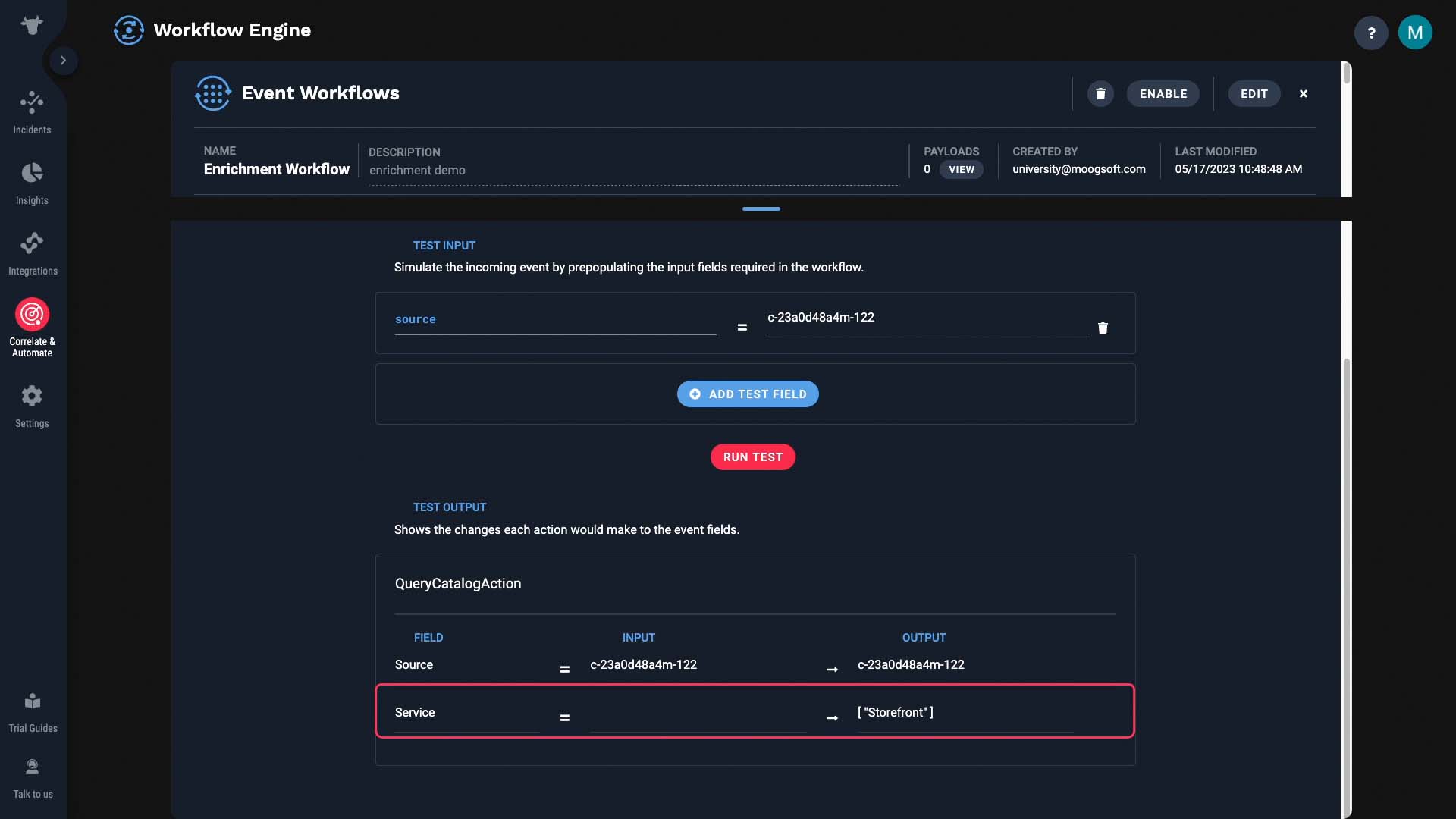
Also note that you can configure enrichment programmatically using our APIs. Consult the Catalog API and Workflow Service API sections in our documentation.
Finally, set up a correlation engine to cluster by service. We have a separate tutorial that explains how to add a new correlation setting, so consult that for a step by step instruction. Basically this correlation will process alerts that match the scope filter, and cluster them if they have identical service information into incidents.
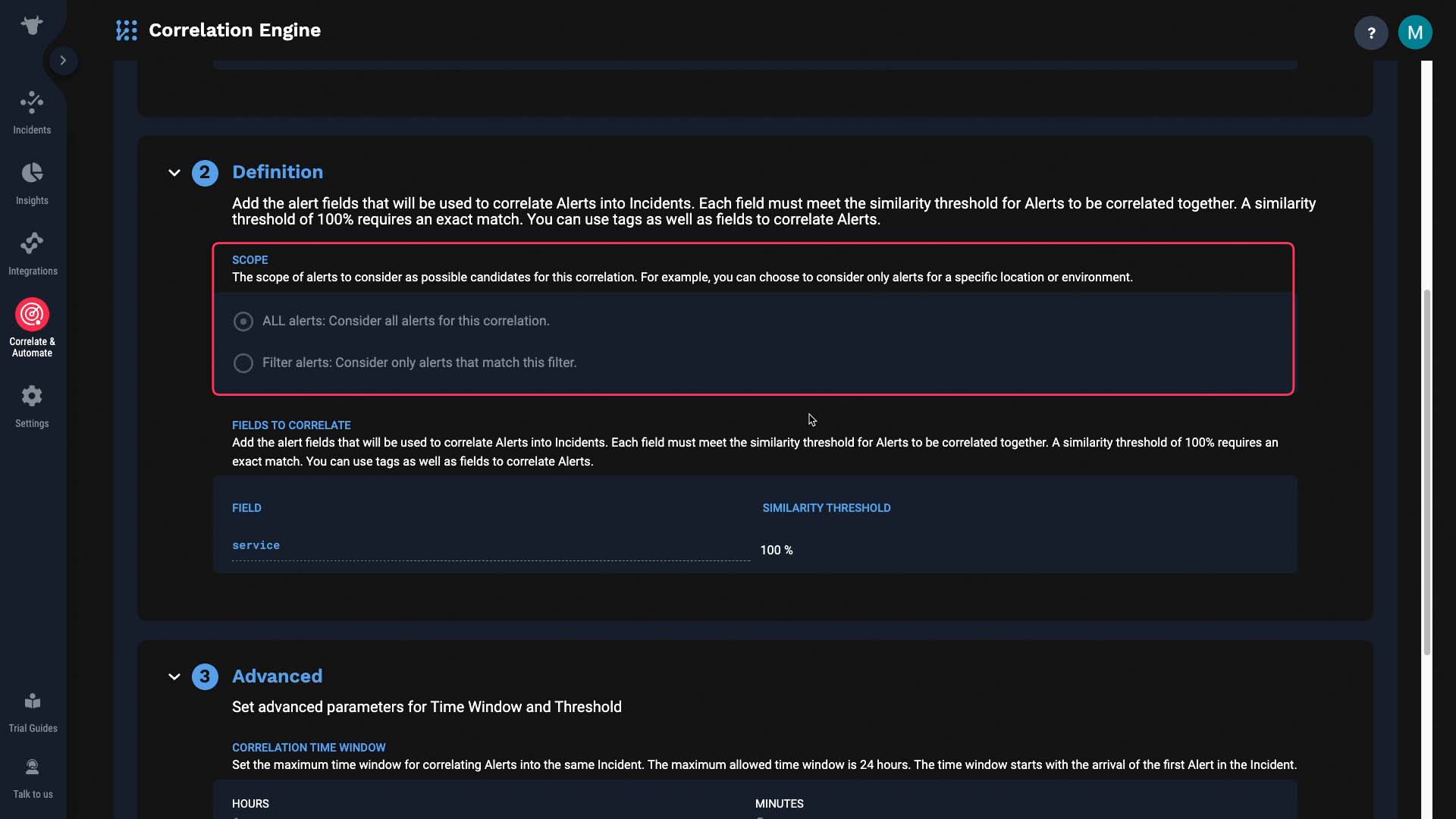
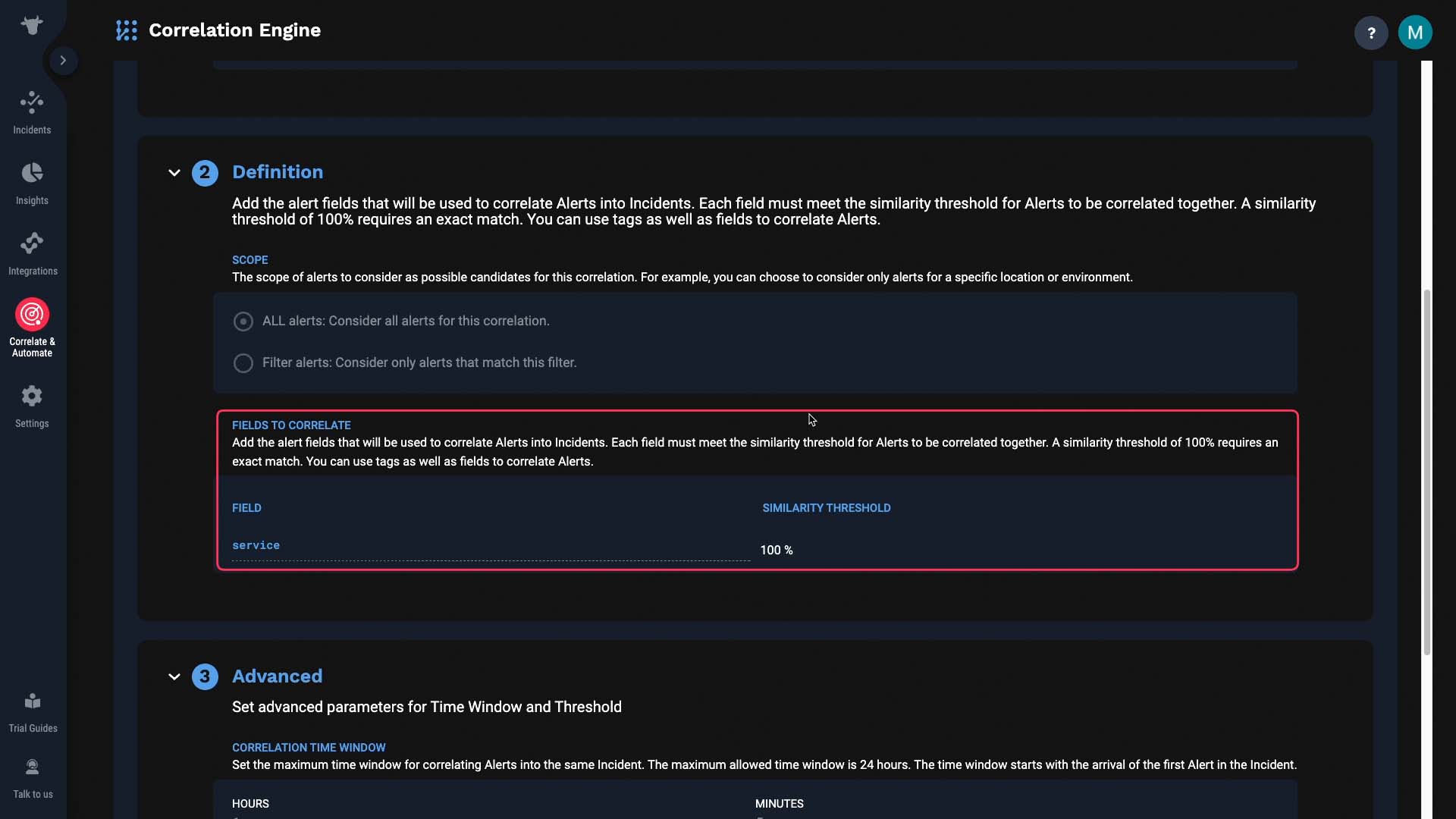
We’ve done the entire setup, so now the final test. We are going to send in fifteen events with varying attributes but with the same source information. If our setup is correct, all events should be enriched with the same service information, and end up being in one incident. Here we go.
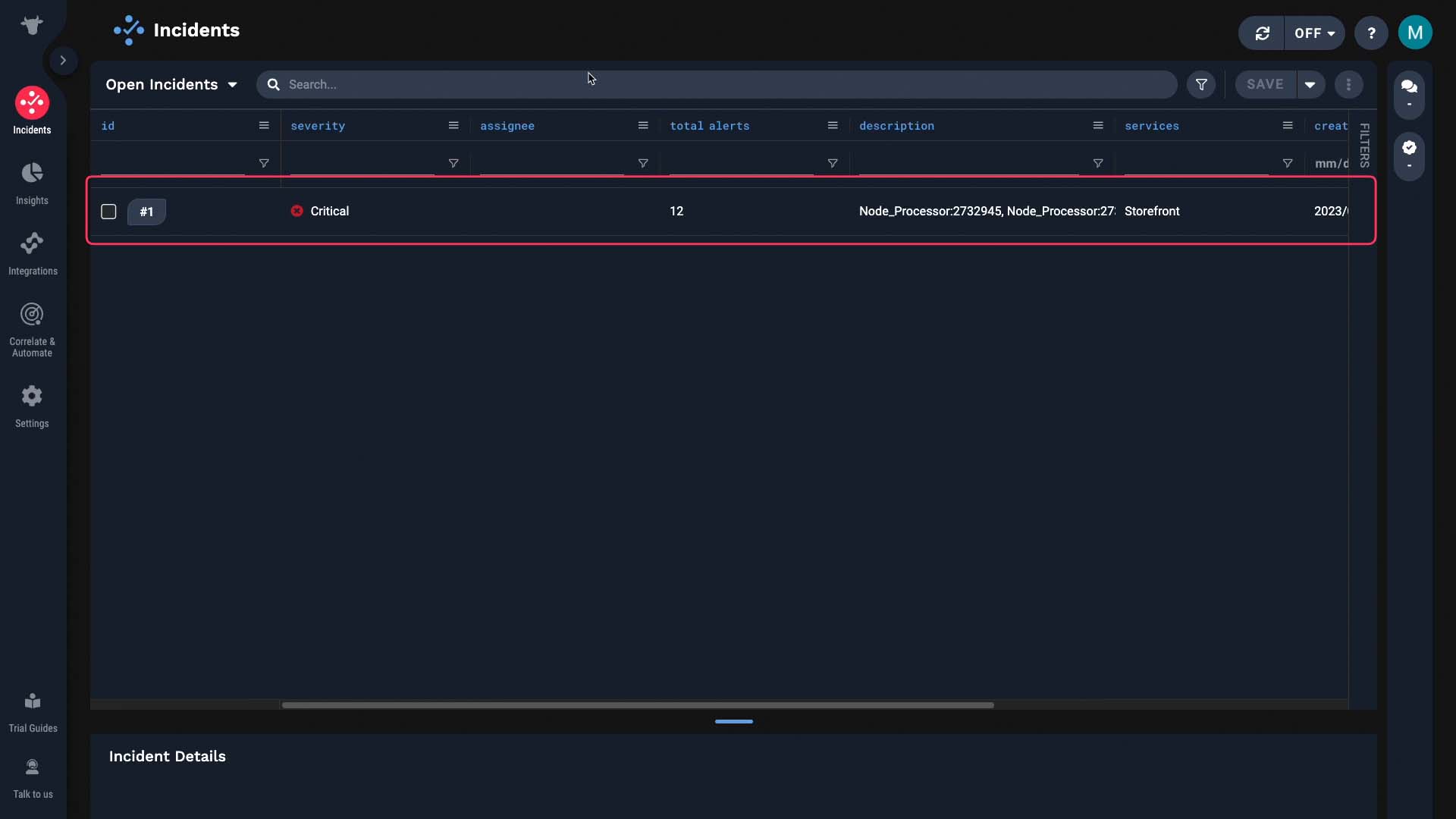
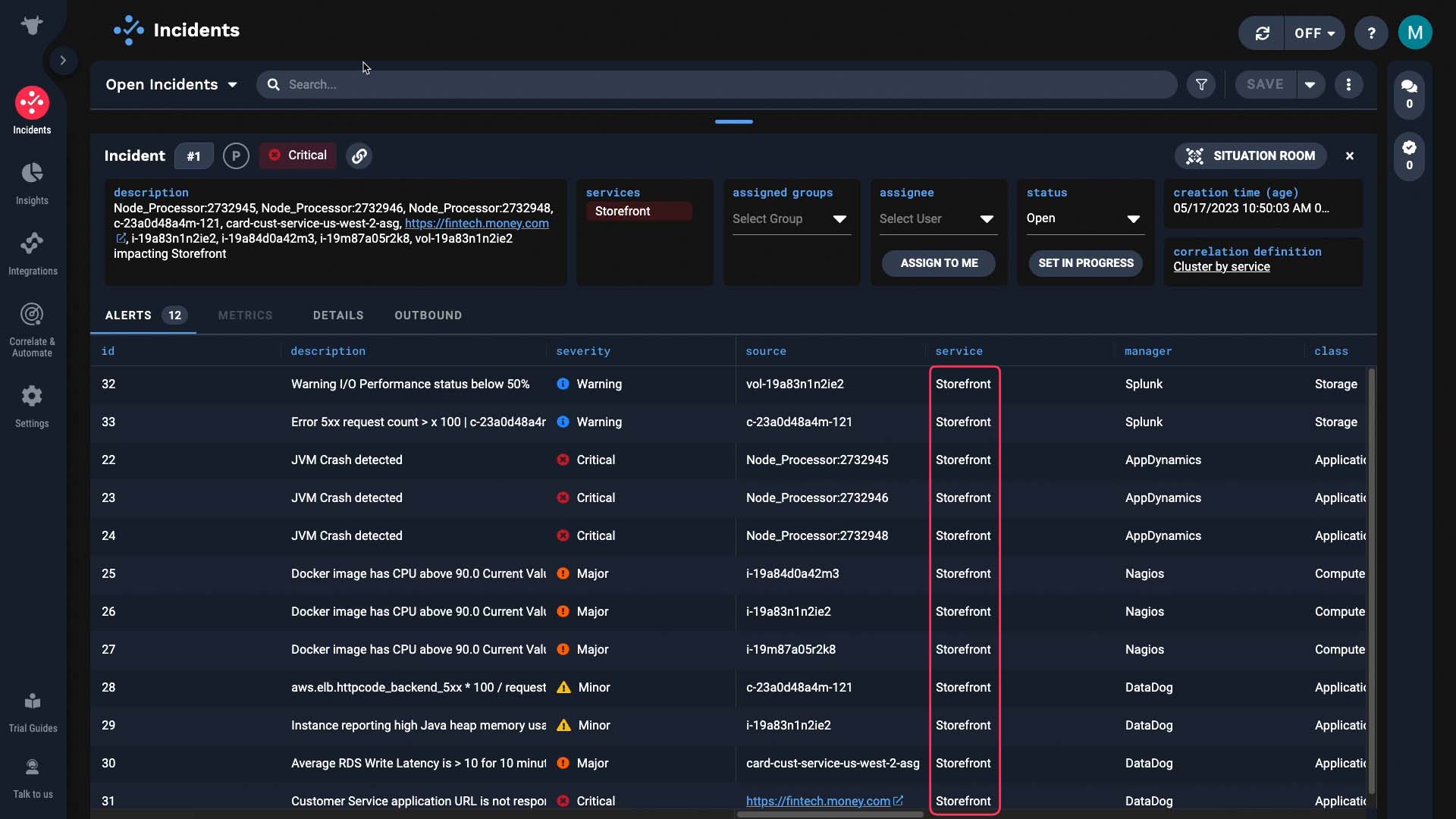
Here’s an incident. It has twelve alerts s in it. And you can verify that each were properly enriched to have the service information.
Thanks for watching!
BASIC | 7 MIN
In this video, you will learn how to set up maintenance windows in Moogsoft Cloud.
Demo video: Setting up maintenance windows in APEX AIOps Incident Management ►
This video provides a demo on how to set up maintenance windows in APEX AIOps Incident Management and suppress noise.
*Please note Moogsoft is now part of Dell's IT Operations solution called APEX AIOps, and changed its name to APEX AIOps Incident Management. The UI in this video may differ slightly but the content covered is still relevant.
When an asset is undergoing maintenance, the data could look anomalous.
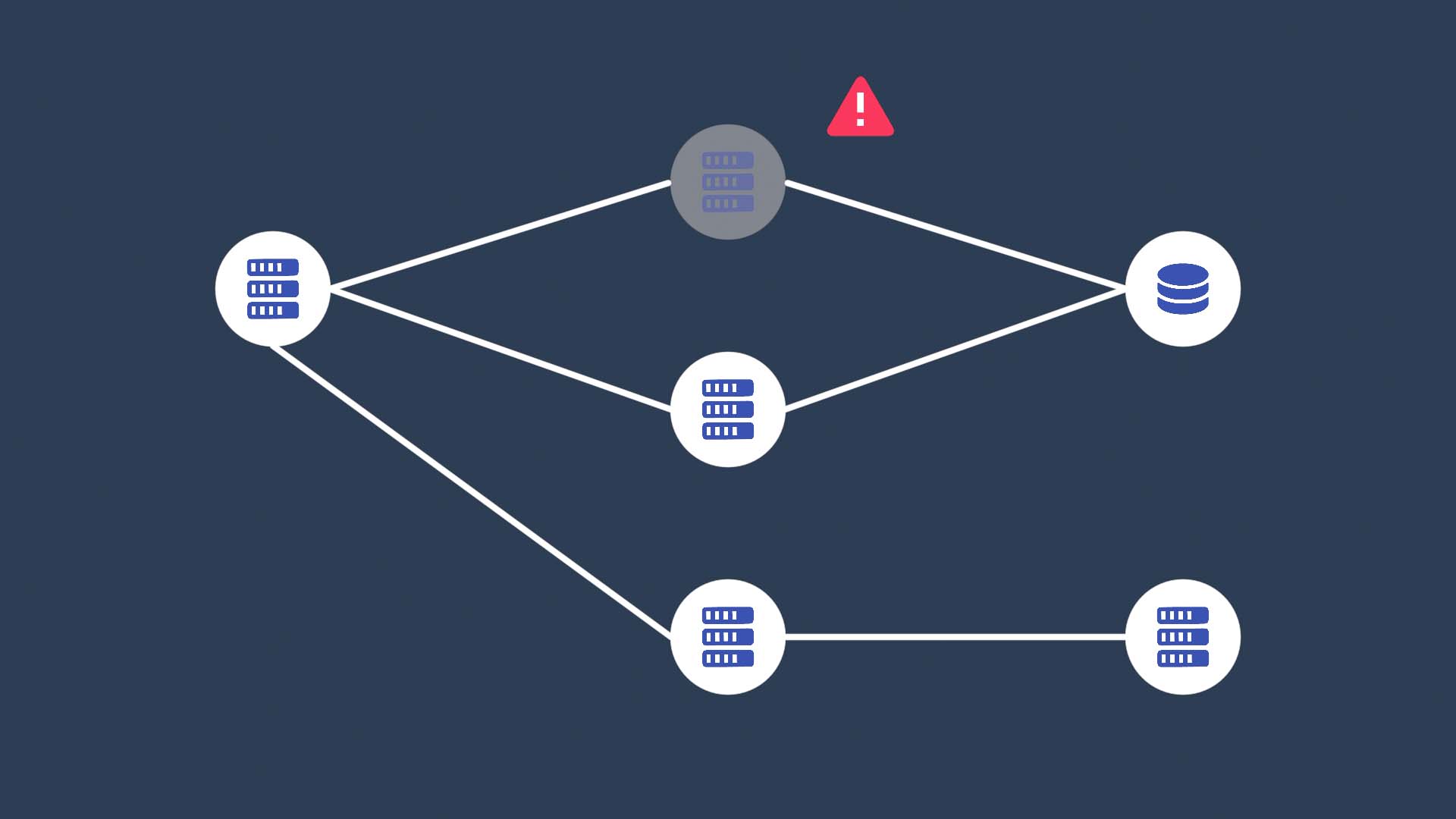
But we don’t need to worry about it since we know the cause and the effect is temporary. In this video, we’ll show you how to tag those alerts so you won’t be distracted by them.
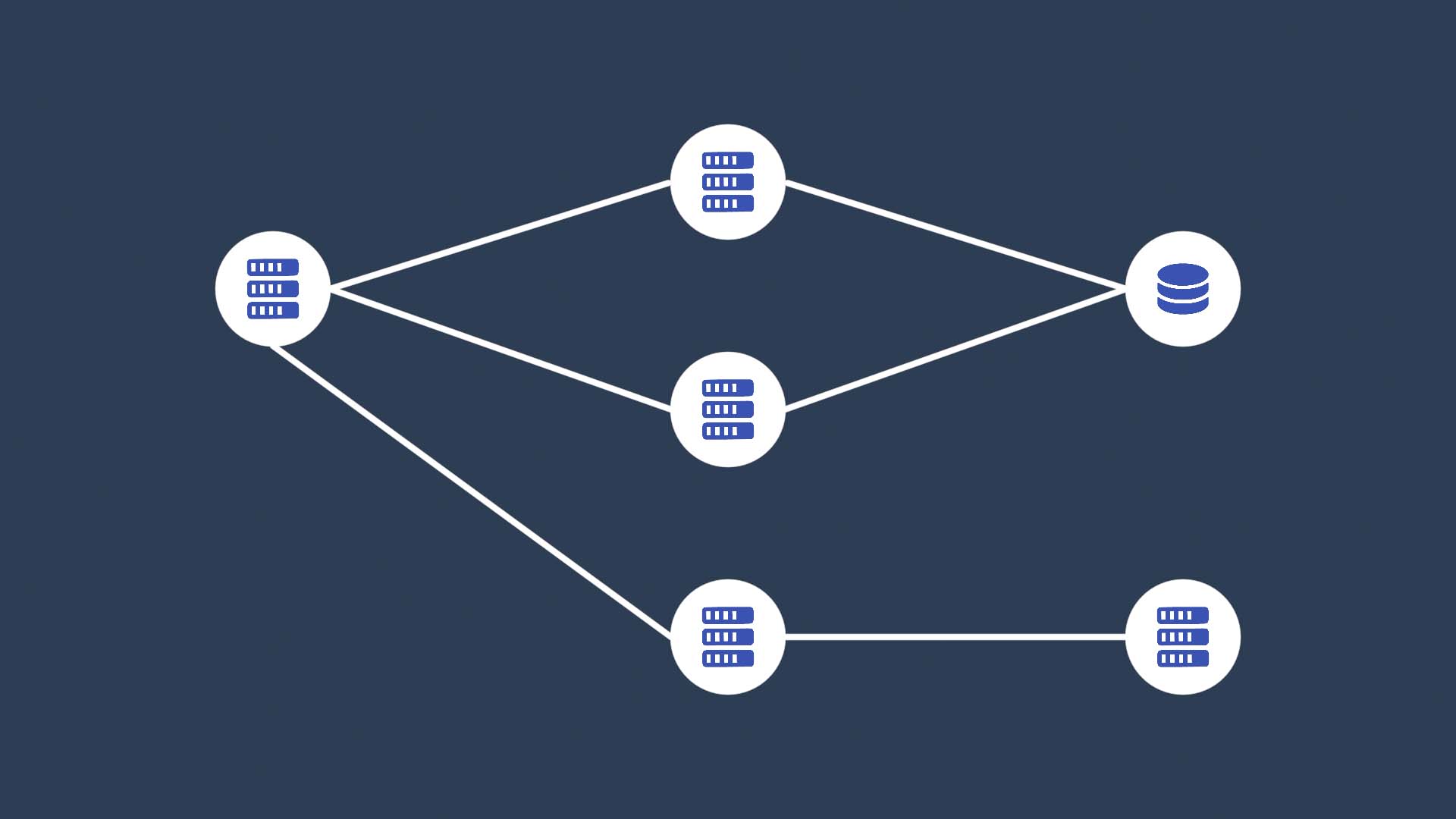
Let’s say this resource will go into maintenance, so, during that time, we want to tag all the events that come in from there as “in maintenance”.
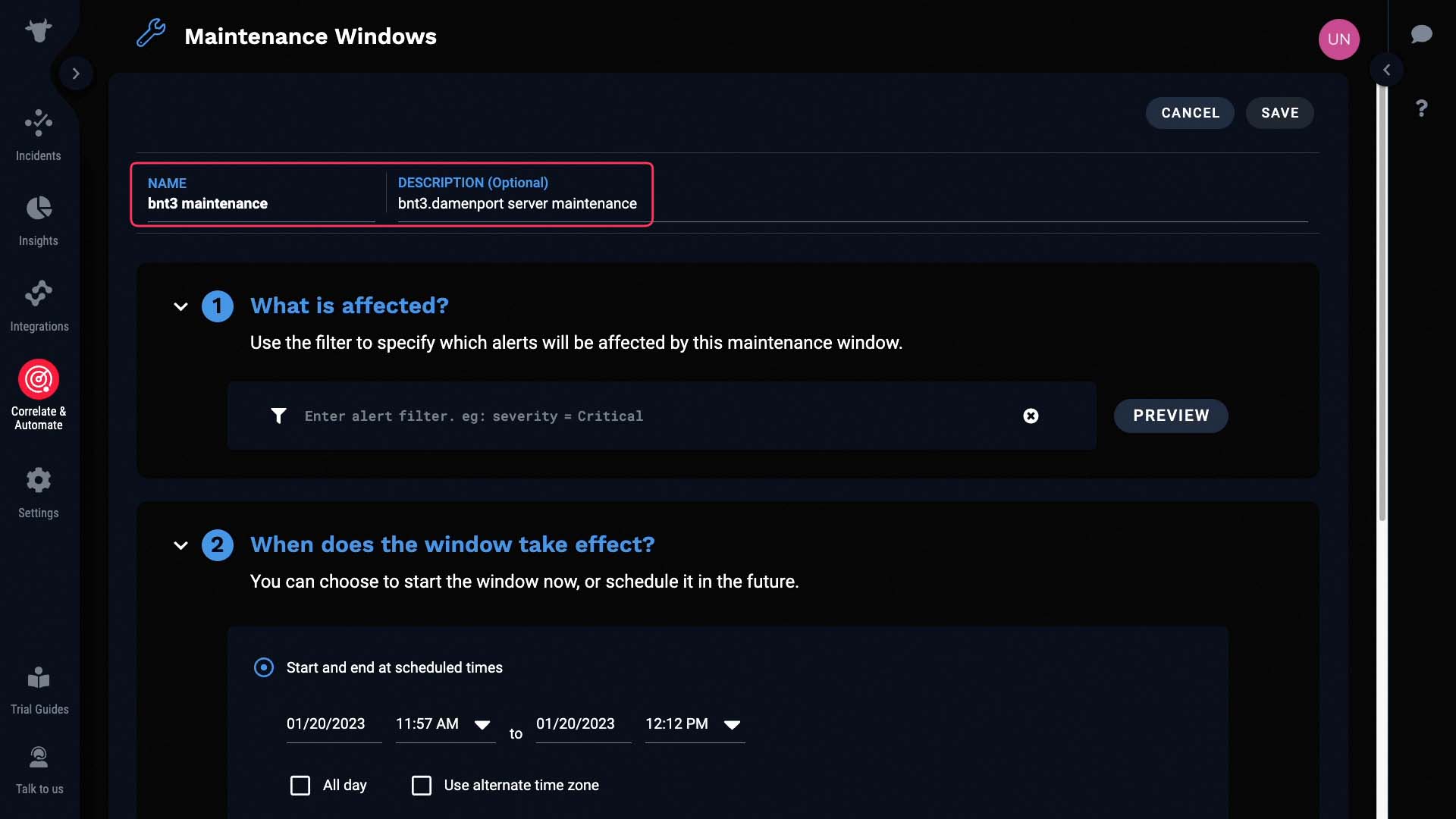
Specify what’s in maintenance here.
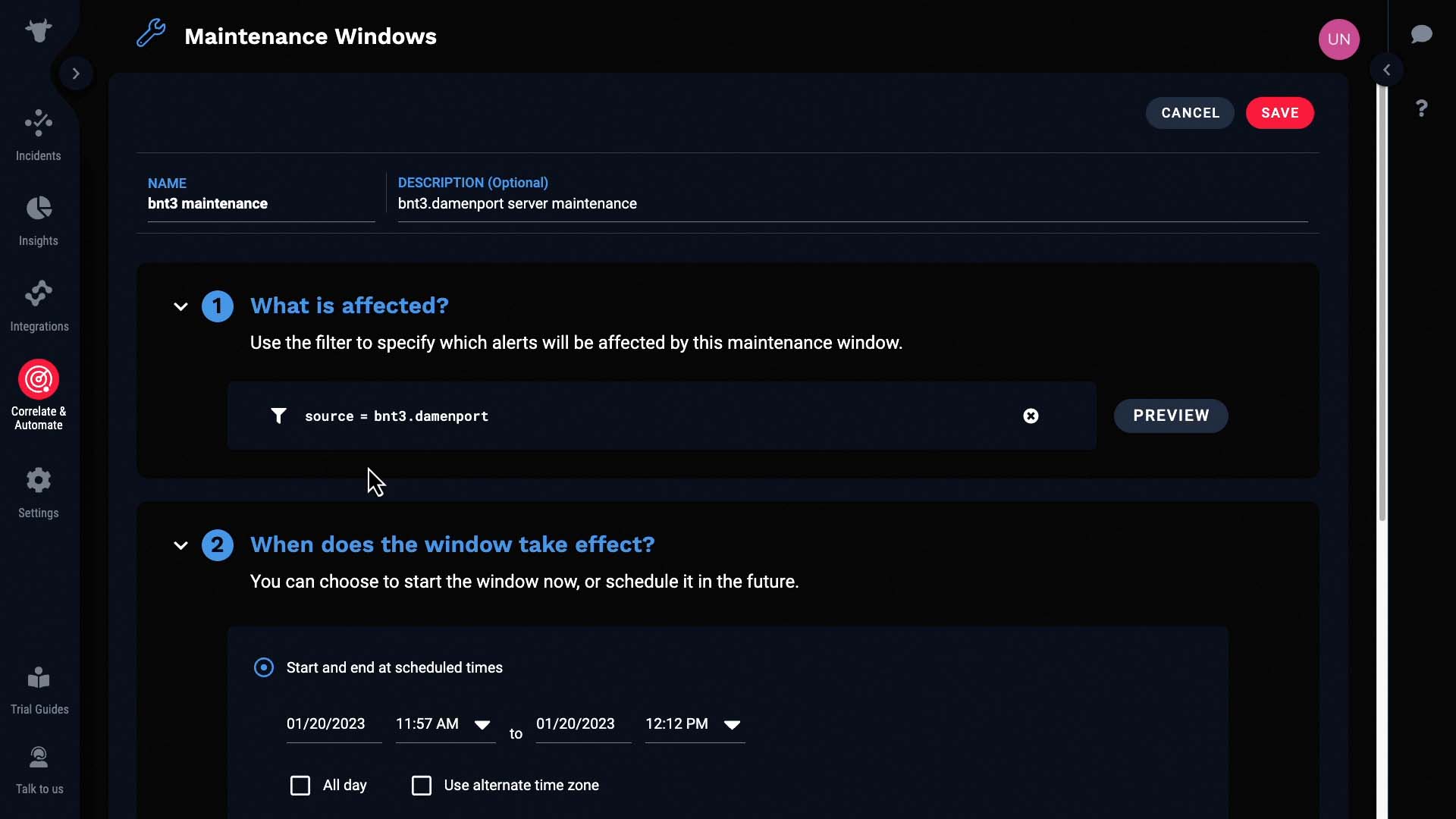
And when the maintenance window takes effect. You can schedule it ahead of time, and make it recurring if you want to.
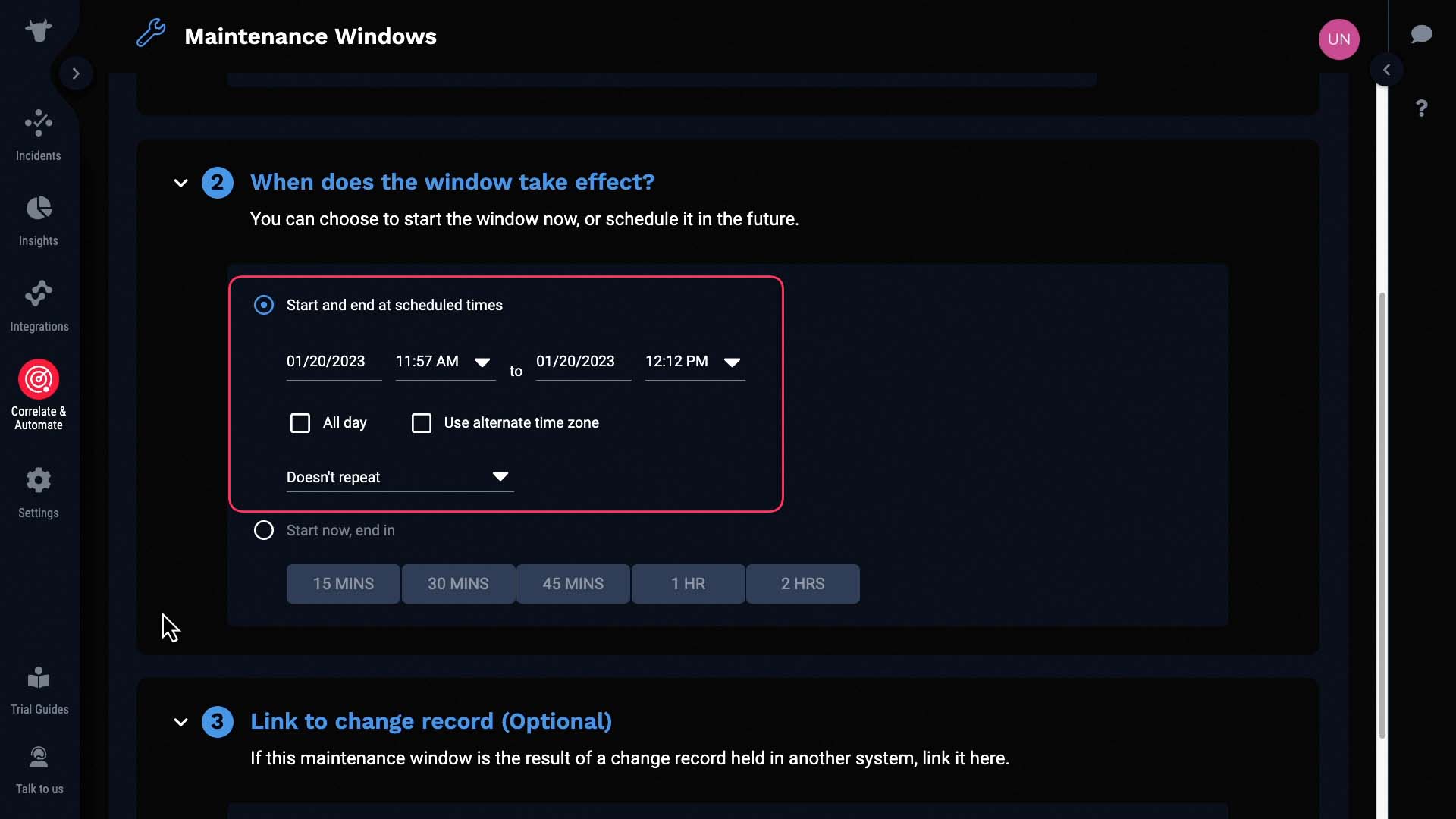
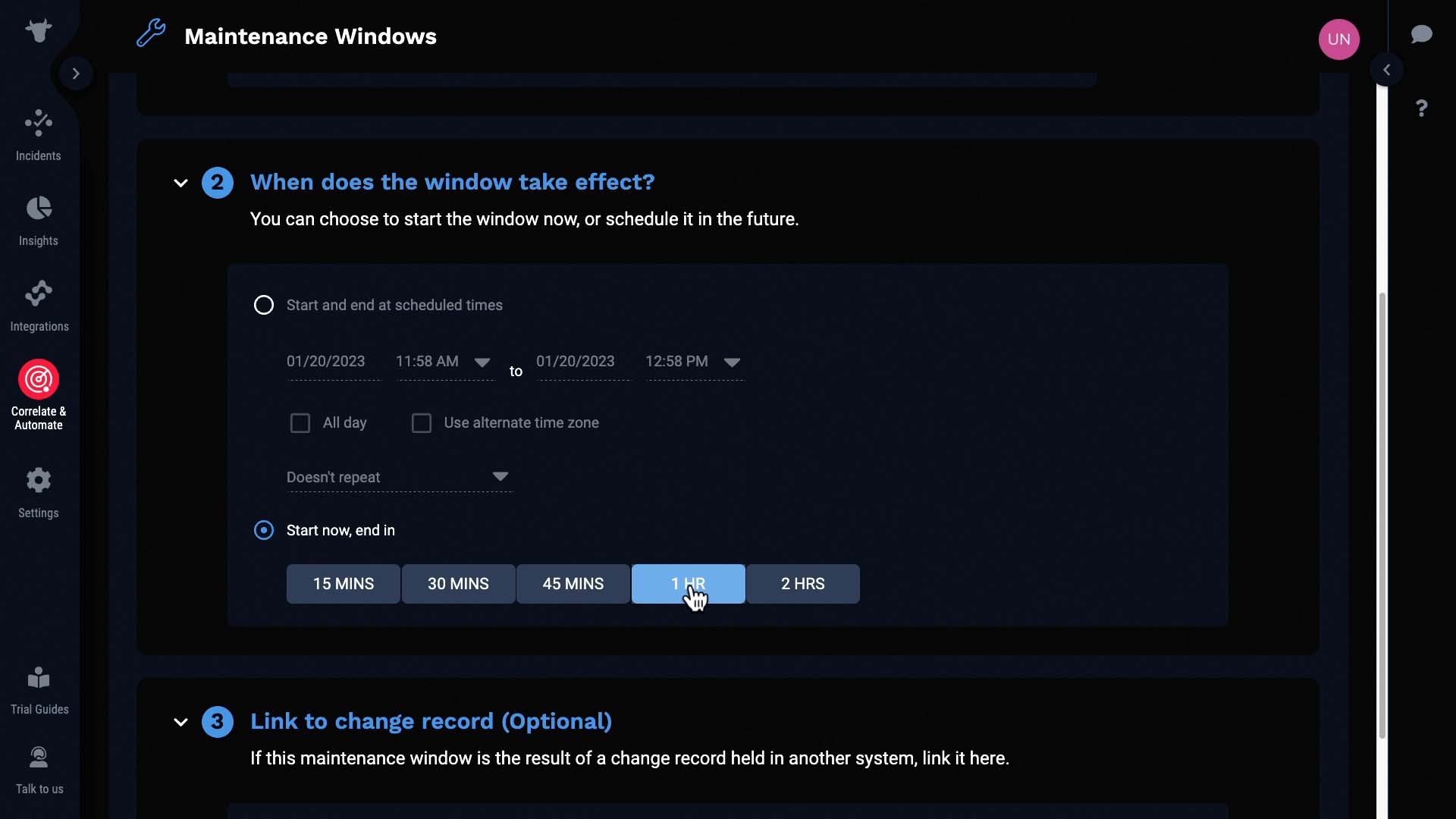
But, let’s set it to start now so I can show you the result right away.
Now, the alerts that match the maintenance window criteria will be marked as such, giving the users more context for the incidents.
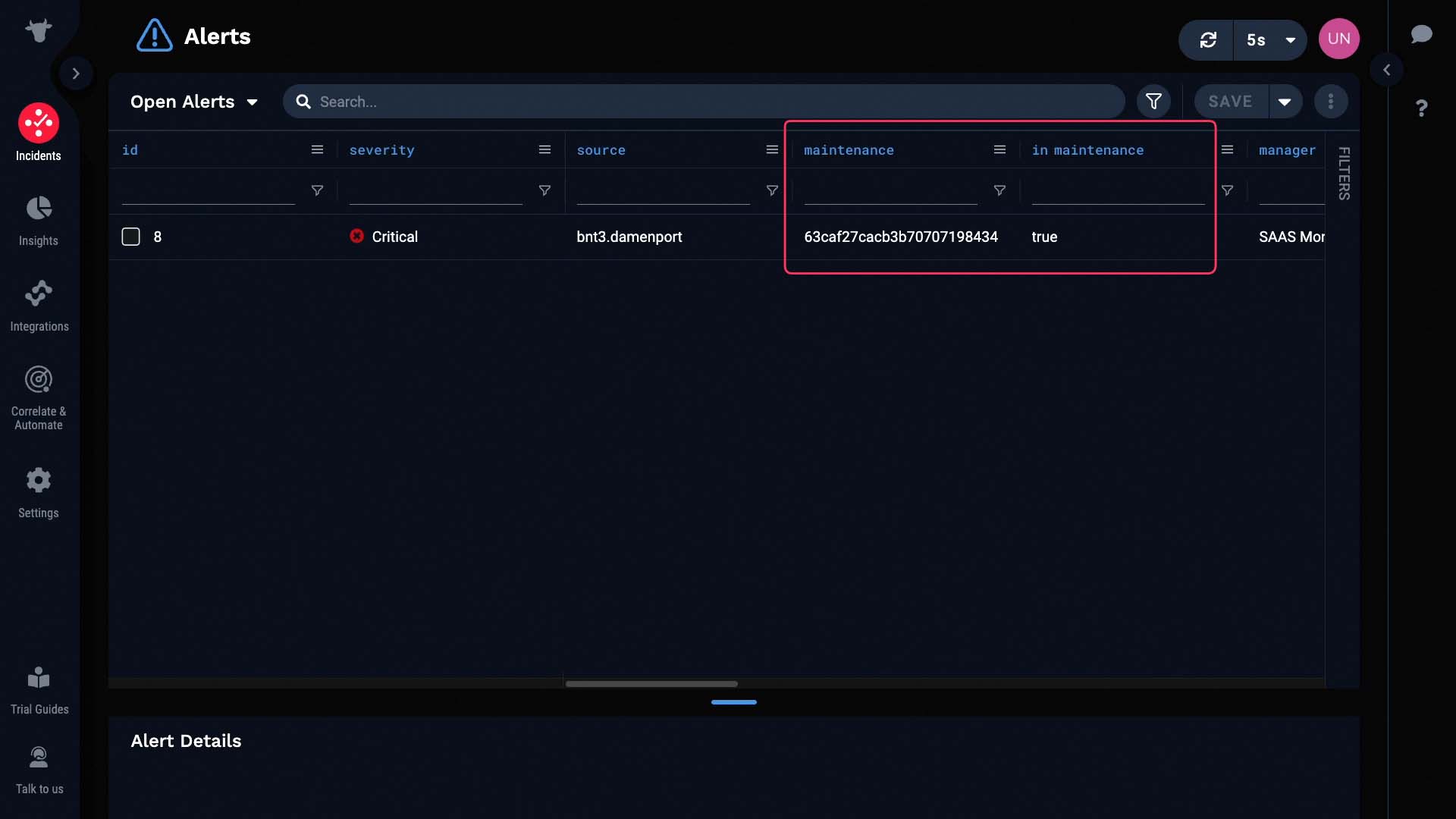
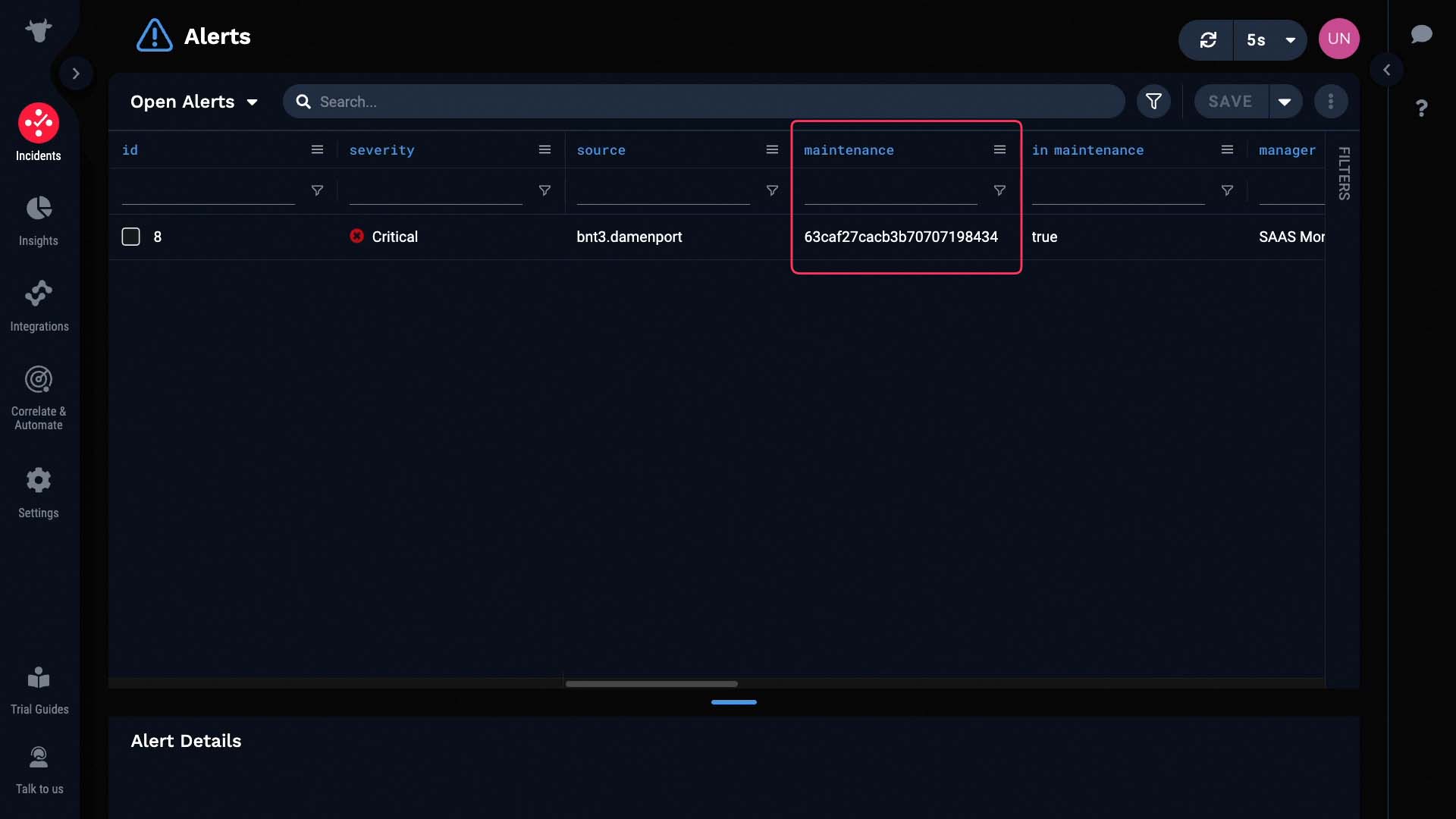
One thing to keep in mind here is the difference between these two columns. The “In maintenance” column indicates whether the alert is in a currently active maintenance window. So even though it says true for this alert, after this maintenance window closes it will turn to false.
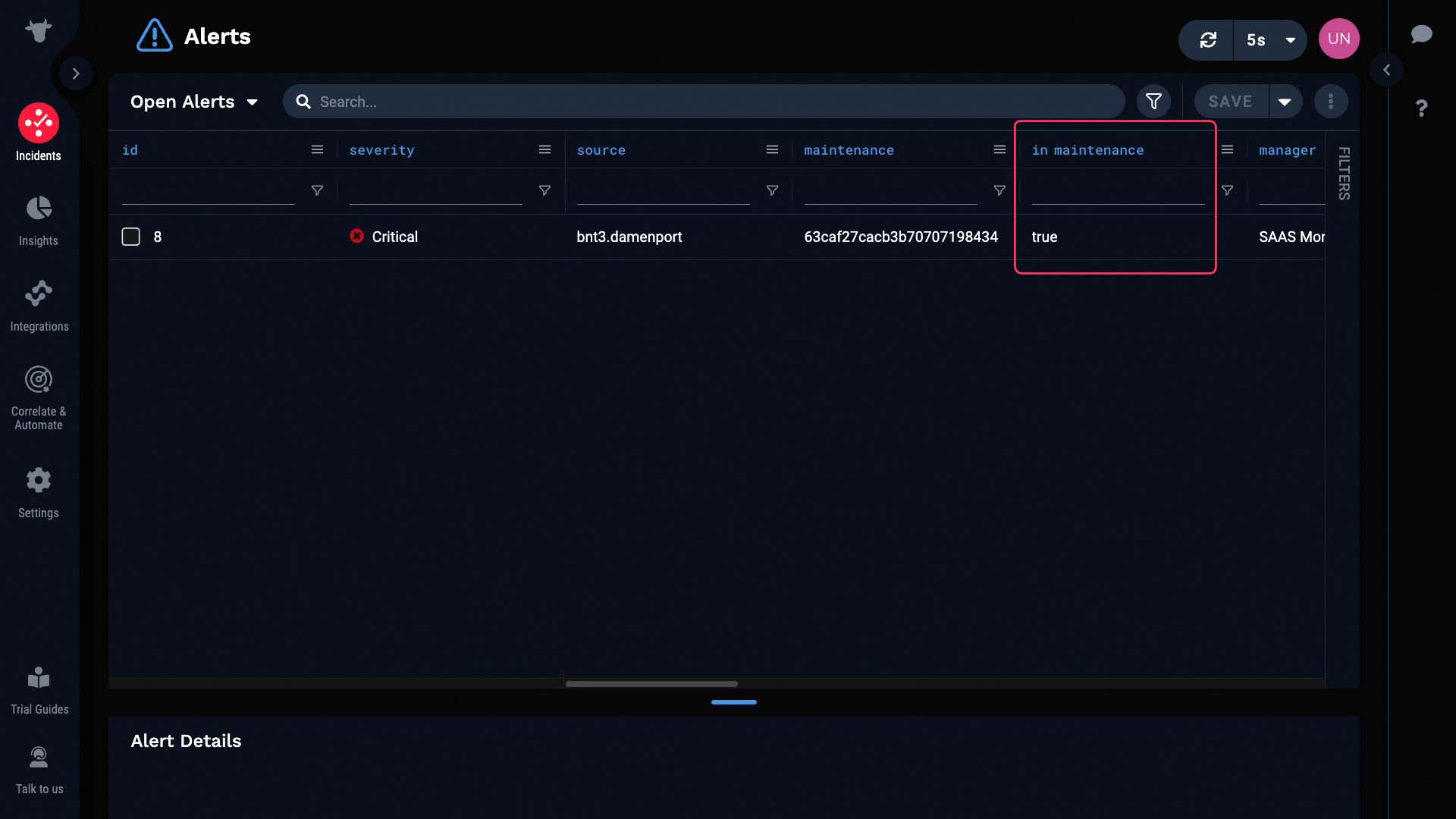
After that, you can still tell if the alert happened during a maintenance window or not by checking the “maintenance” column.
Now, you may prefer not seeing the alerts that happened during the maintenance window at all.
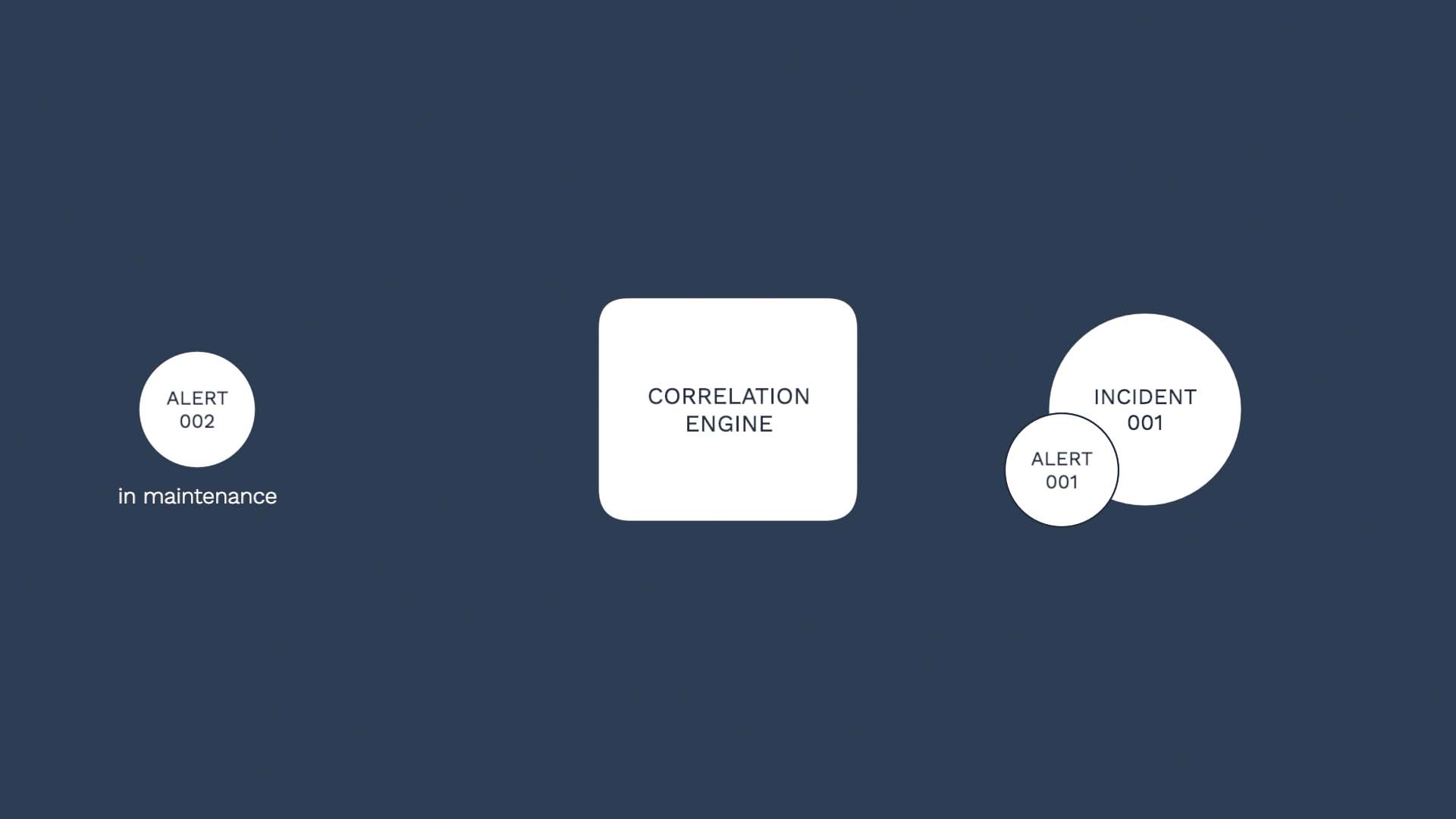
Let me show you how to do that. We can set up a filter to ignore those alerts raised during the maintenance window from the impacted assets.
This way we can reduce noise and surface what truly requires the user’s attention.
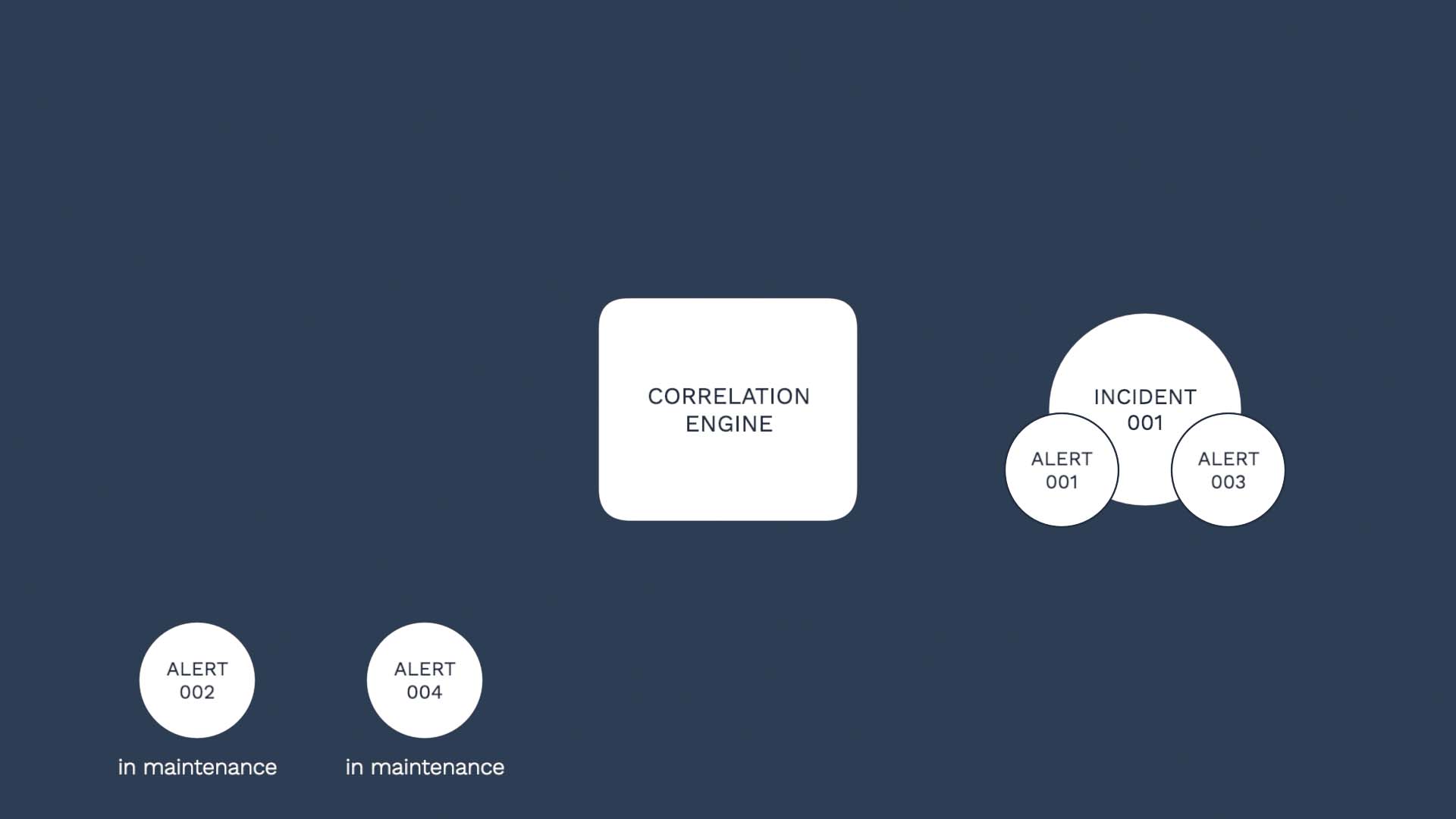
To filter out the alerts in maintenance, we are going to add a scope filter to our correlation definition.
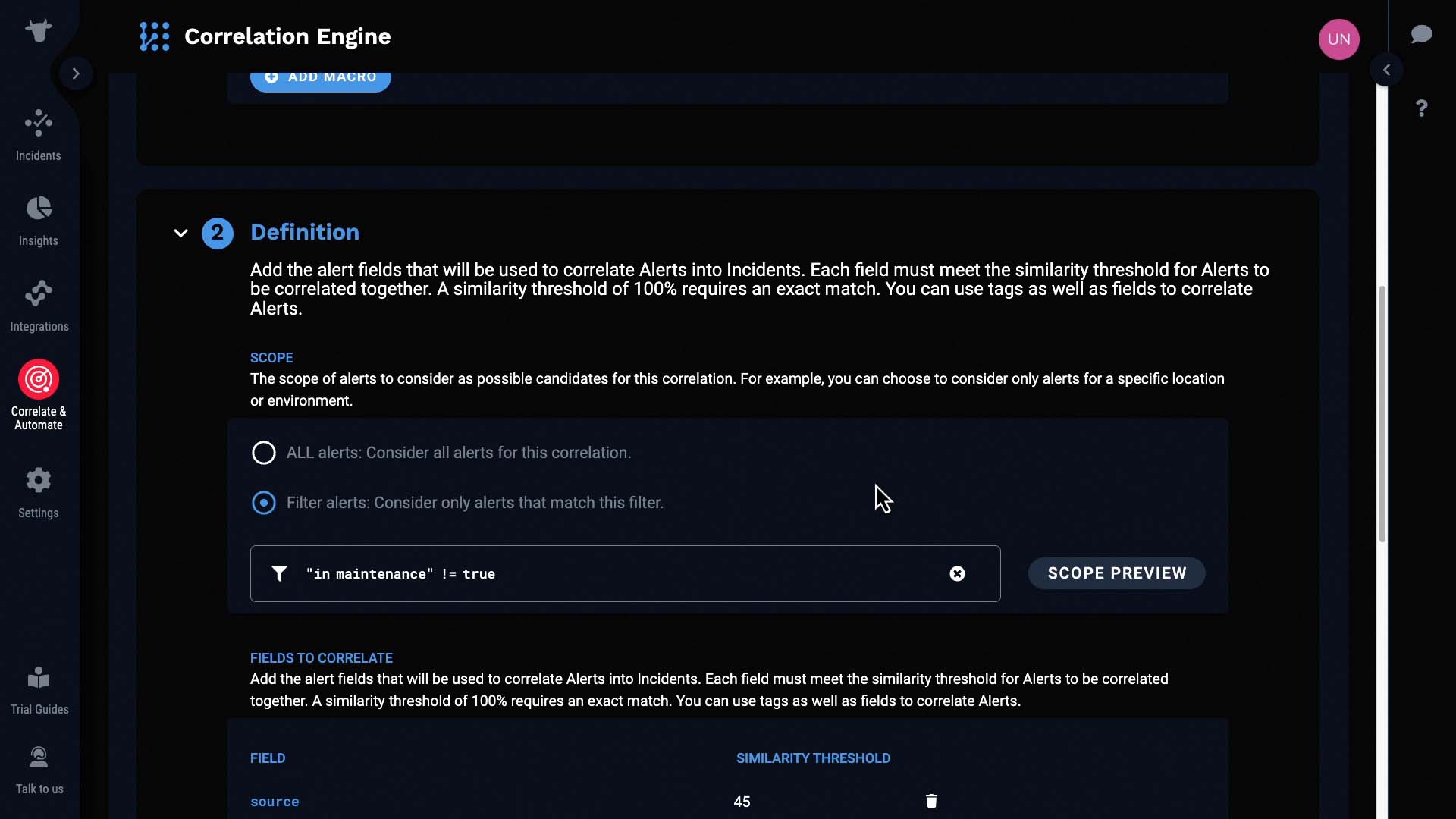
Now, only the alerts that are not in maintenance will be processed by this correlation engine.
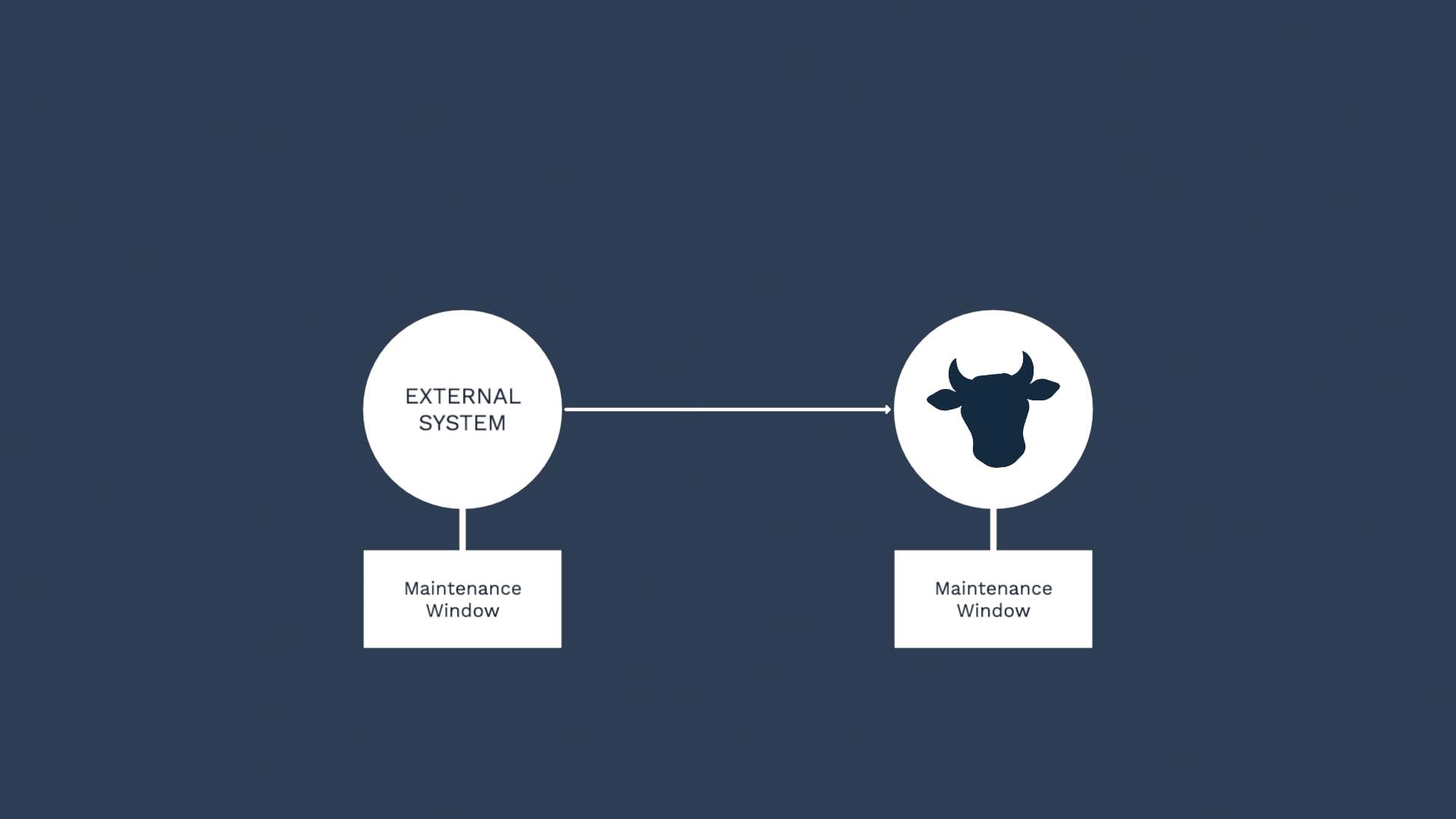
So that’s the UI-based way of creating and managing maintenance windows. We also offer API-based method. For example, you may currently set up maintenance windows in ServiceNow. Then rather than entering the same information in Incident Management, you can make an API call from ServiceNow to create a window in Incident Management.
Now you know how to set up maintenance windows and suppress noise. Thanks for watching!