Module 4: Dashboards and APIs
Module contents:
BASIC | 2 MIN
You may have set up team dashboards to monitor the performance of each team. But at the executive level, you need the overall understanding of how things are going. In this video, you will learn about the executive summary page.
Demo video: Executive Summary in APEX AIOps Incident Management ►
This video explains how to use the Executive Summary feature in APEX AIOps Incident Management to give you a high level understanding of your operations performance.
*Please note Moogsoft is now part of Dell's IT Operations solution called APEX AIOps, and changed its name to APEX AIOps Incident Management. The UI in this video may differ slightly but the content covered is still relevant.
You may have set up team dashboards to monitor the performance of each team. But at the executive level, you need the overall understanding of how things are going.
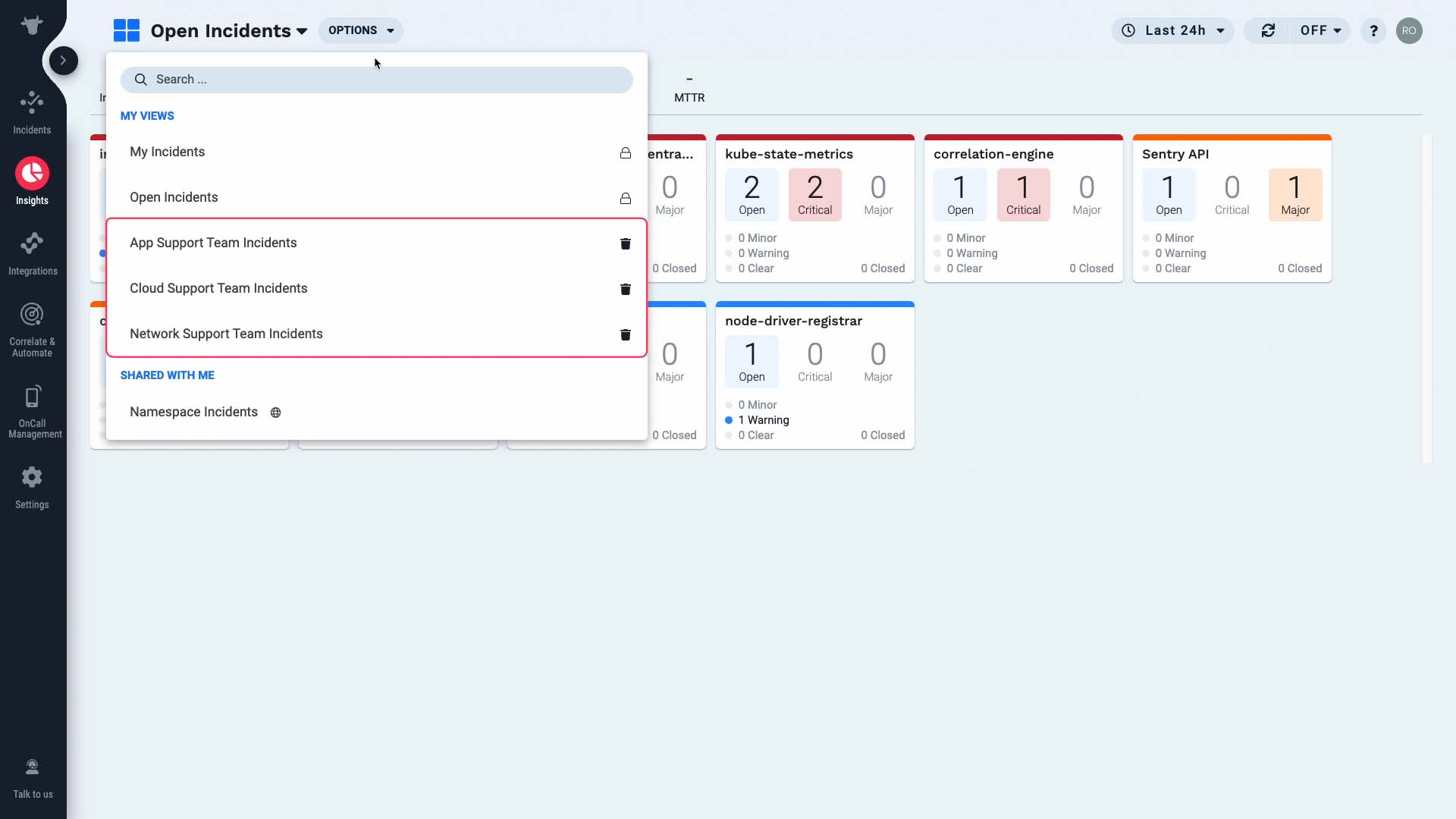
The executive summary page is perfect for that purpose.
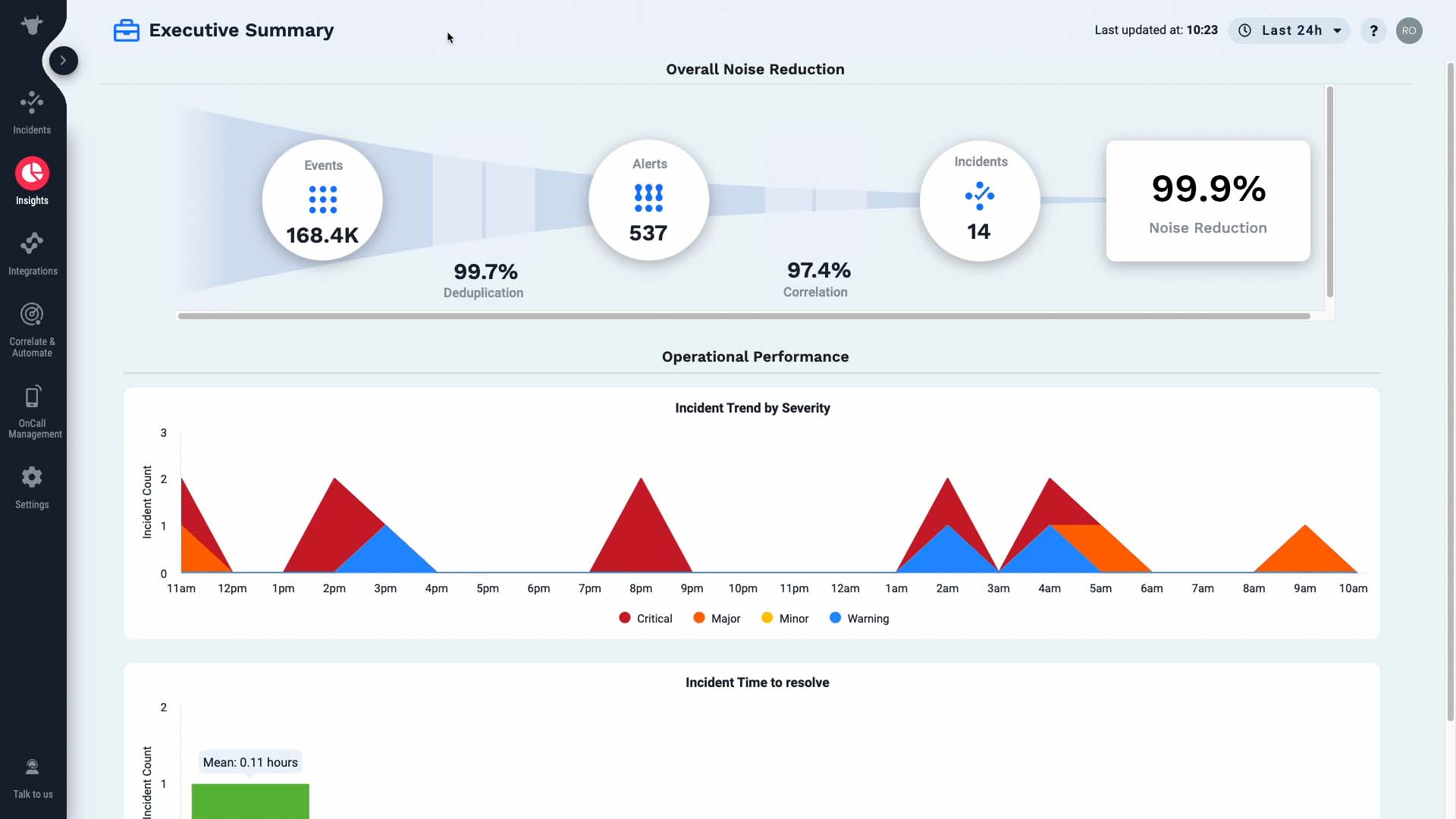
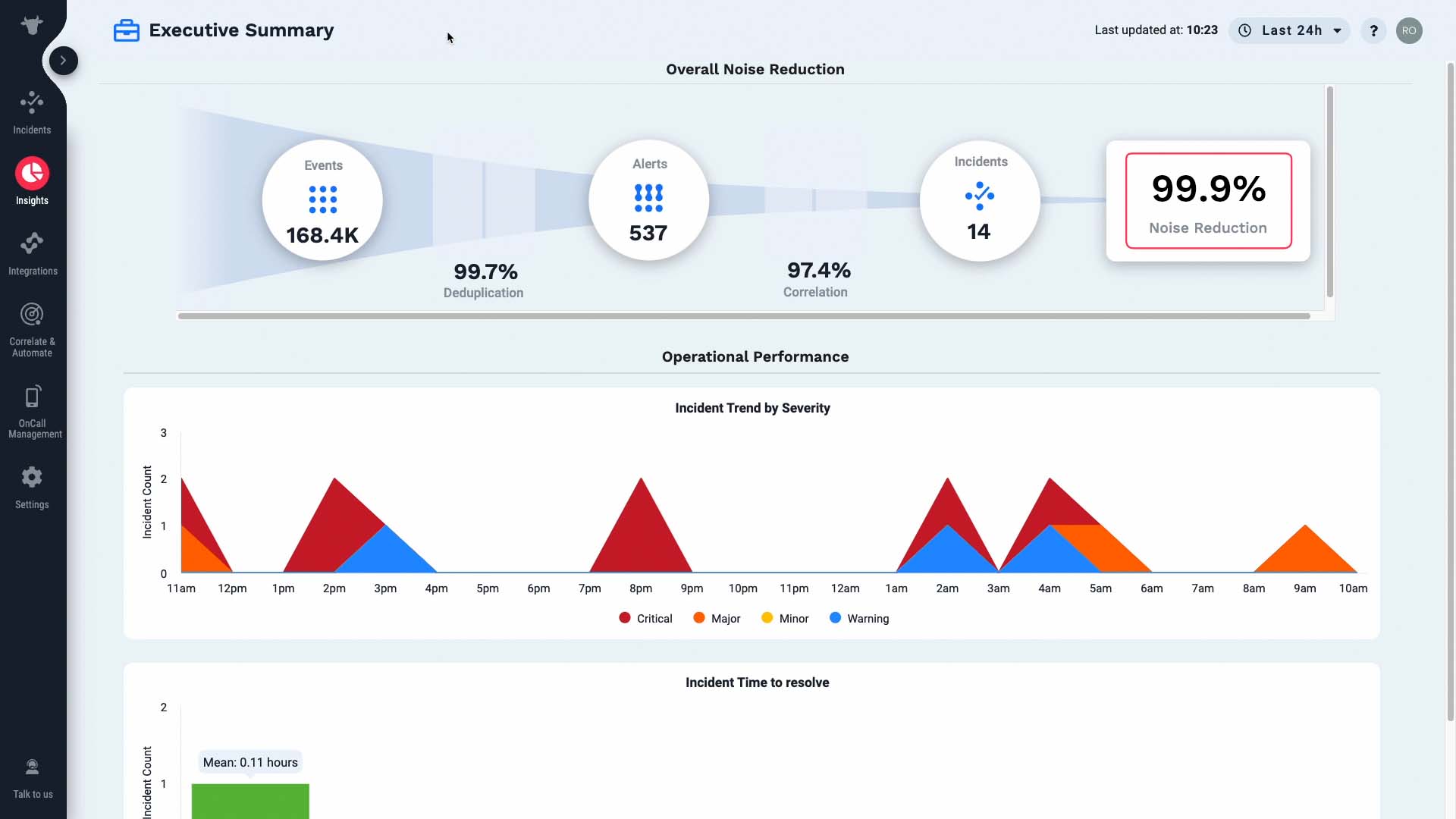
The top row tells you how Incident Management is helping your operational efficiency.
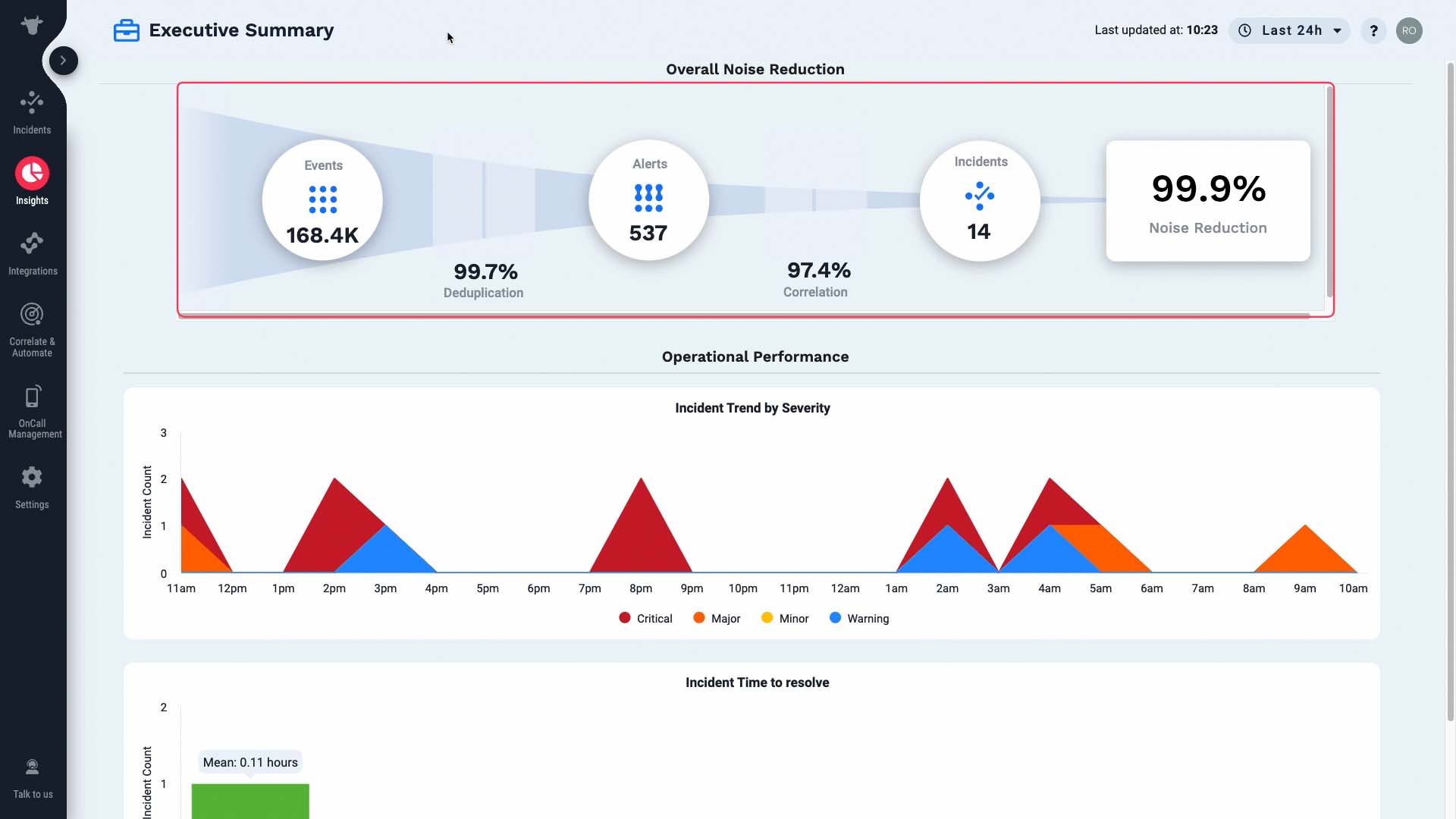
In this instance, the 99.7% of incoming events were deduplicated into 537 alerts.
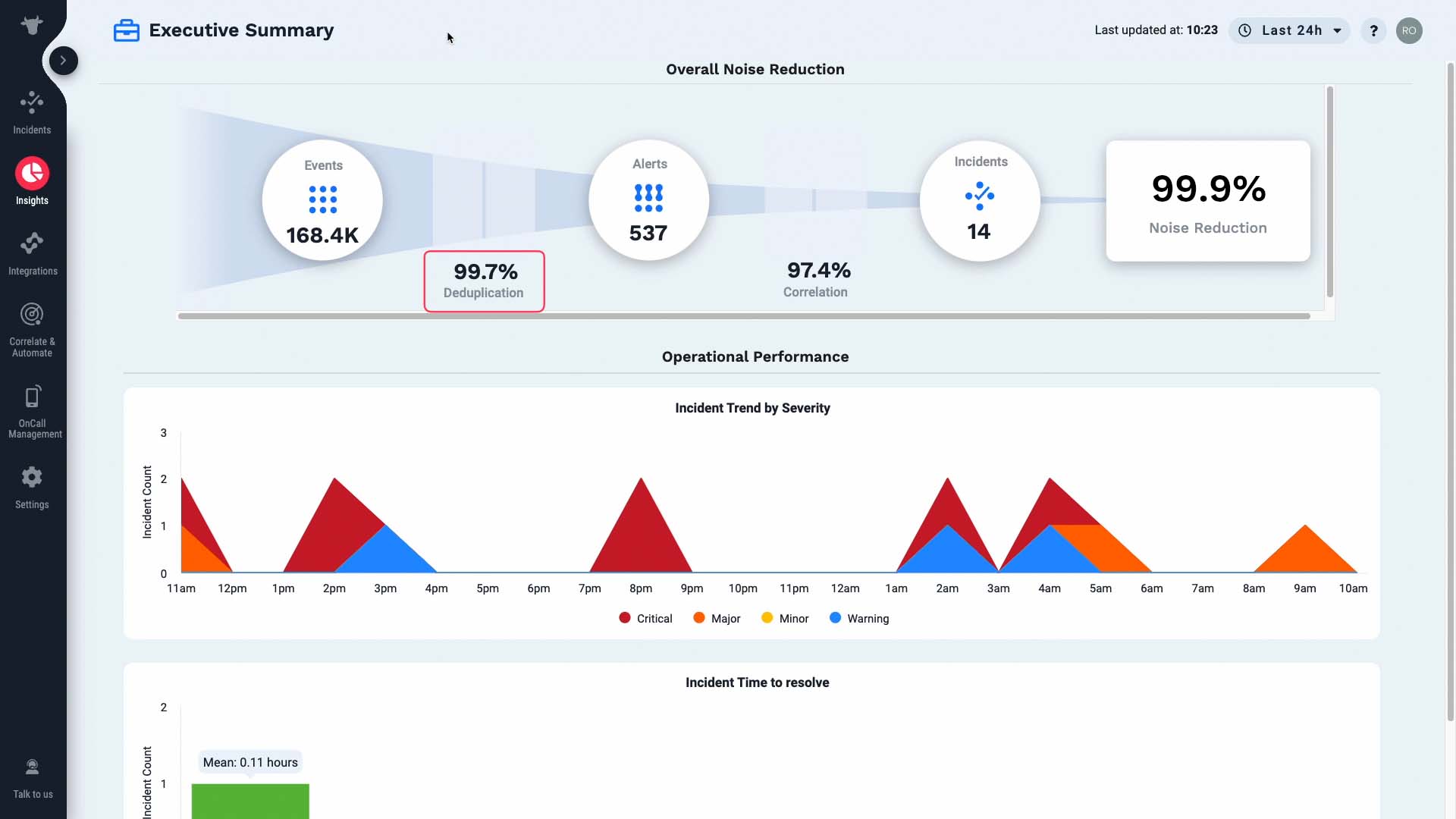
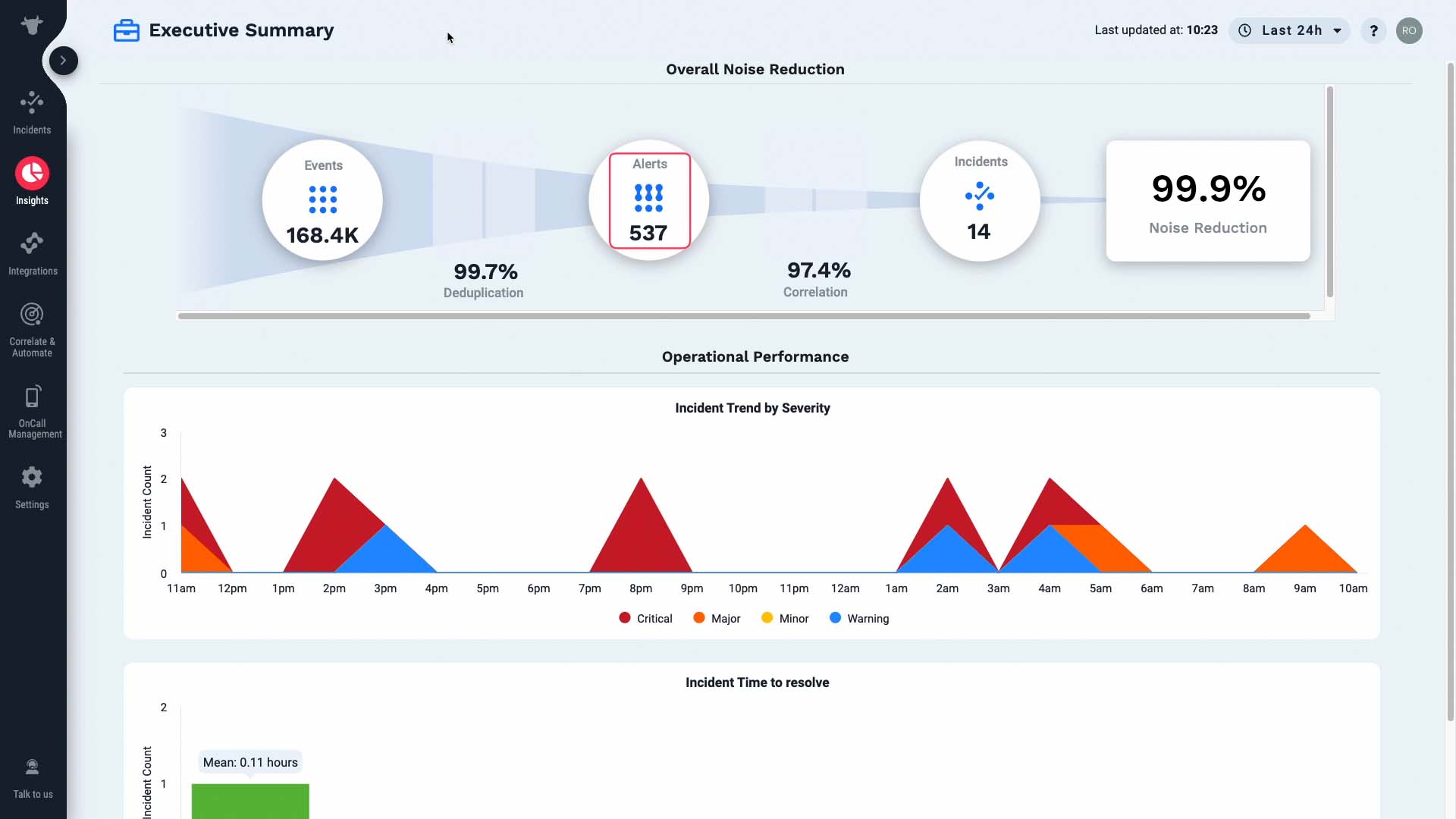
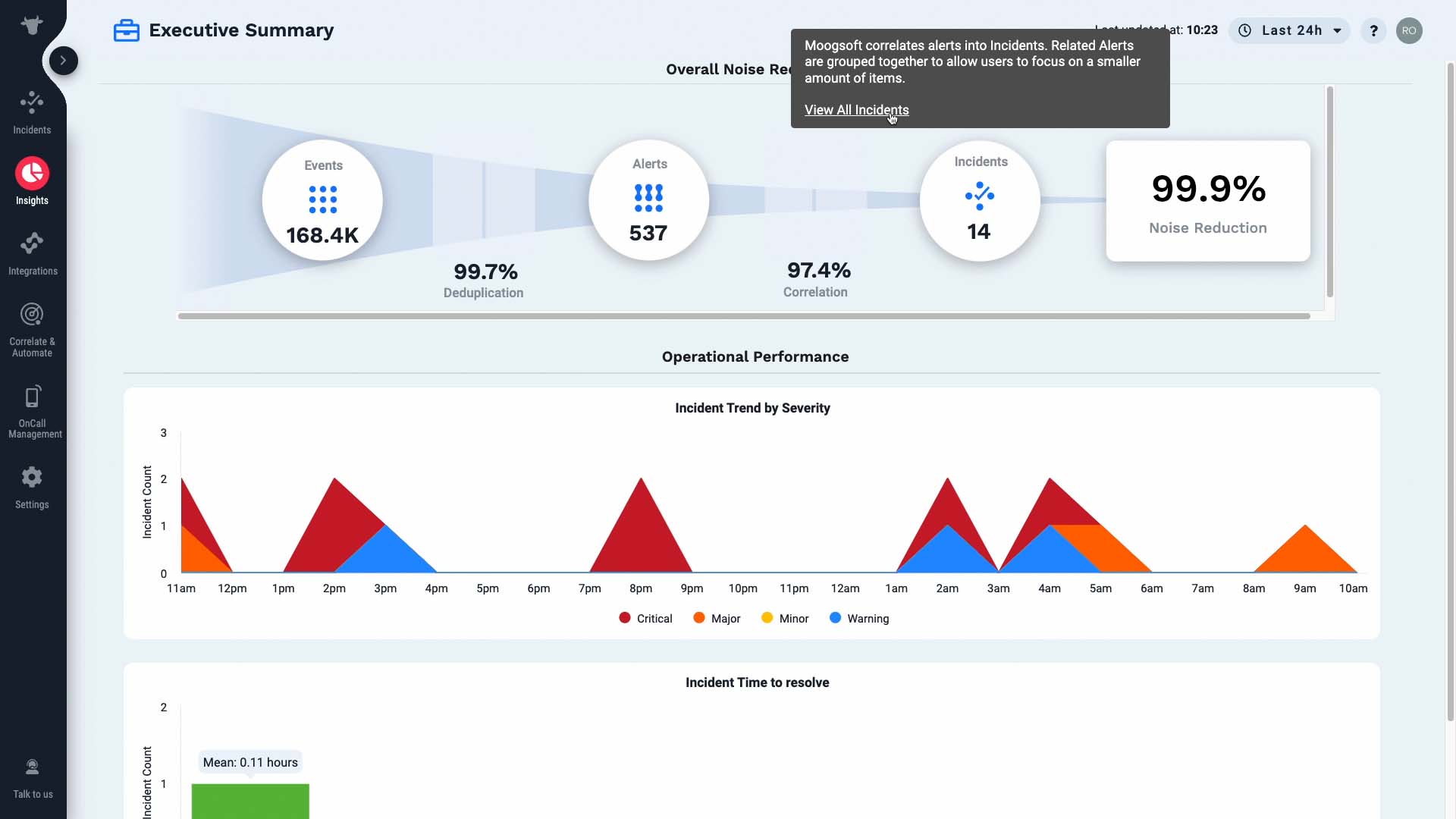
Then those alerts were grouped by their relatedness into 14 incidents.
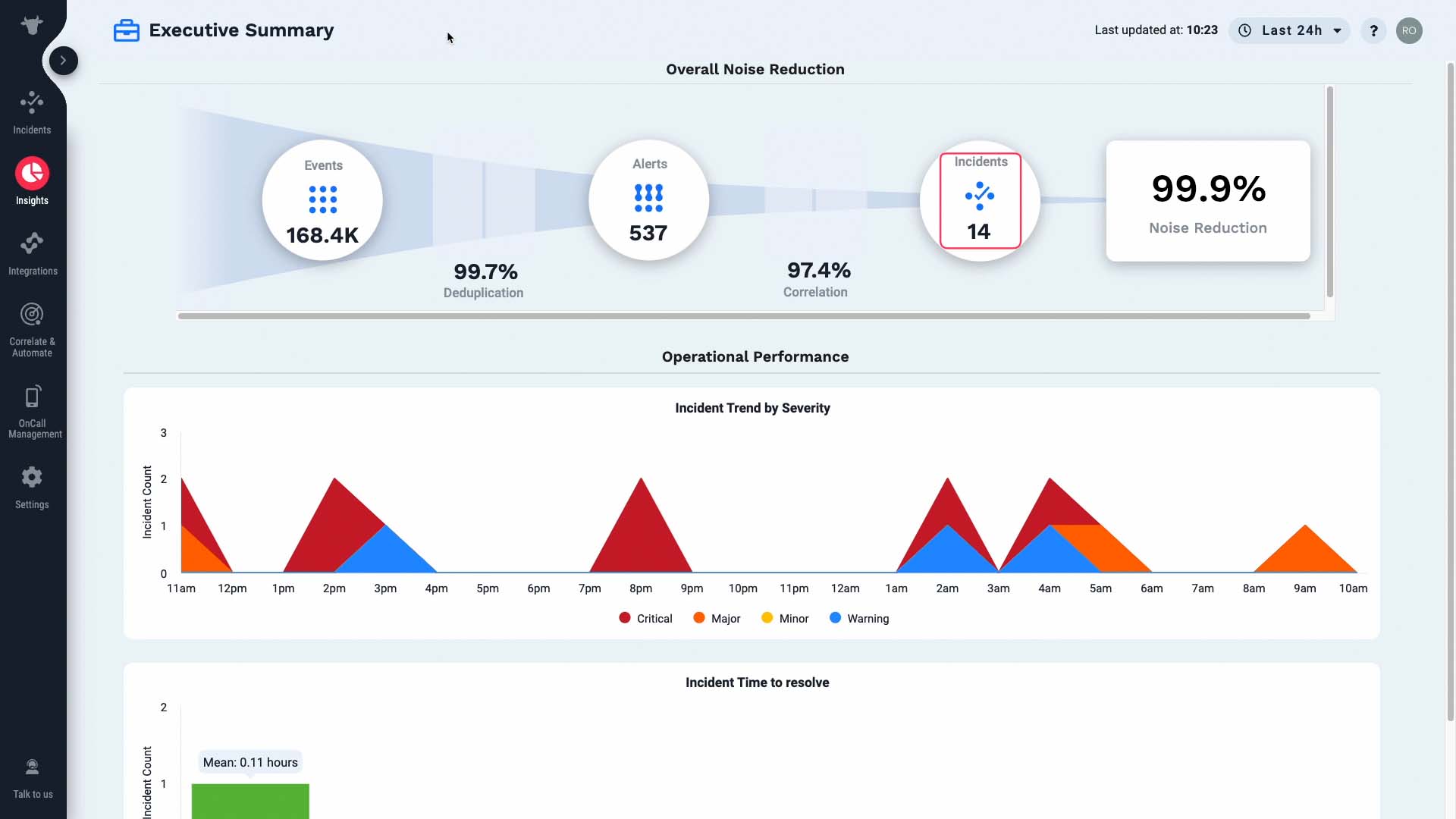
So Incident Management has reduced 99.9% of the noise for you.
And if needed, you can examine each item with one hop.
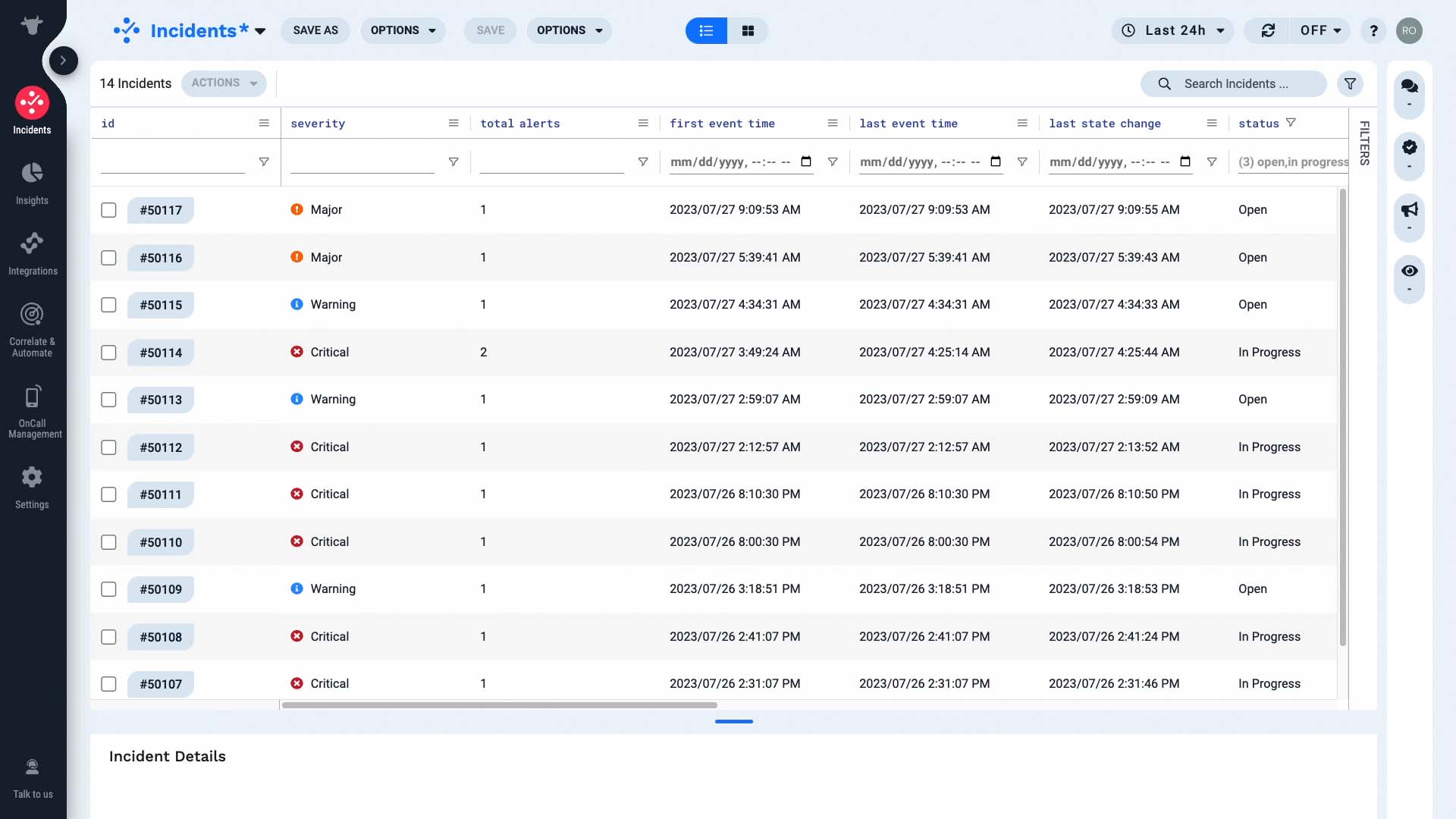
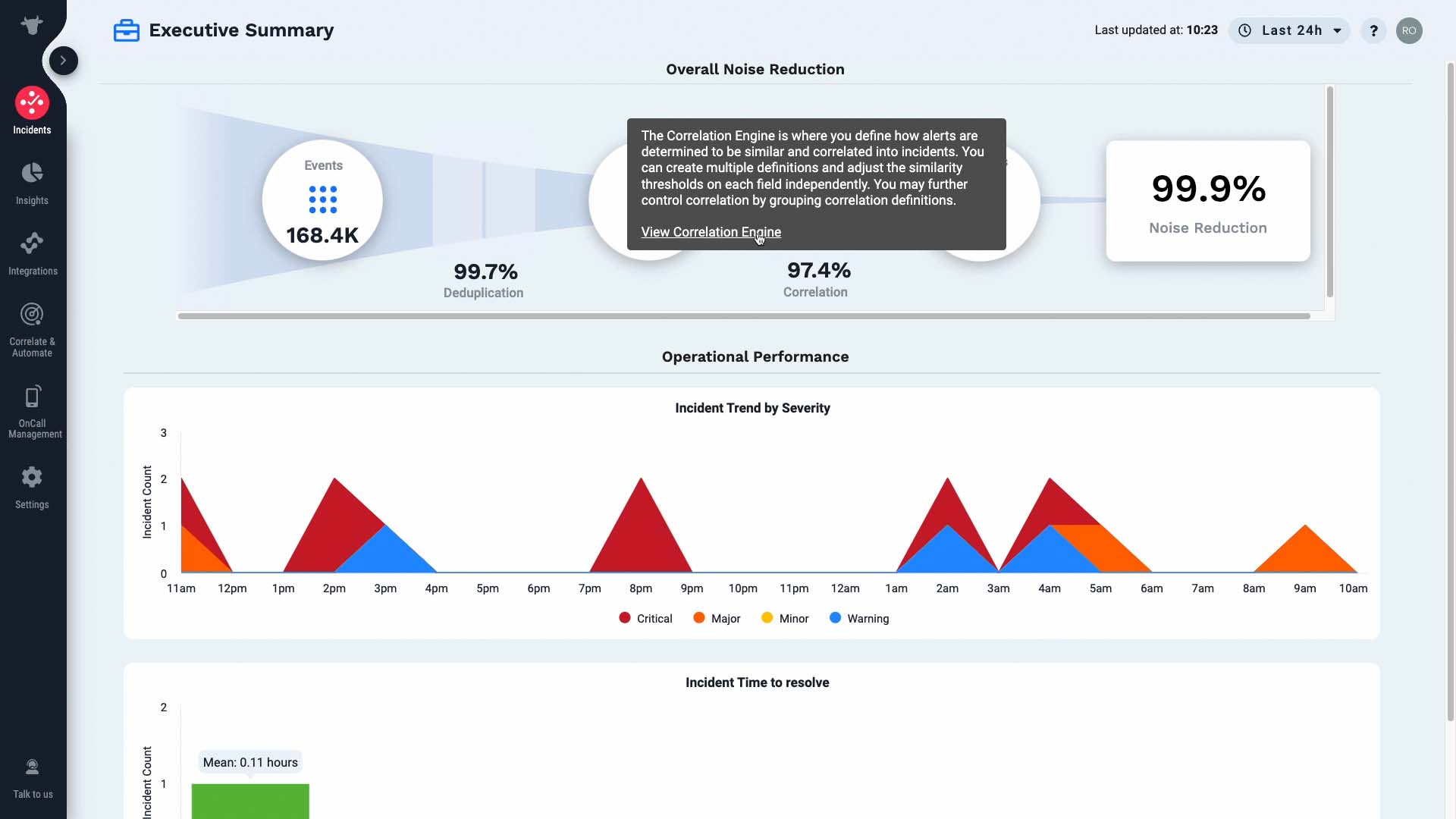
Or suppose you are not seeing the desired level of noise reduction. Then you can hop over to the configuration page and tweak the settings.
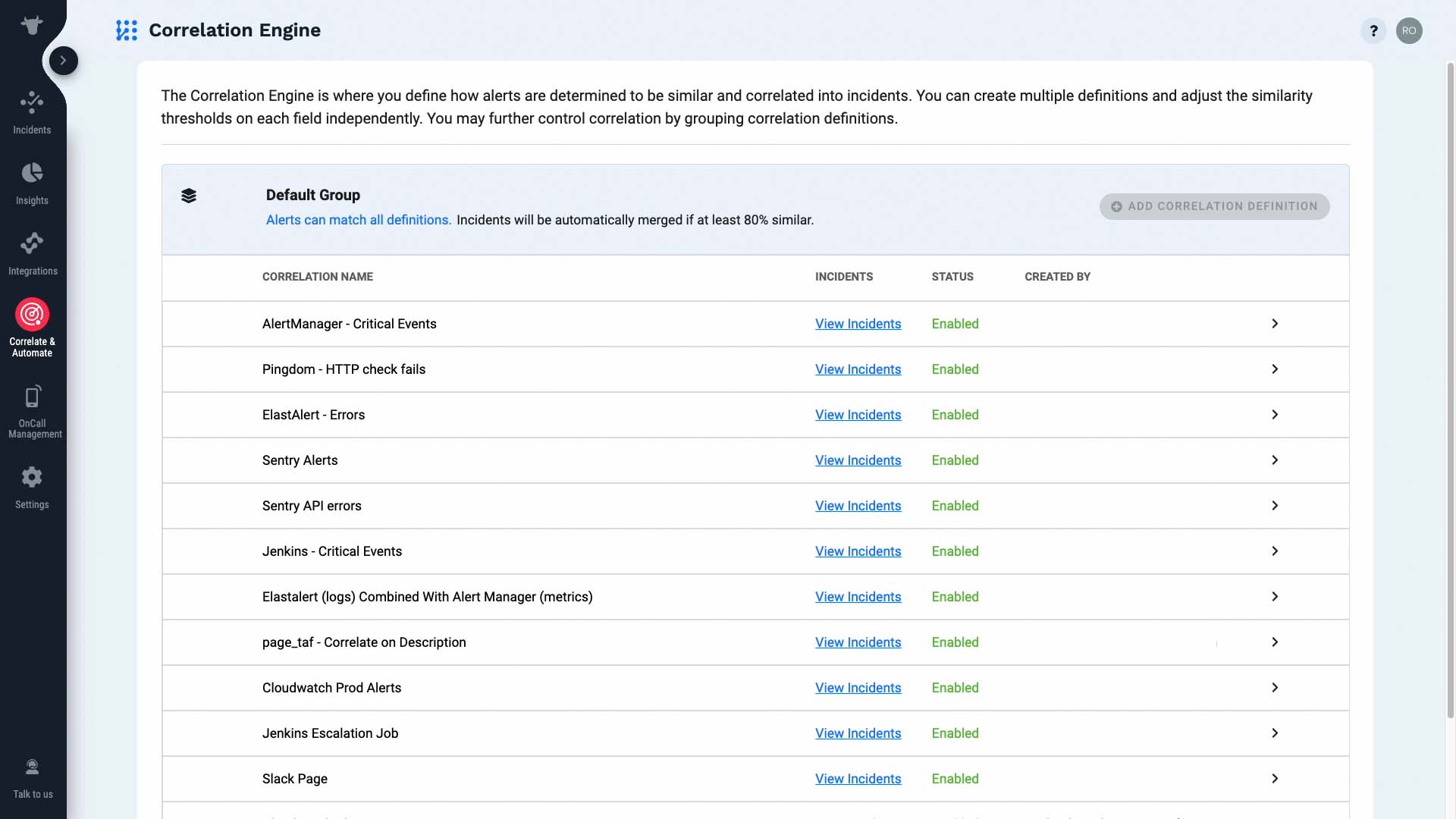
Next you get to see how your issues are trending. Are the number of serious issues trending up? Are we getting more incidents overall? Any incidents that persisted for a long time? It’s easy to get such information with visualization.
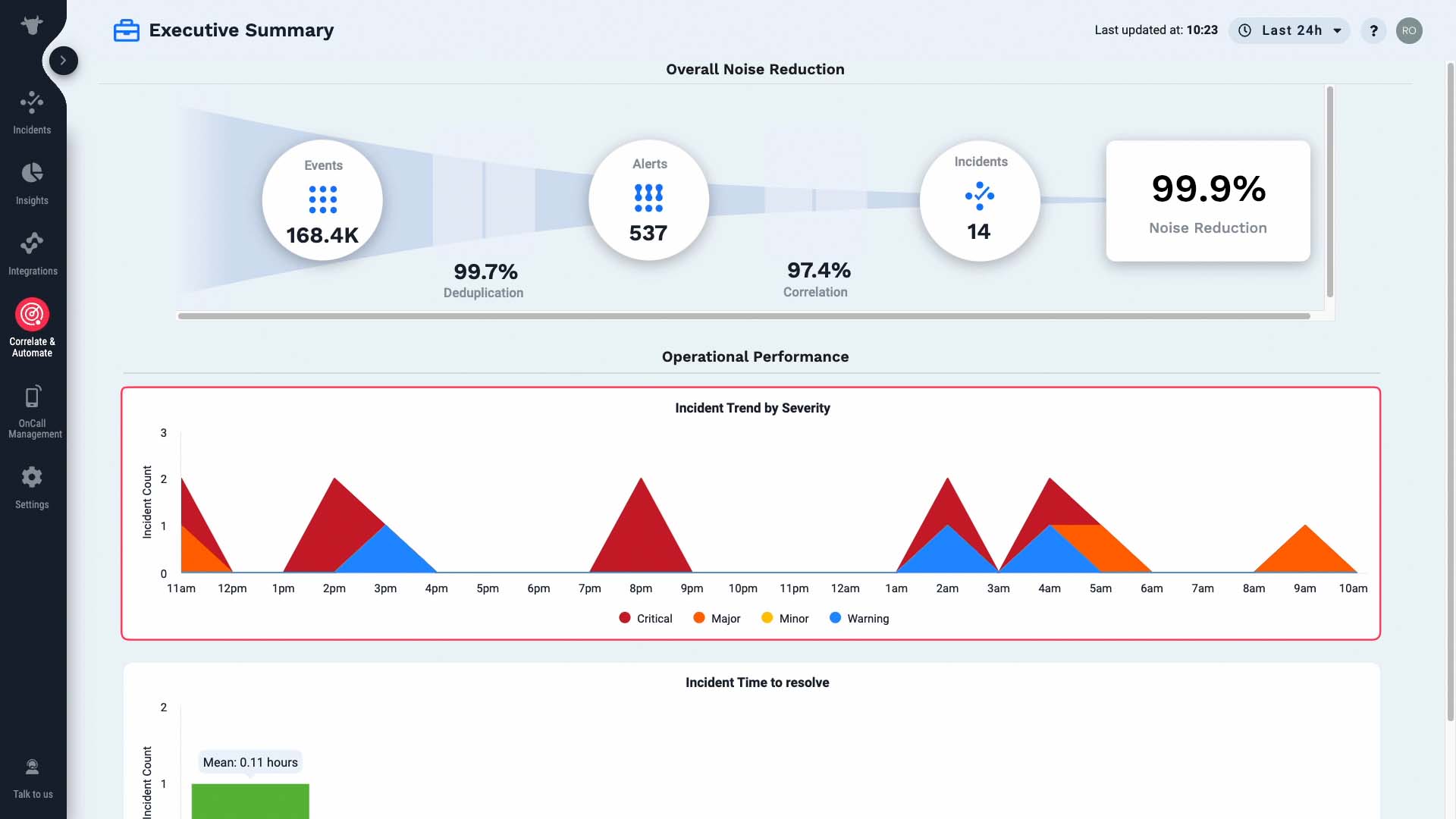
And if needed, you can click through to learn the details of each incident.
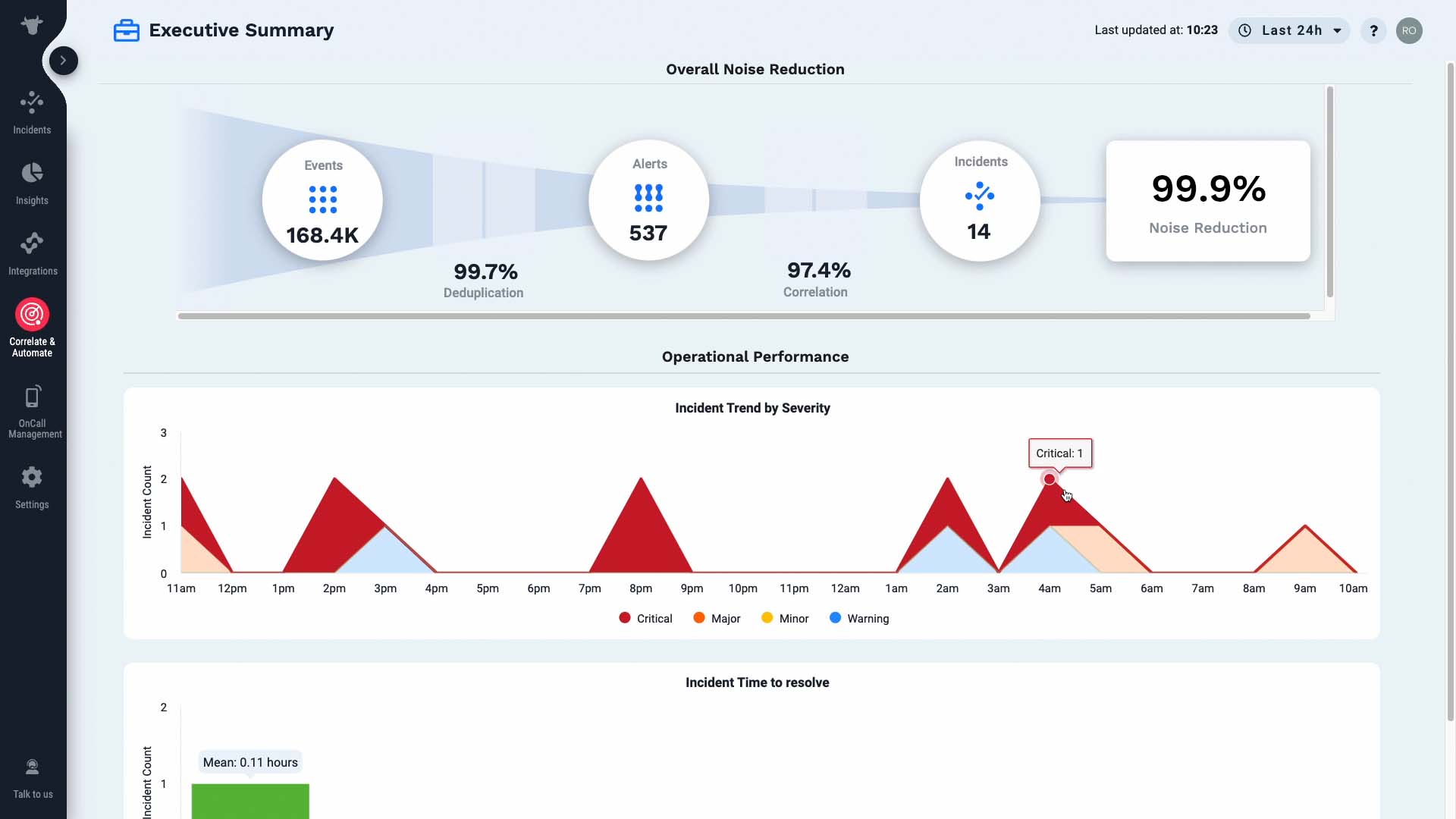
You can also monitor how long it’s taking to resolve incidents. Are there any incidents that take a disproportionately long time to get resolved? What’s the overall average time needed? You can ensure your staffing is adequate so the issues are taken care of in a timely manner.
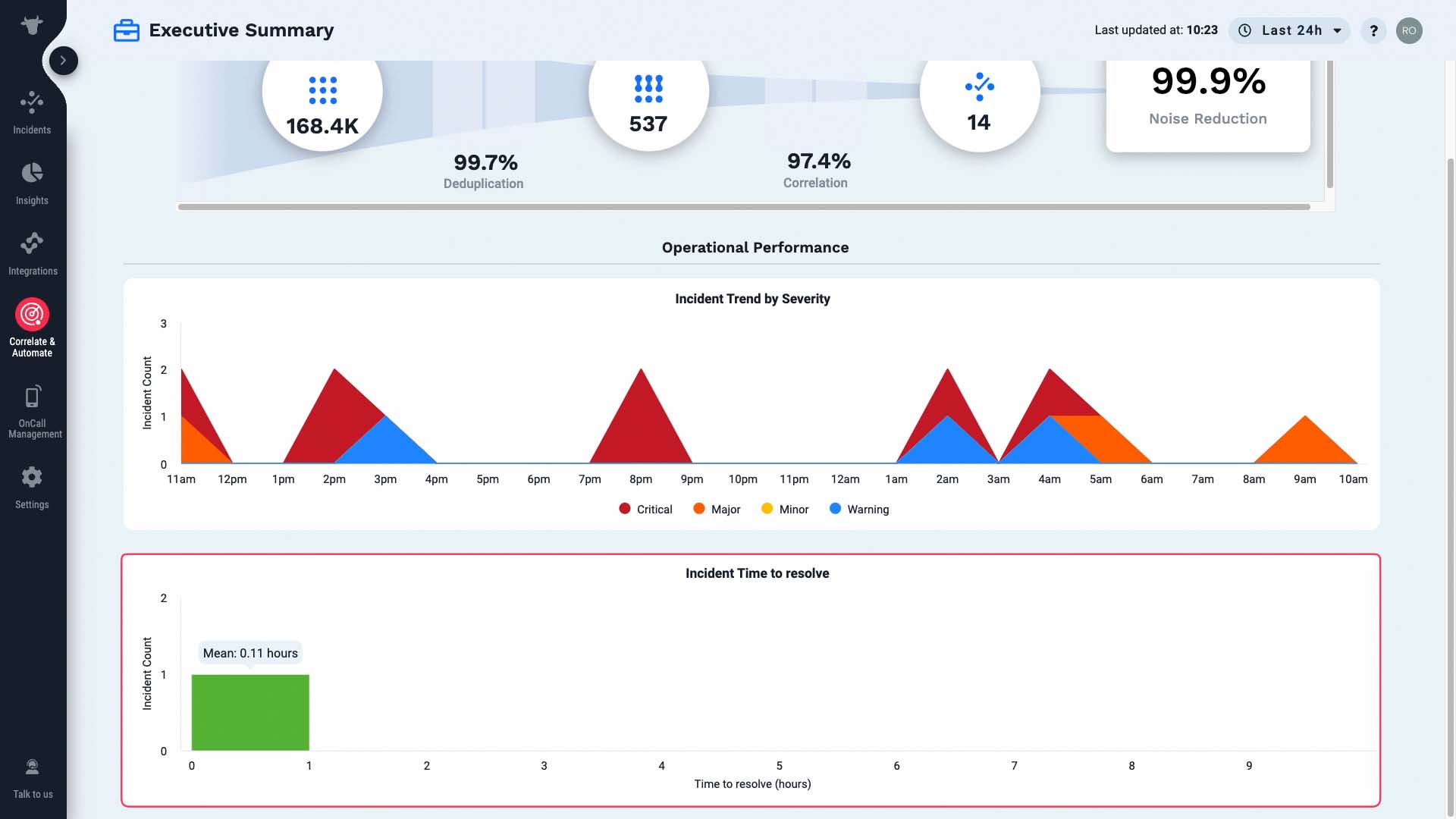
Like this, the page gives you an executive summary of your operations performance. Enjoy!
BASIC | 5 MIN
Get familiar with Moogsoft's API documentation and learn how to send sample event and metric data using the Events and Metrics APIs.
Specifically, learn how to:
Use best practices in managing API keys
Navigate the Moogsoft API documentation
Build Events and Metrics API commands
Set up and use a generic demo script
Events API documentation is available, as well as Metrics API documentation.
Demo video: Use APIs to send sample data into APEX AIOps Incident Management ►
This video explains how to generate API keys and send API requests to APEX AIOps Incident Management.
*Please note Moogsoft is now part of Dell's IT Operations solution called APEX AIOps, and changed its name to APEX AIOps Incident Management. The UI in this video may differ slightly but the content covered is still relevant.
Use APIs to send sample data into APEX AIOps Incident Management
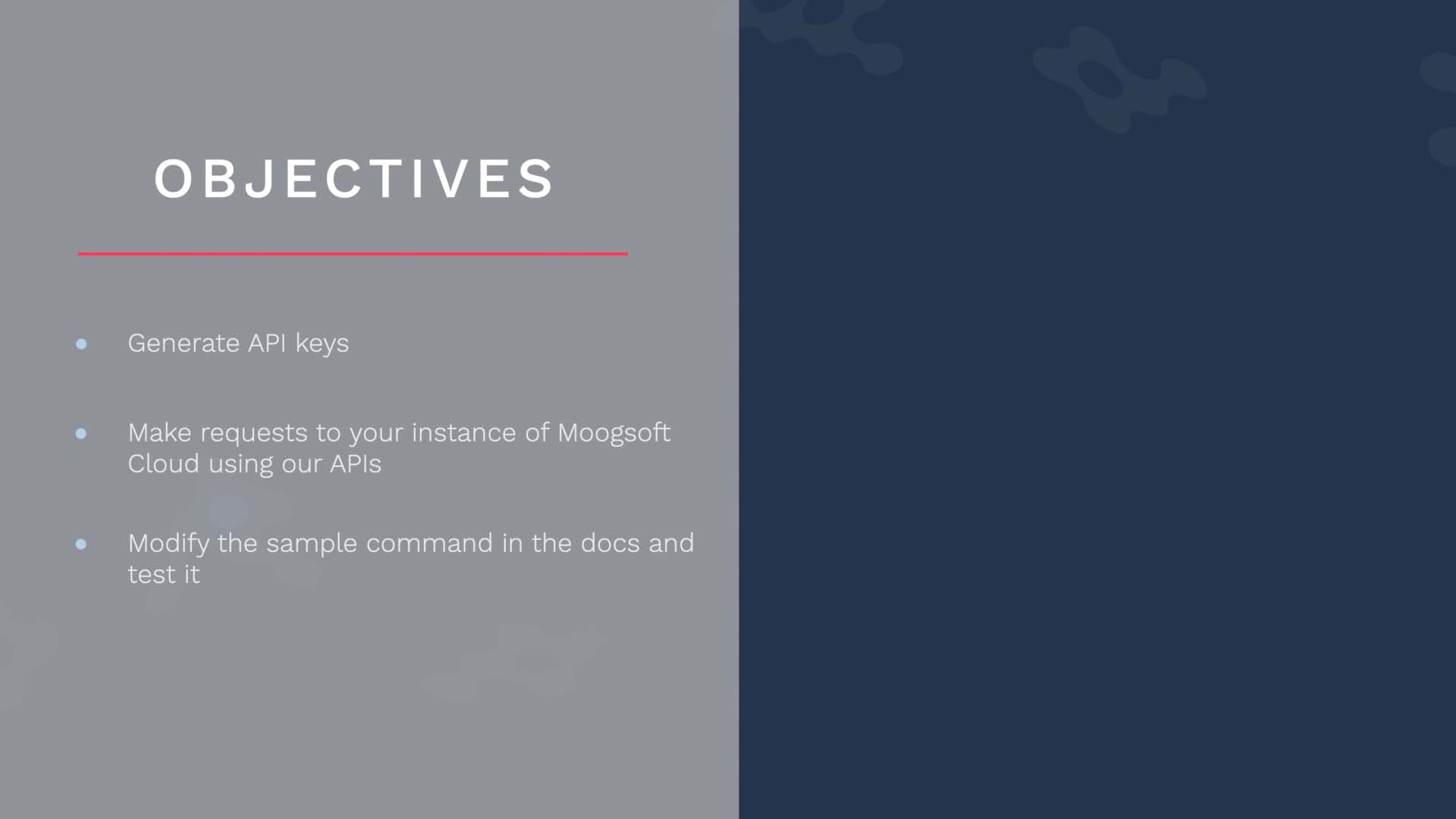
In this video, you will learn how to generate API keys, make requests to your instance of Incident Management using our APIs, and modify the sample command in the docs and test it.
Suppose you have a monitoring tool collecting metric and event data, and you want to route that data to Incident Management using our APIs.
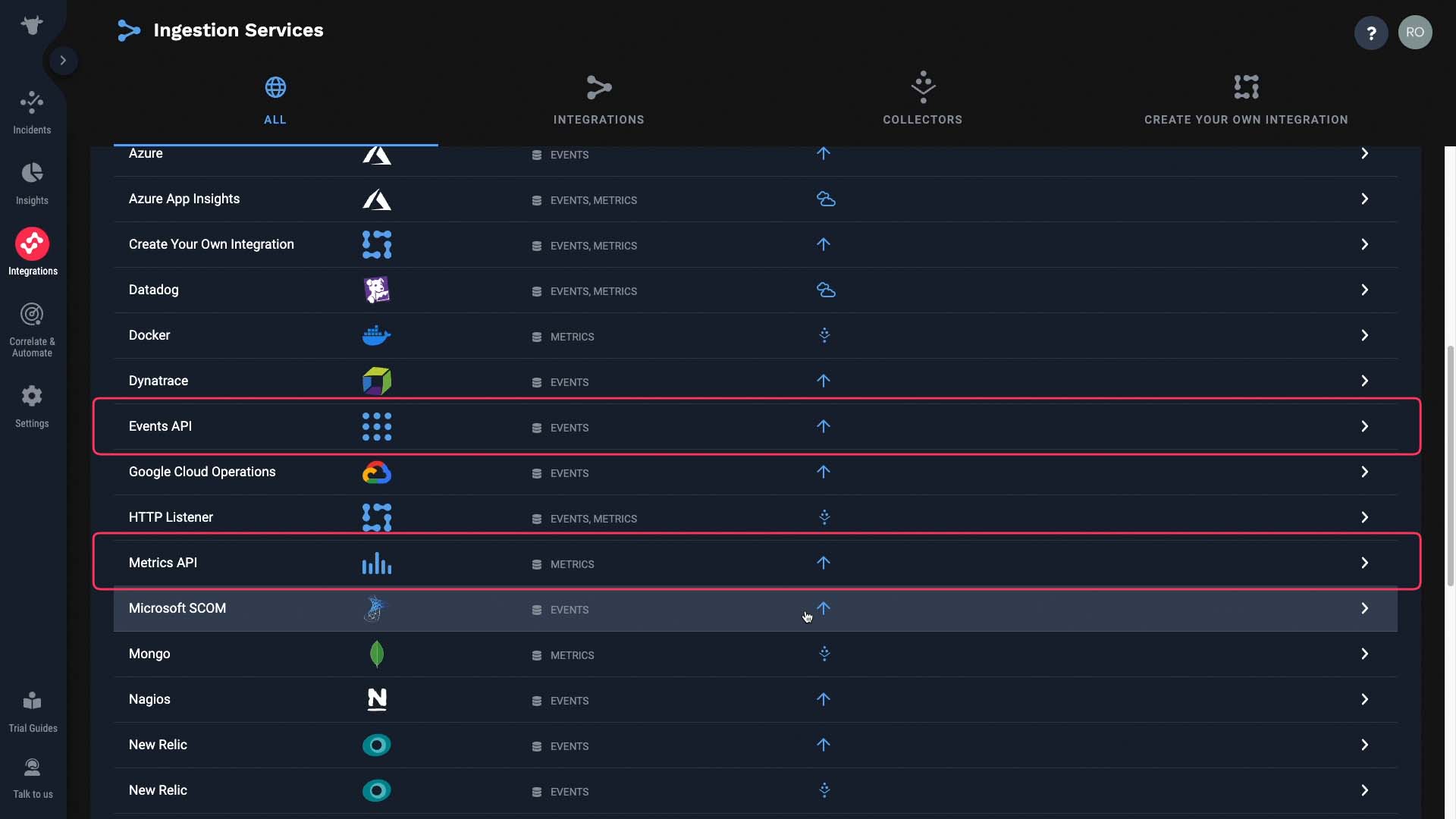
We can send a test event from here. The Events endpoint is here...
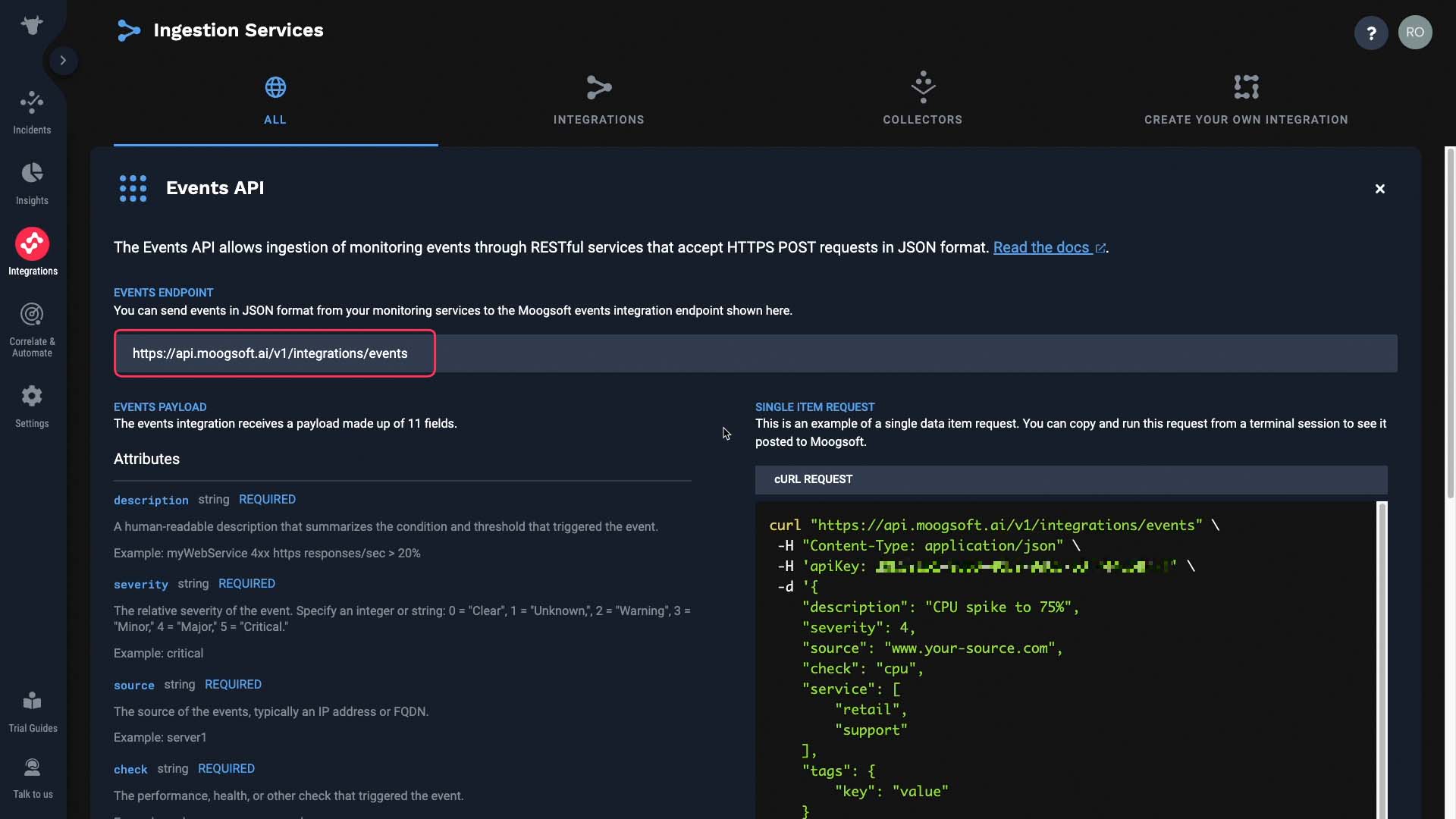
...and the required attributes for the event payload are listed in this section.
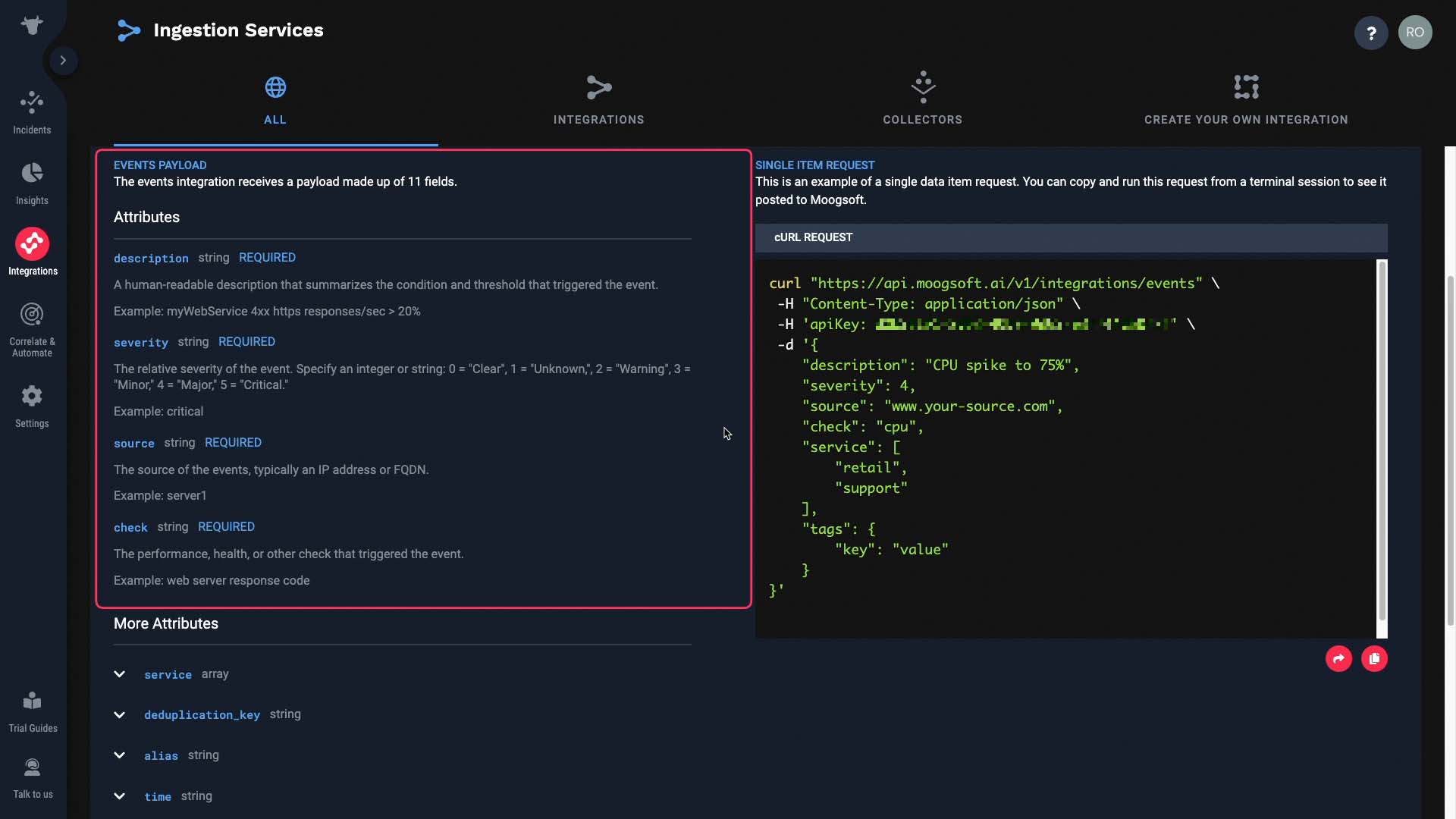
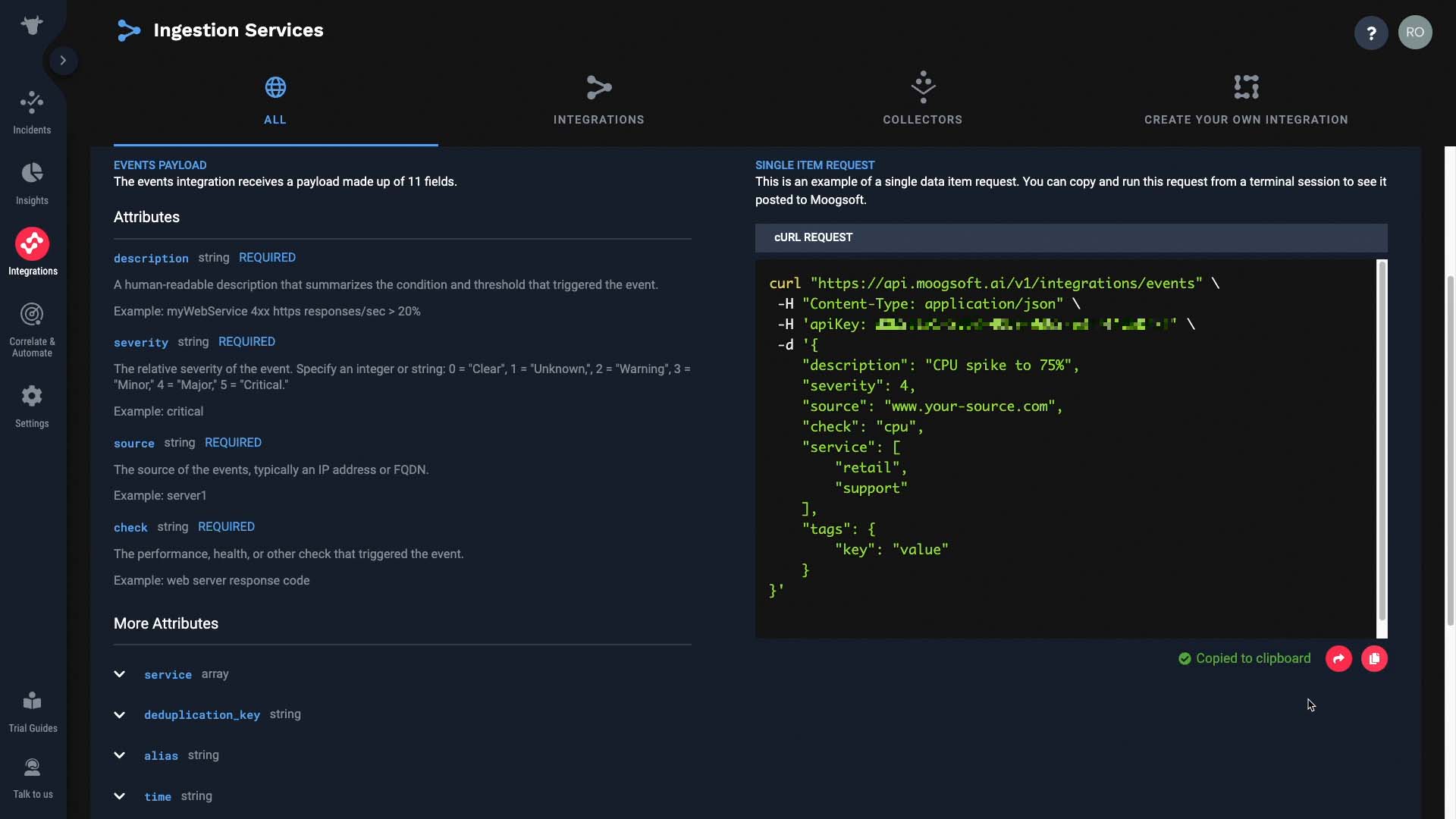
Let’s go ahead and send in a test event. You can copy this…
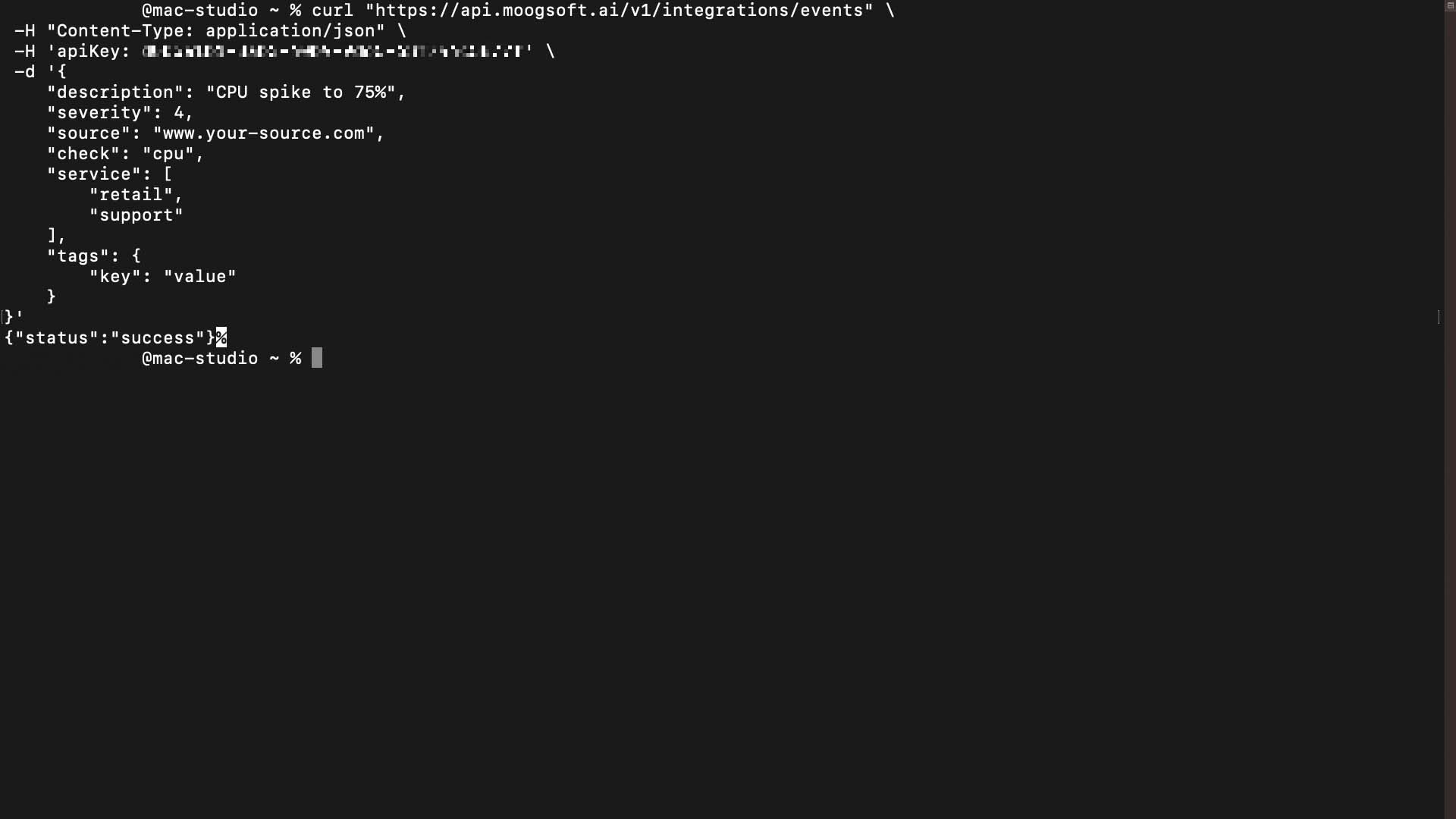
…and paste it in a terminal. Feel free to edit the attributes to make it fit your purposes, and send...Success!
And the event is now in Incident Management.
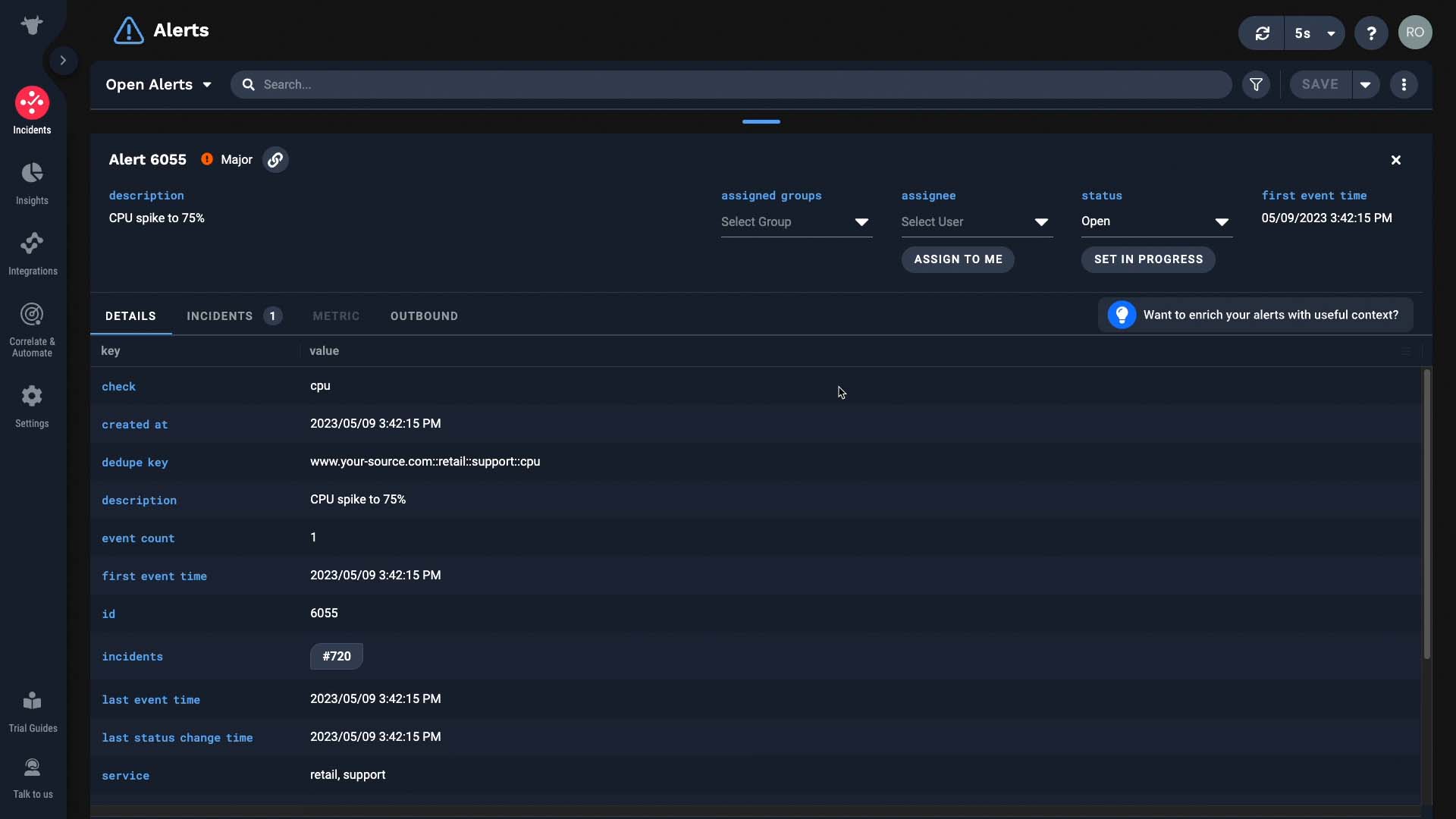
There's another way to do this. You can build the integration right in our API documentation. Let me show you how.
First, we need an API key to push data to Incident Management. Best practice is to generate a key for each purpose here, so that you can grant and revoke access in a granular manner.
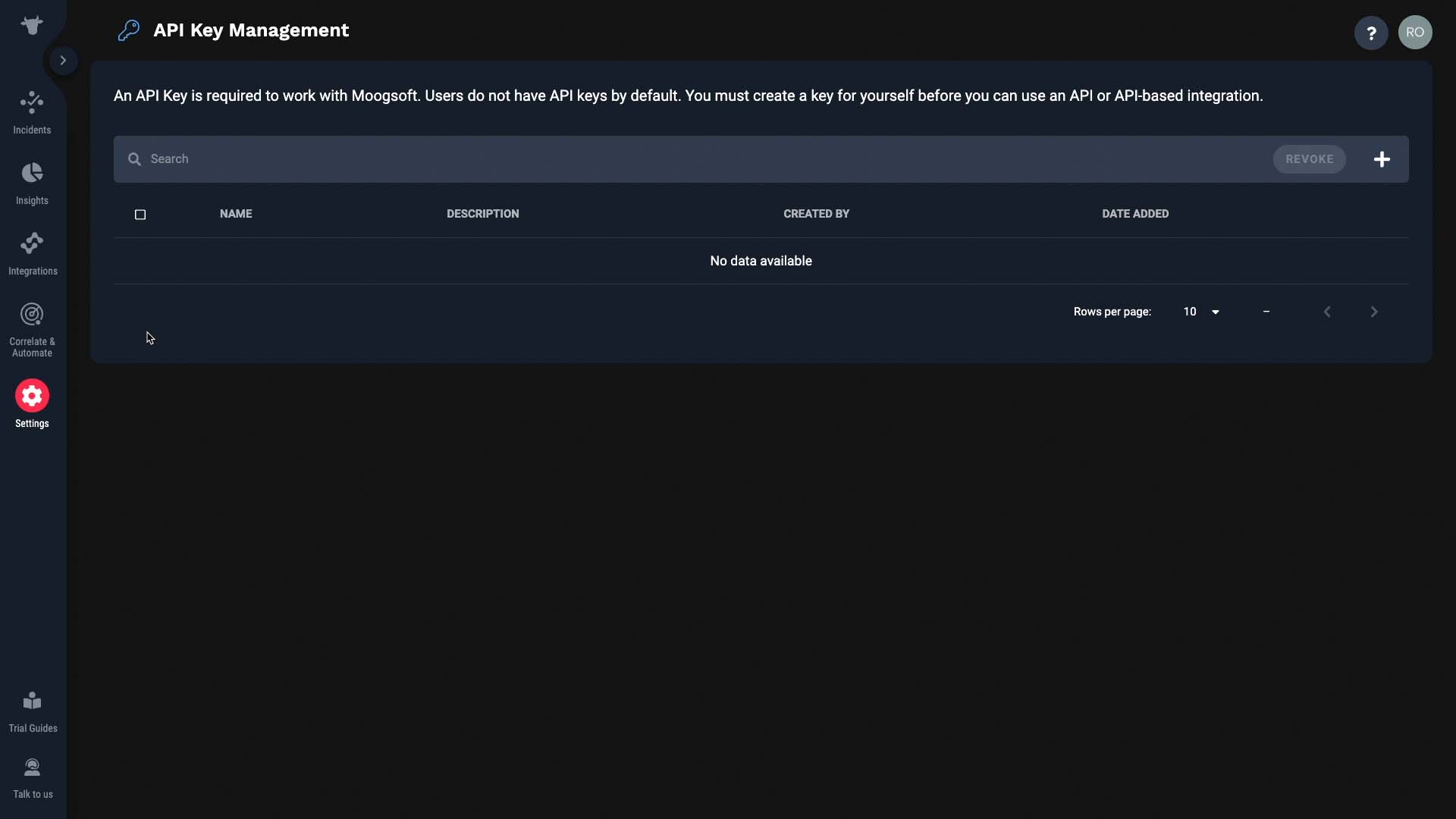
Let’s generate a key for us.
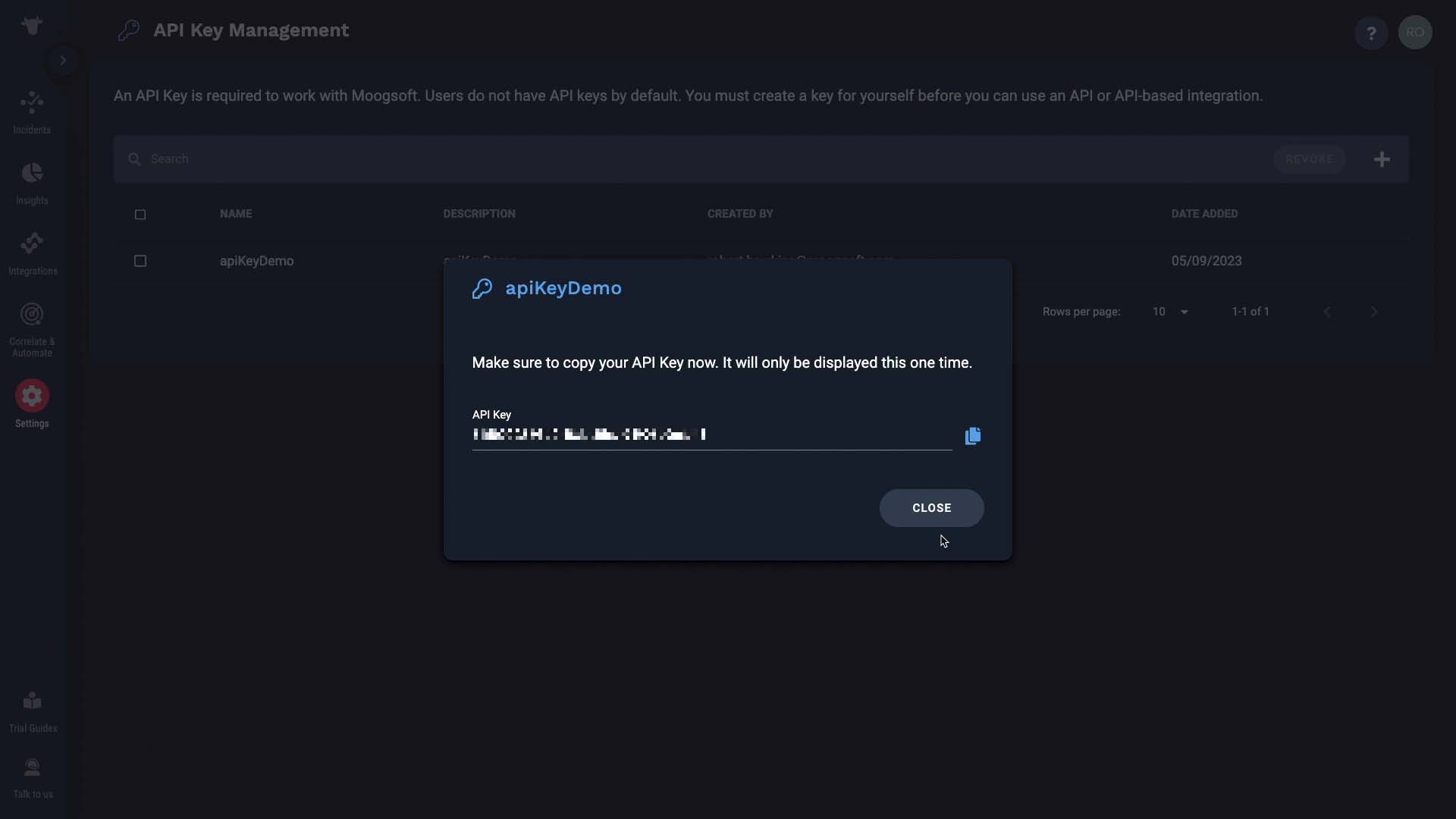
Make sure the name and description make sense to other administrators. Here’s our key. For security reasons, you will not be able to reference it once you move away from this screen, so make sure you copy it.
Next, open up the Incident Management API documentation and navigate to the Event API section. This is the endpoint for the Events API.
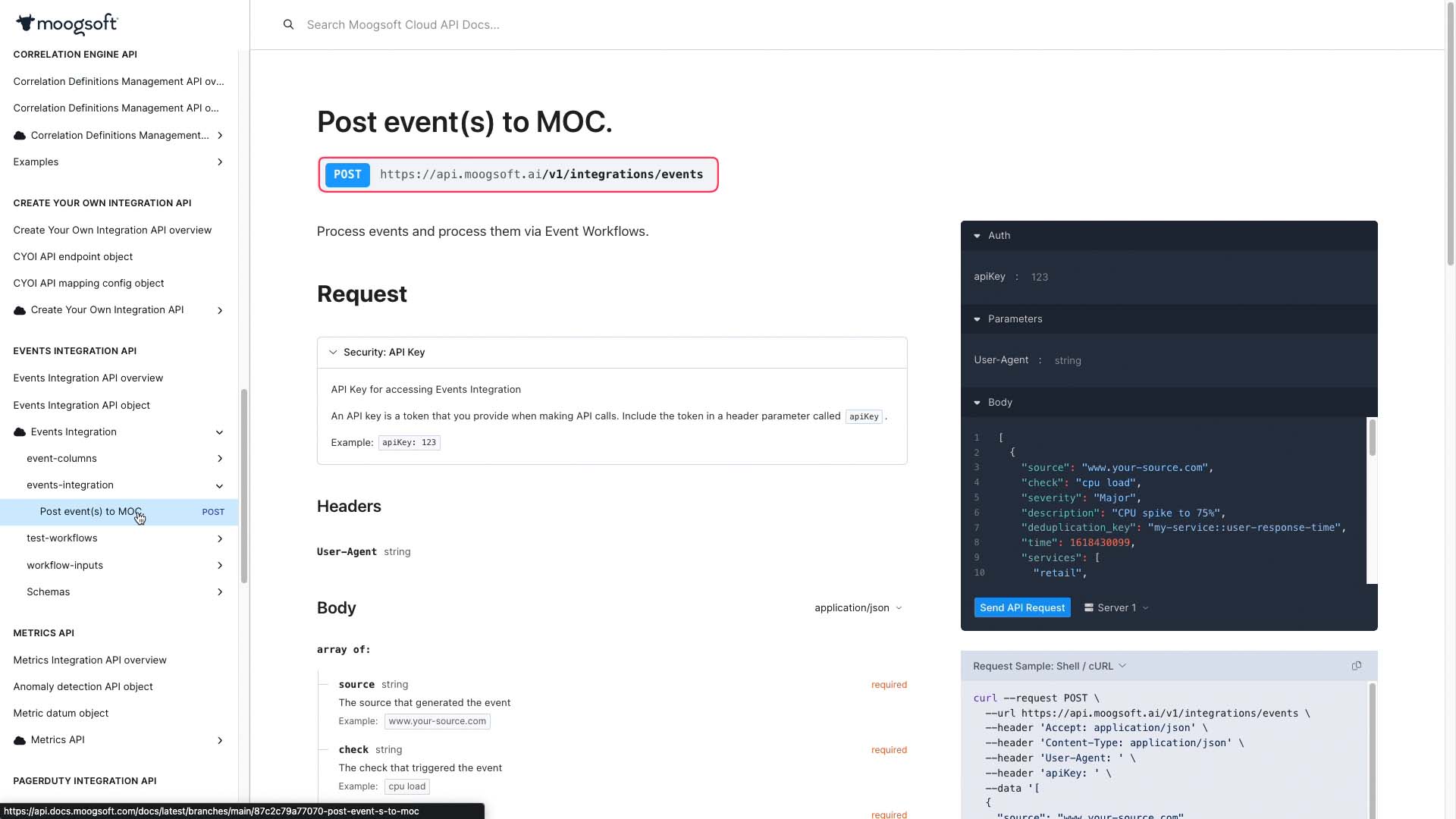
And you get sample code in a variety of languages.
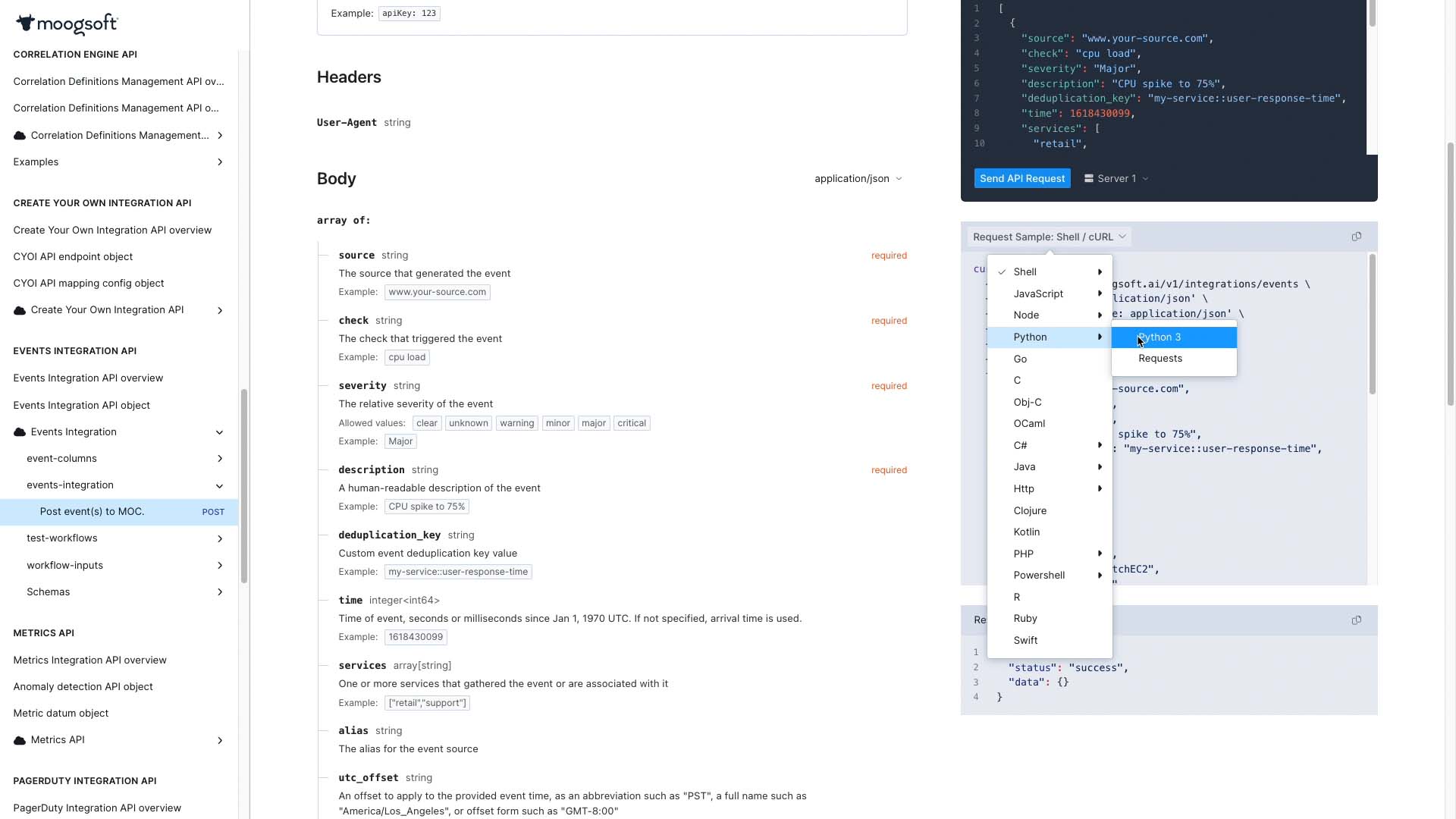
Plug in the API key you generated earlier. Now the sample code includes your key, so it will send requests to your own instance of Incident Management.
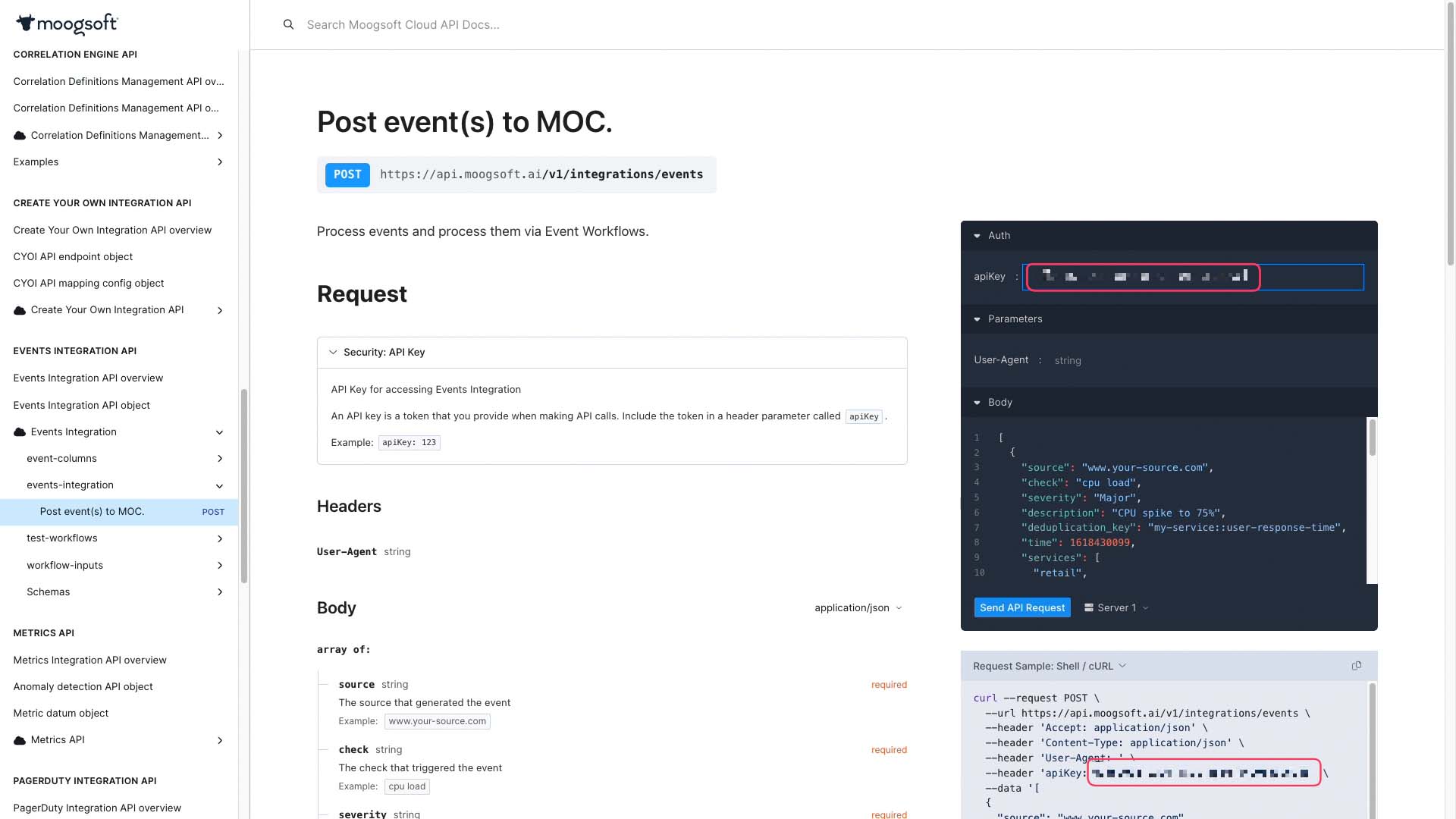
You can modify the sample code to make it fit your purpose. Let’s send this request and see what we get. Success!
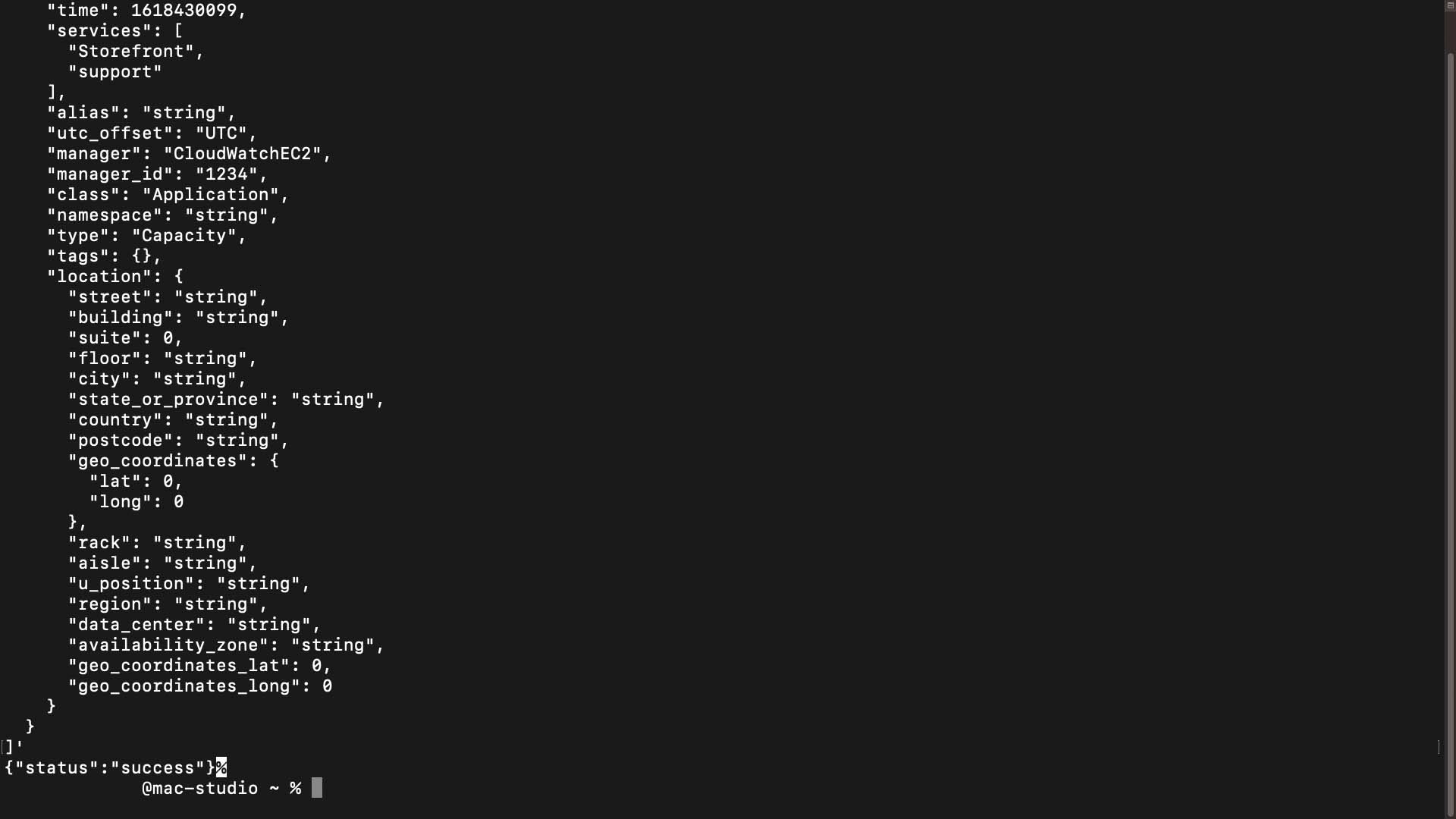
Continue editing and testing here, and when you are done, you could send it from here, or copy and paste the resulting code into a CLI. We could also build shell scripts to add additional logic and conditionals that we simulated in the api docs site.
Metrics API works the same way. You can extend the sample and test it here.
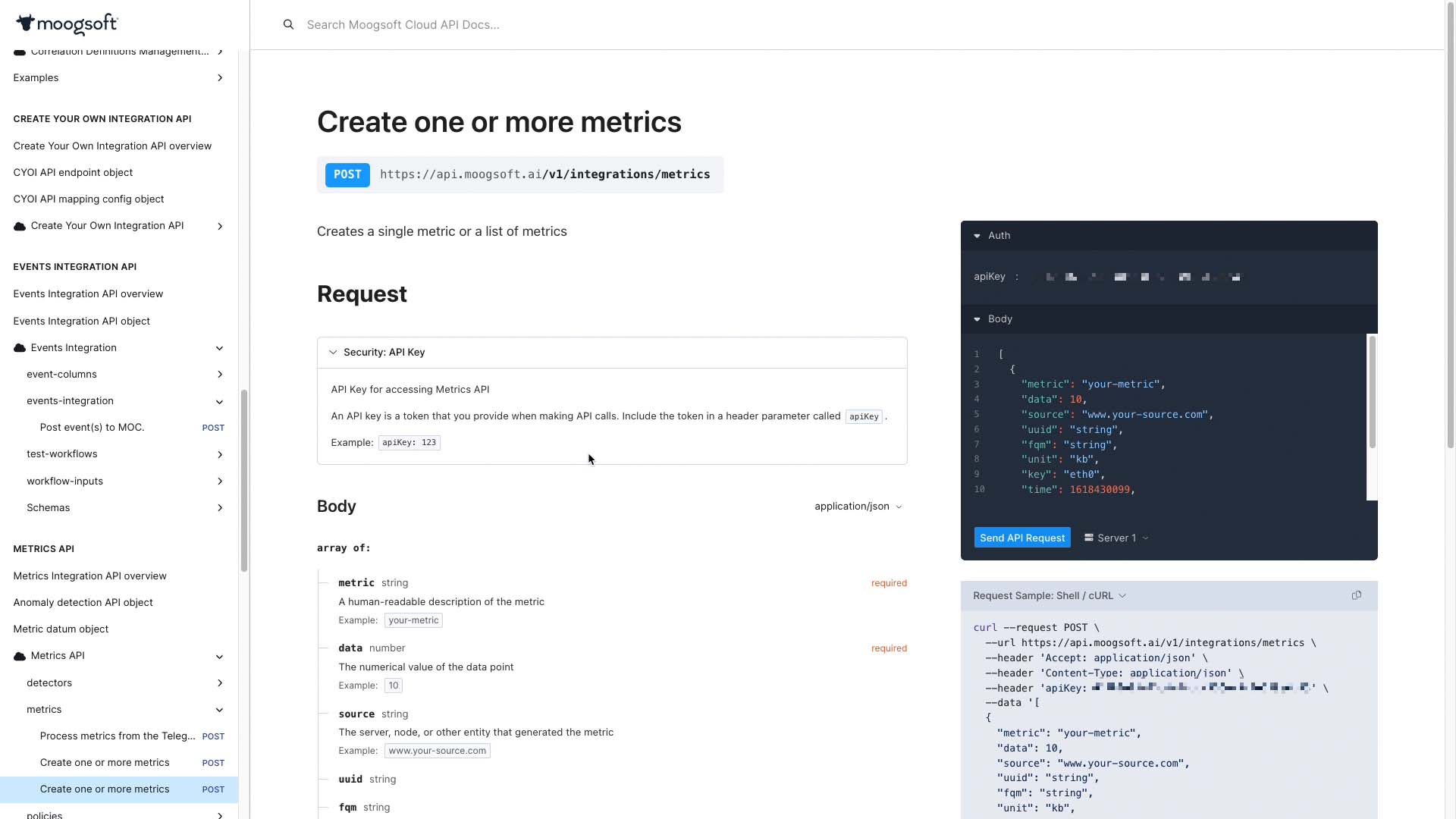
Now you know how to take advantage of our API documentation. Thanks for watching!